'Moonlight' allows you to play games on your home gaming PC from anywhere via the Internet
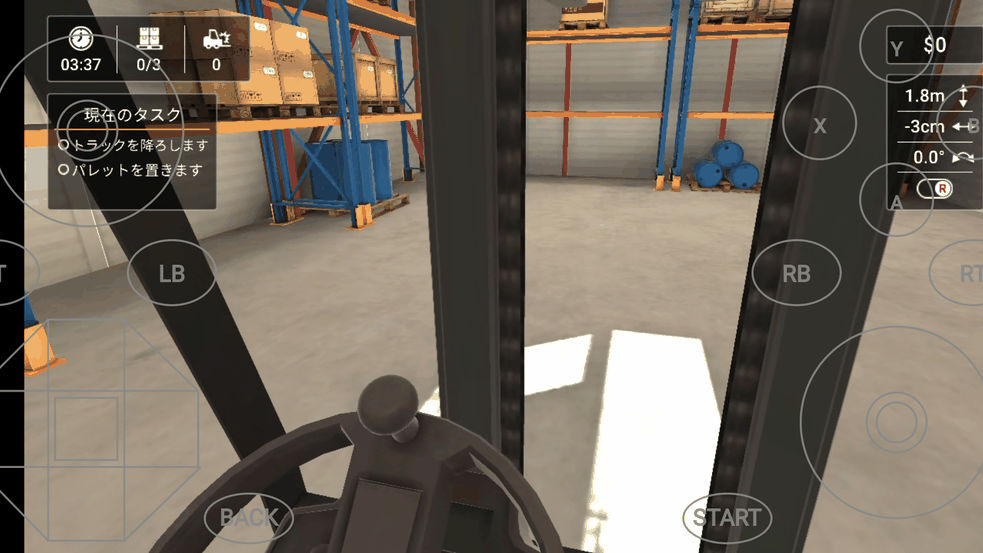
Moonlight Game Streaming: Play Your PC Games Remotely
https://moonlight-stream.org/

Sunshine
Host side setup
The environment we will be introducing this time is as follows.
OS: Windows 11
GPU:
Game platform: Steam
Host Server: Sunshine
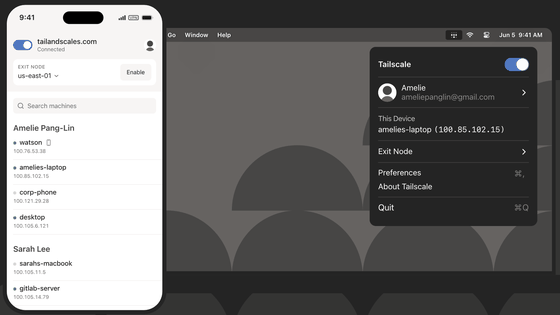
VPN: Tailscale
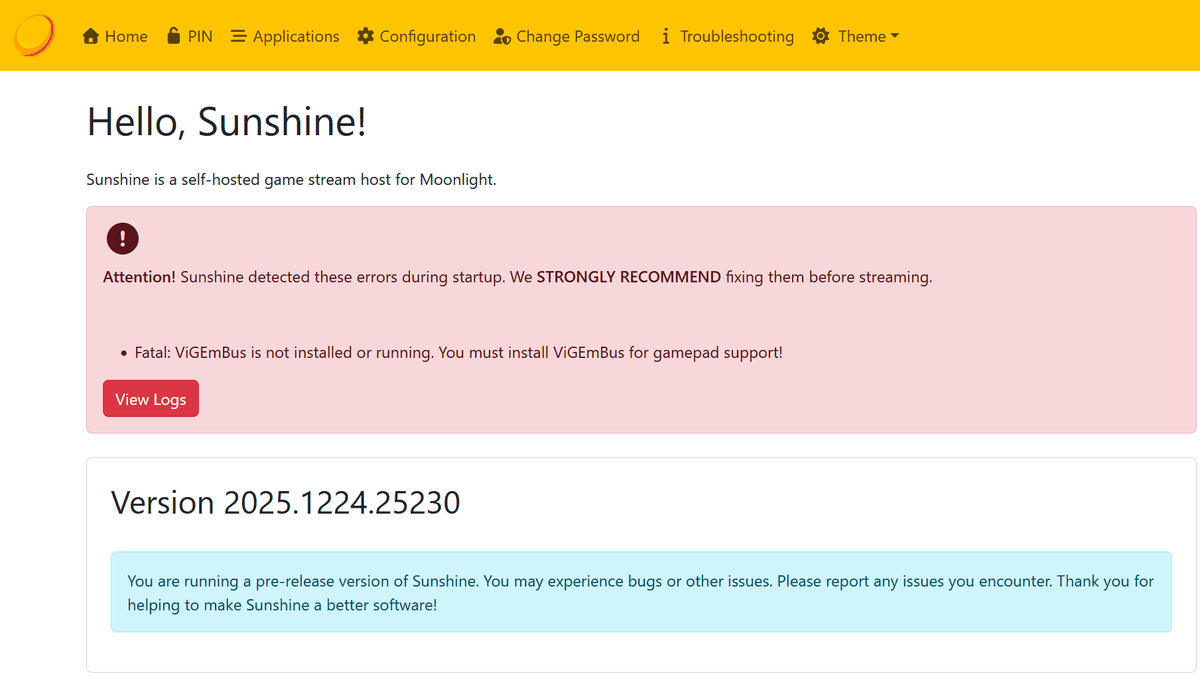
This assumes that a VPN environment has been created. If you want to use the virtual controller on an Android device, you must first install ViGEmBus .
To install the distribution server on the host PC, download the Windows installer from Assets on the Sunshine Releases page.
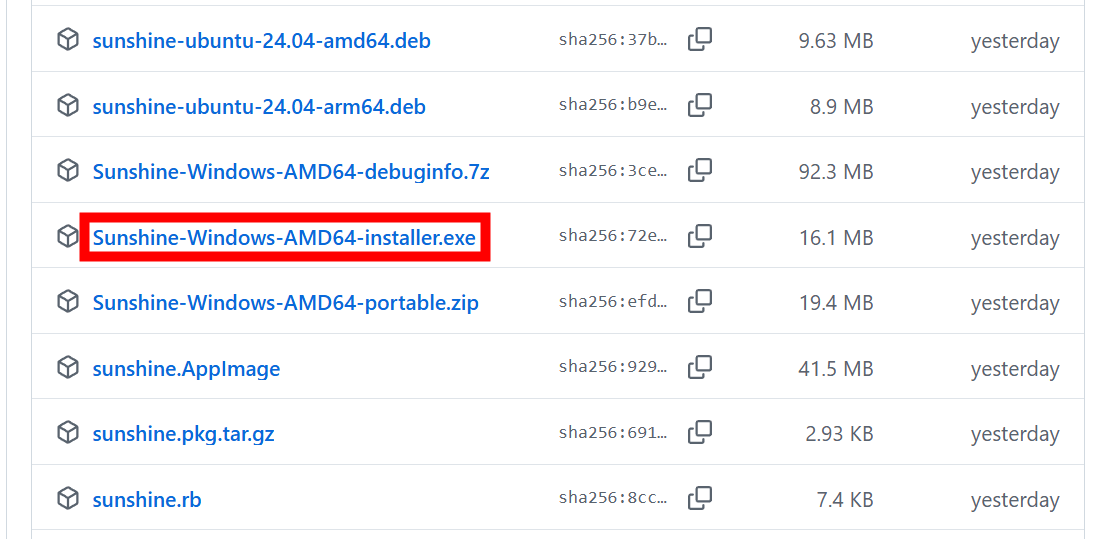
Double-click the downloaded installer to start the installer.

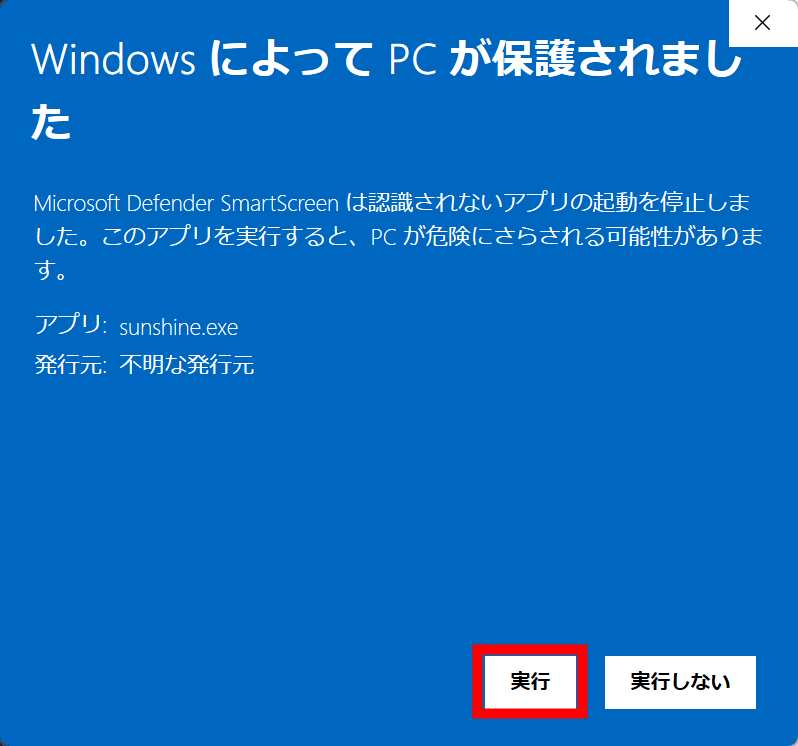
If a protection warning appears, click 'More information.'
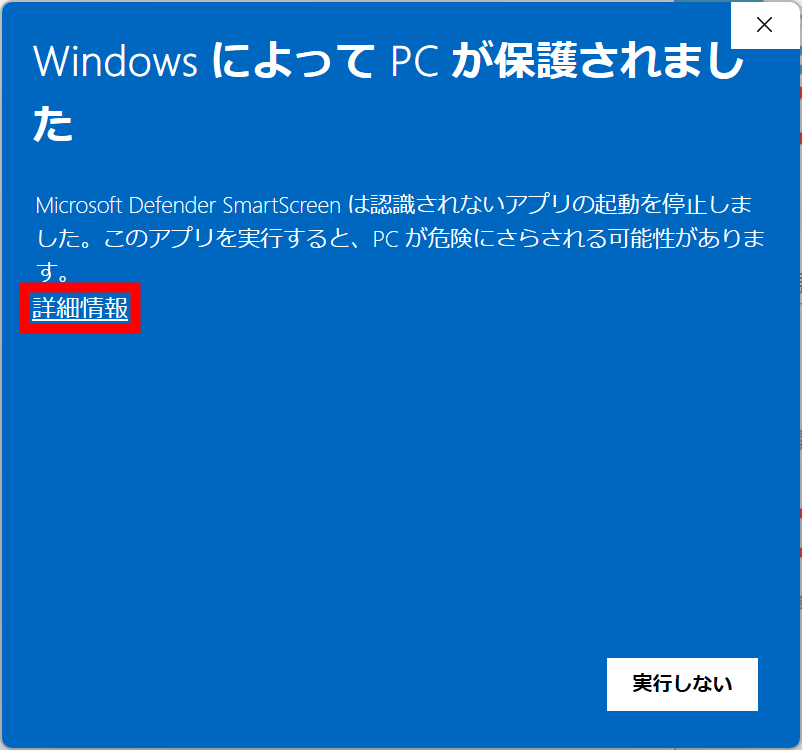
Click 'Run'.
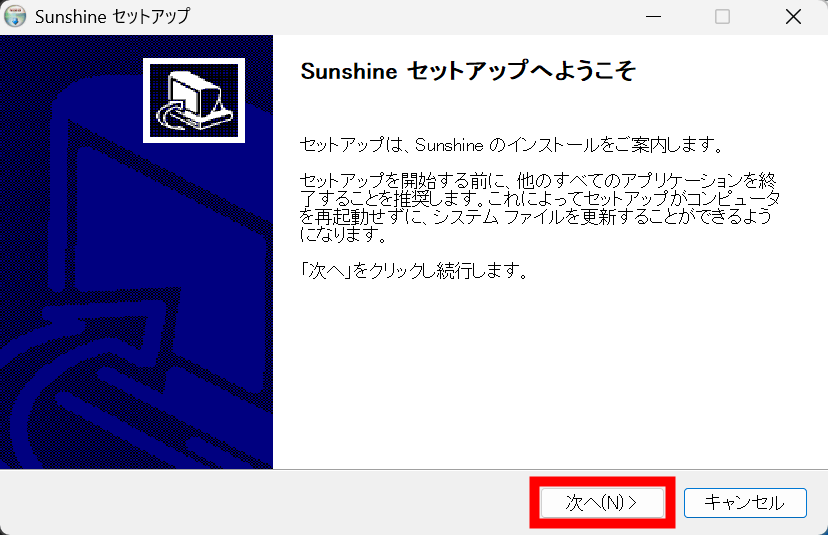
Click “Next”.
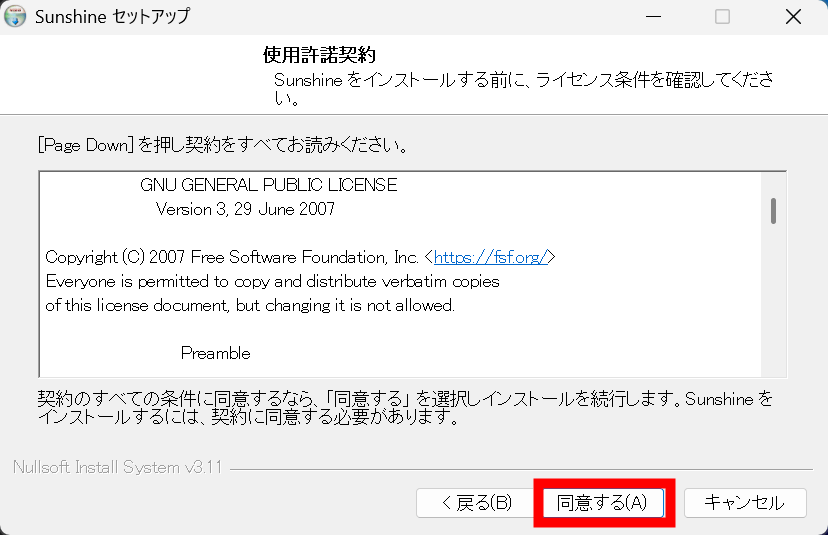
Click 'Agree'.
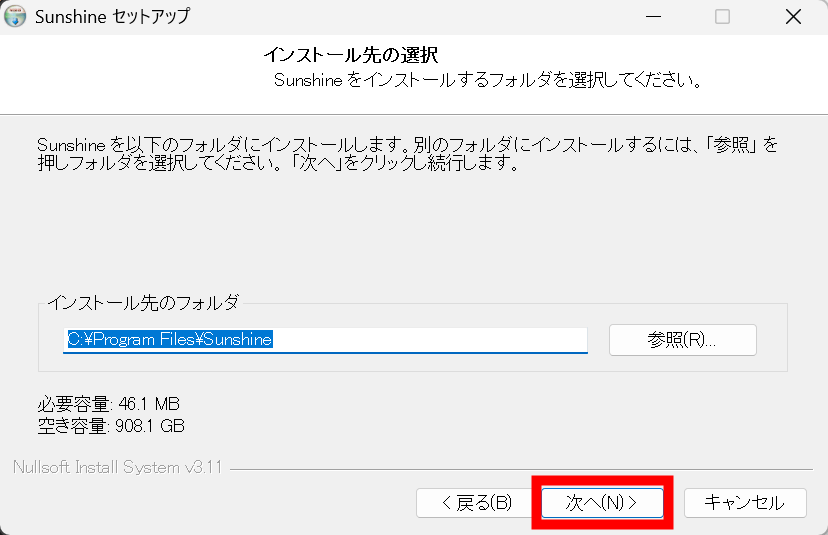
Select the installation folder and click 'Next'.
If you want to register it in the Start menu, just click 'Next'.
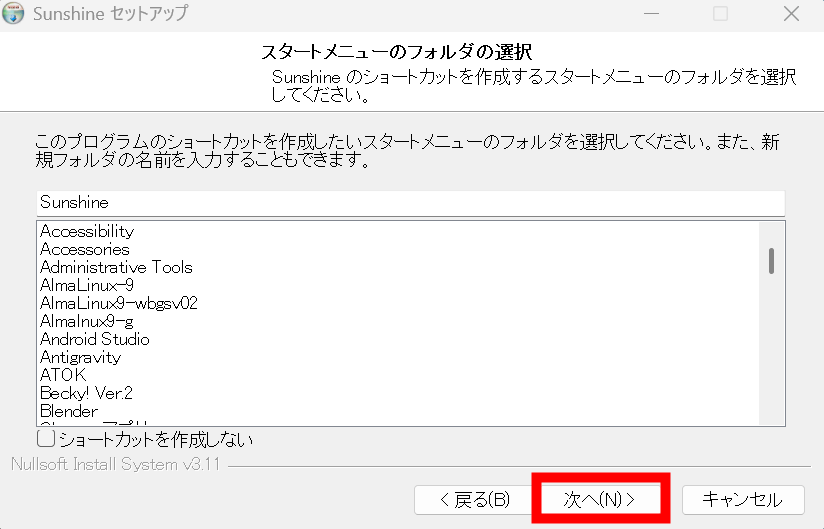
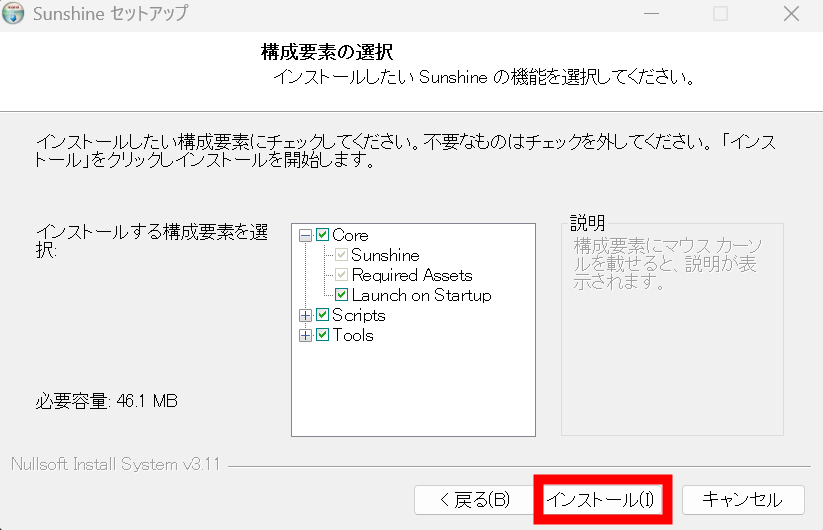
Click 'Install'.
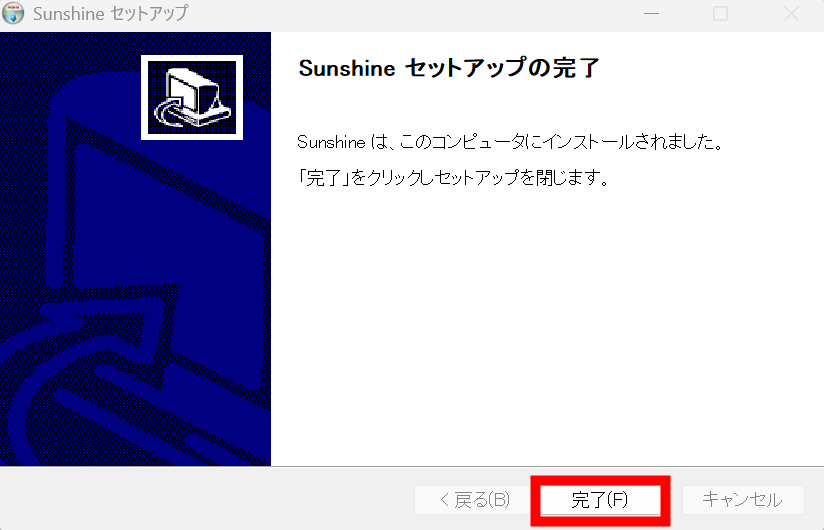
When the setup is complete, click 'Finish.'
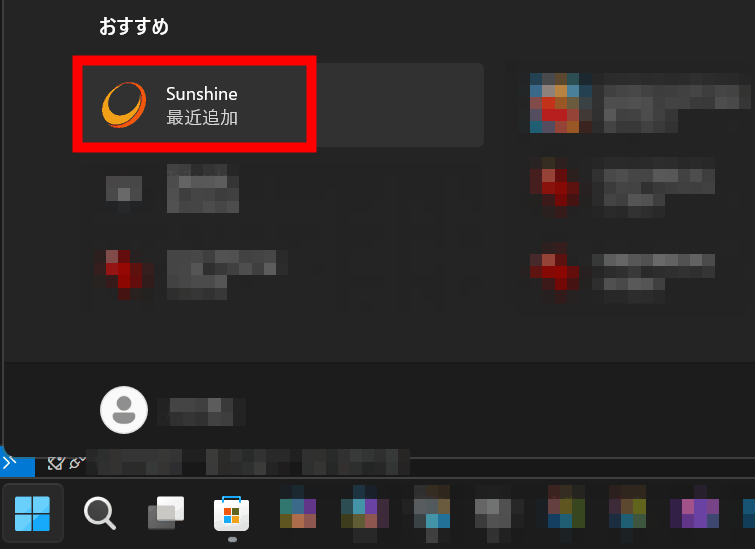
Click the Start button and then click the Sunshine icon to launch it.
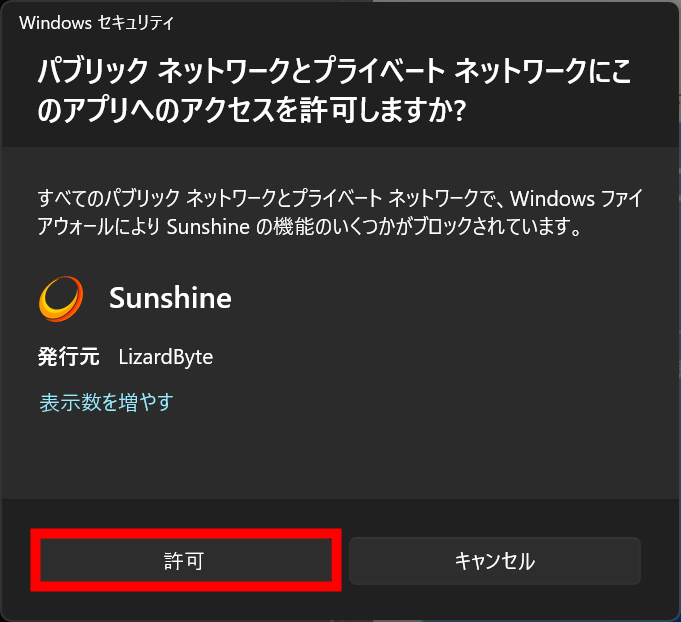
If a window appears asking for permission to access the app, click 'Allow.'
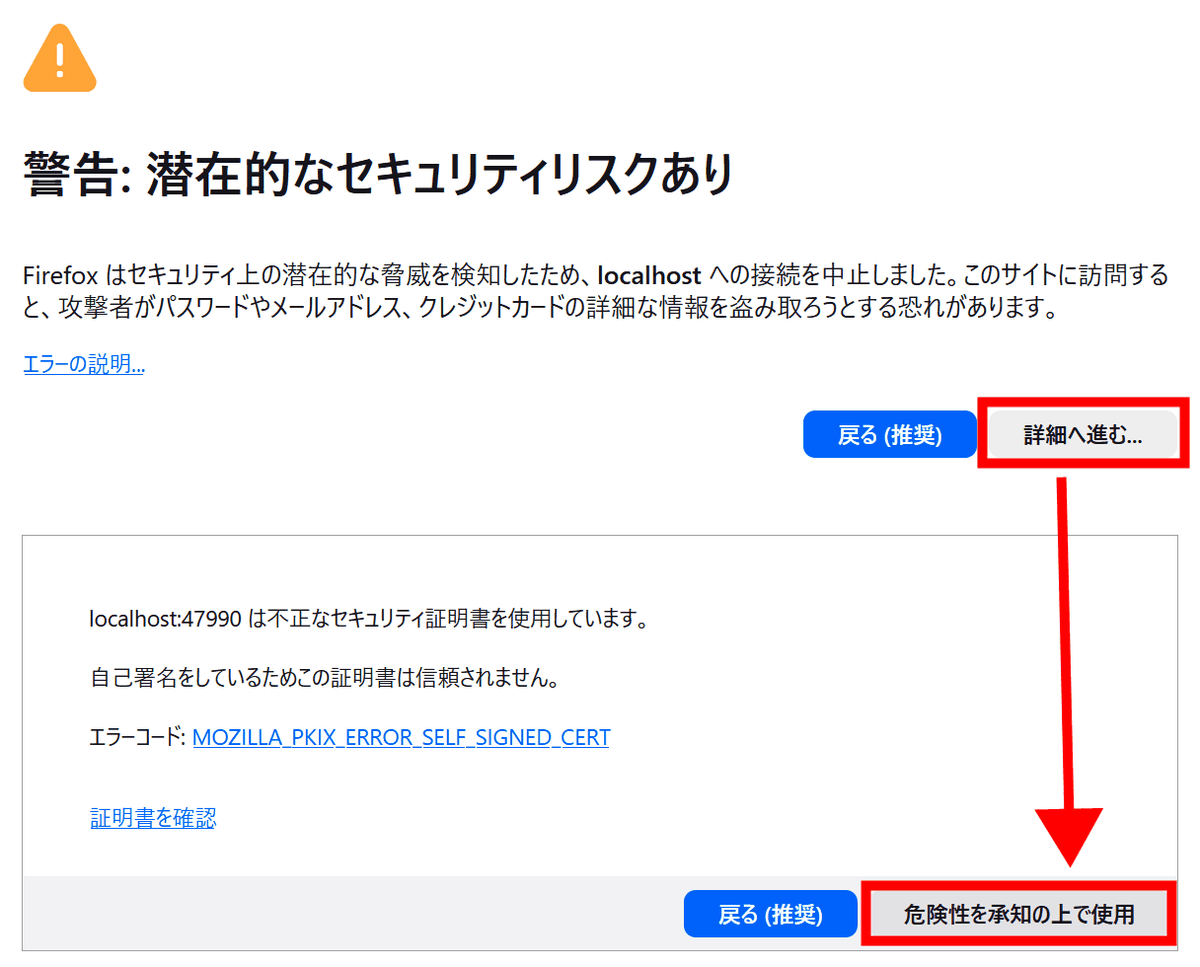
The browser will automatically launch and you will be taken to the admin page. If a security warning appears, click 'Proceed to details' and then 'I accept the risks' to proceed.
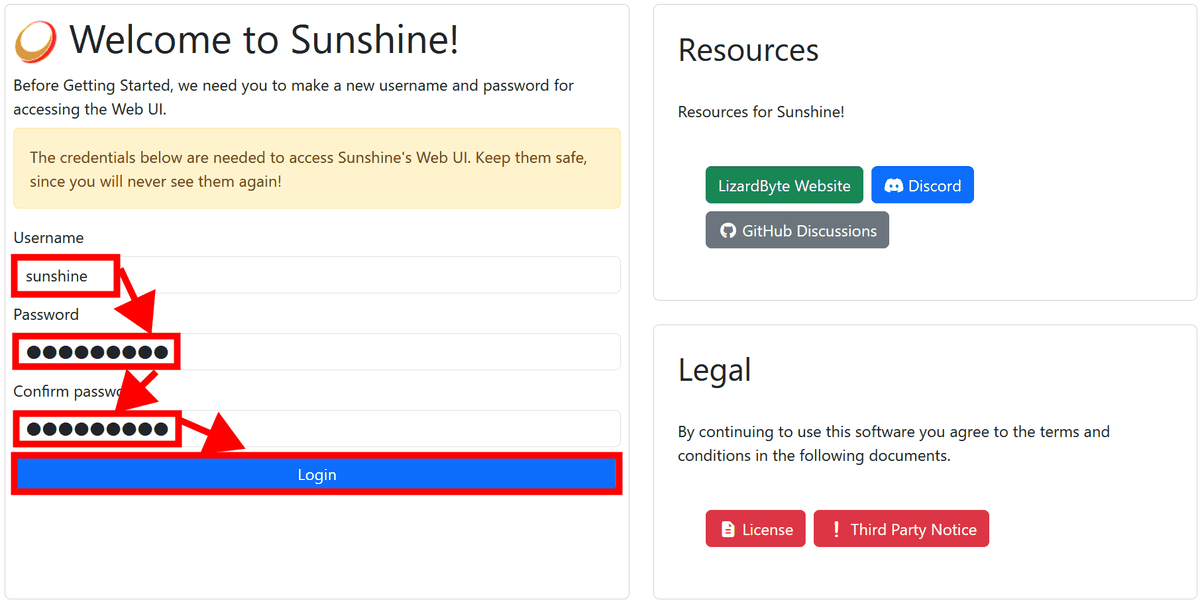
The initial page will be displayed. Enter the username you want to use in 'Username' and the password you want to use in 'Password' and 'Confirm password', then click 'Login' to create the user.
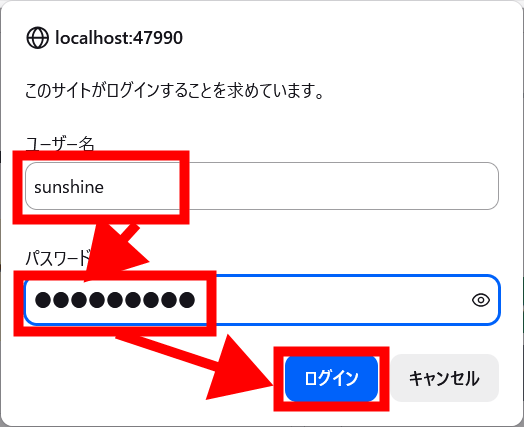
After creating the user, click 'Login' again. This time, a BASIC authentication window will appear. Enter the username and password you created earlier and click 'Login'.
The Sunshine management screen is displayed.
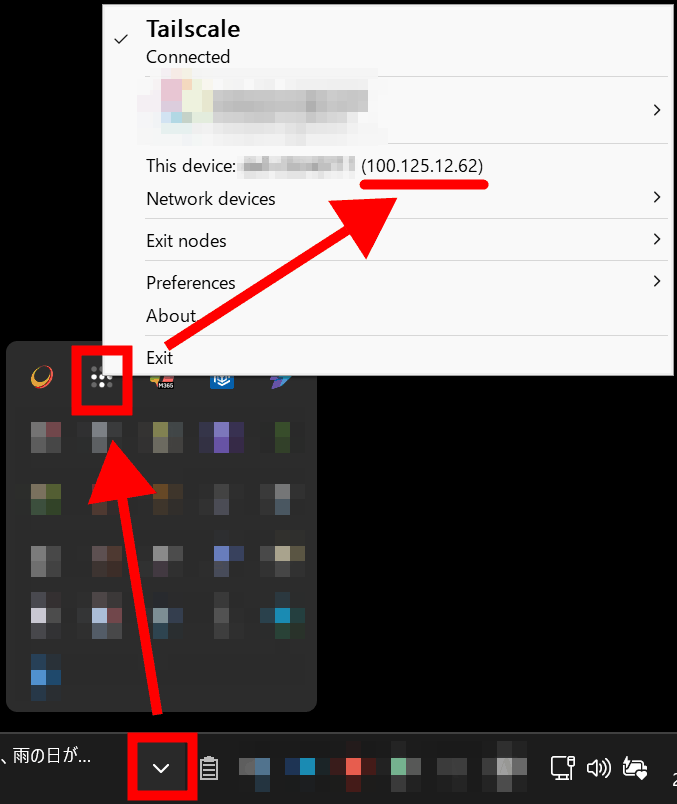
To check the IP address of the host on the VPN required for connection from the client, right-click the Tailscale icon in the taskbar and note the IP displayed under 'This device.'
◆Client-side setup
Clients are available for each device, and can be downloaded from
Once the installation is complete, tap 'Open' to launch the app.
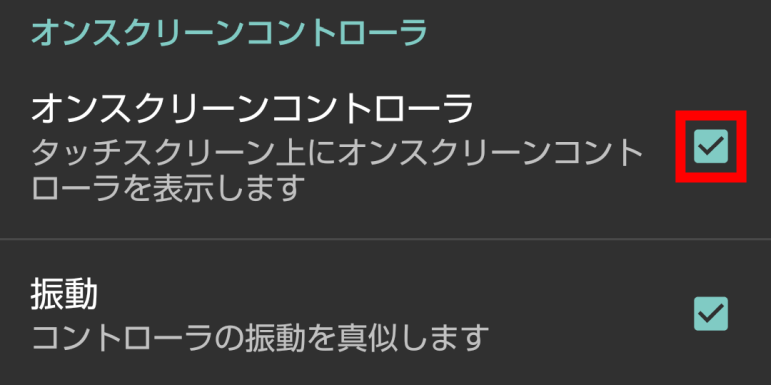
If you don't have a controller connected, tap the gear to set up a virtual controller.

Check 'On-screen controller' and tap the back button on your device to return.
Tap the '+' button to add a host.

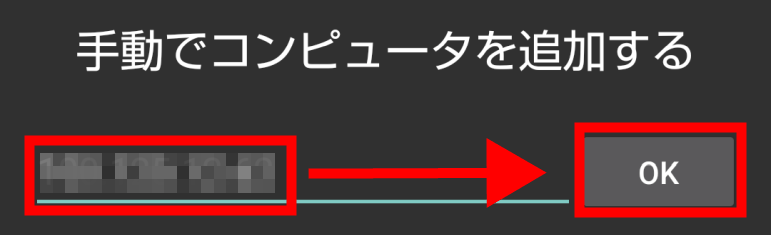
Enter the IP address of the host on the VPN and tap 'OK.'
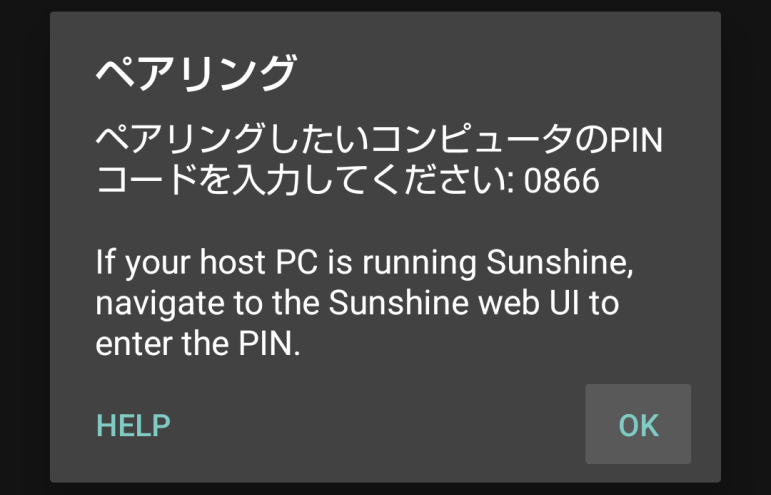
The pairing PIN code will be displayed.
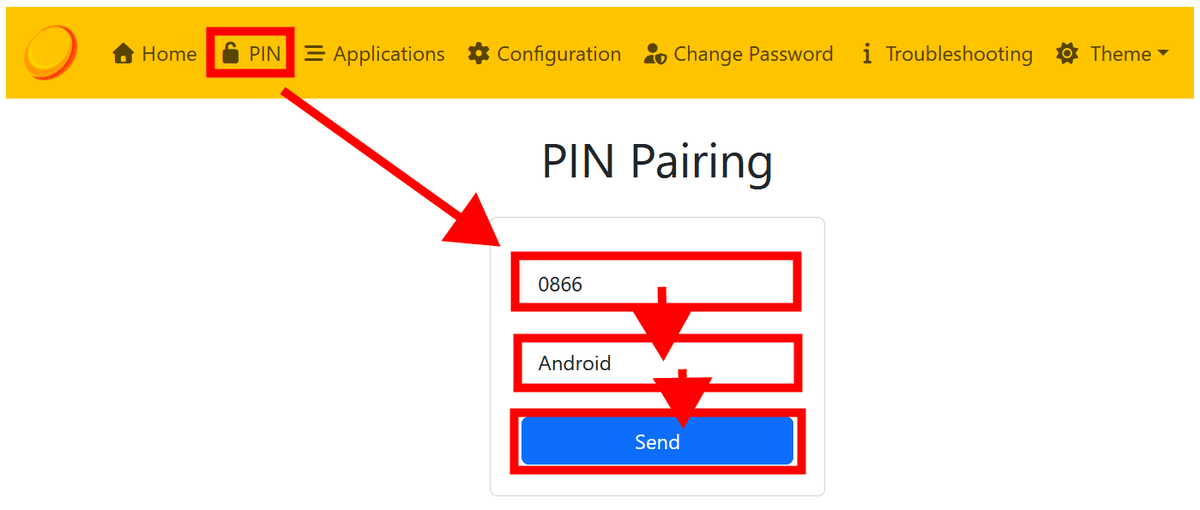
Click 'PIN' from the host's management screen menu, enter the pairing PIN code displayed on the client and the client's device name, and click 'Send.'
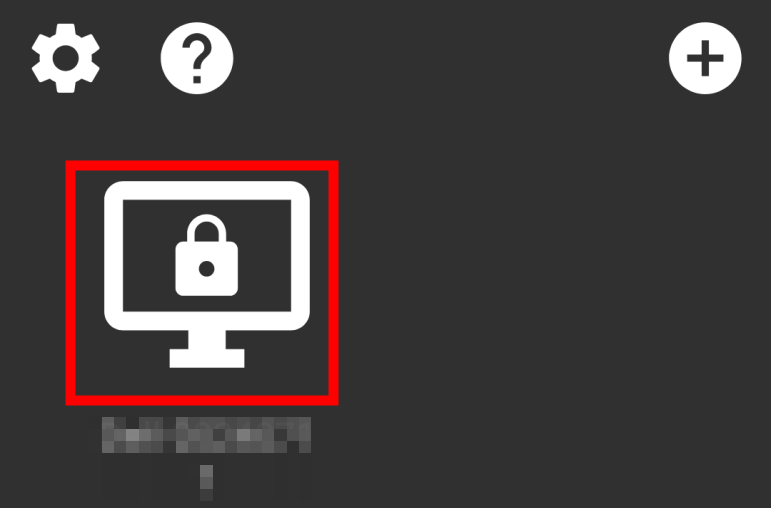
Once the connection is complete, a PC icon will appear, so tap it to connect.
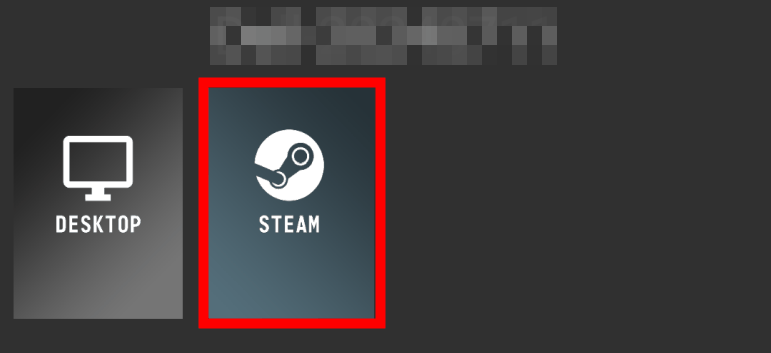
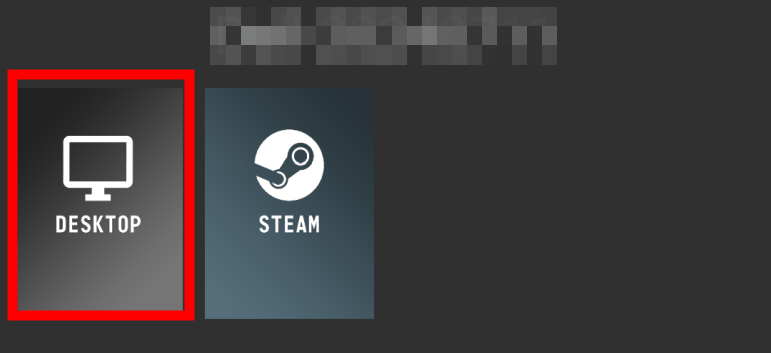
An icon for connecting to the host's desktop and an icon for playing STEAM are displayed, so tap 'STEAM'.
The host's STEAM will automatically launch and display the mobile interface.
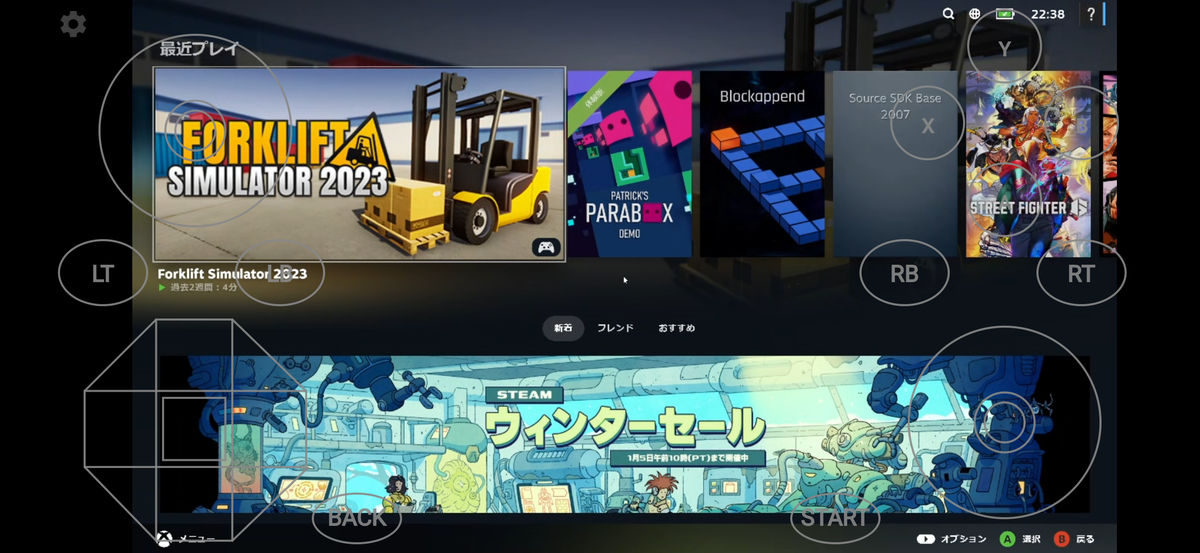
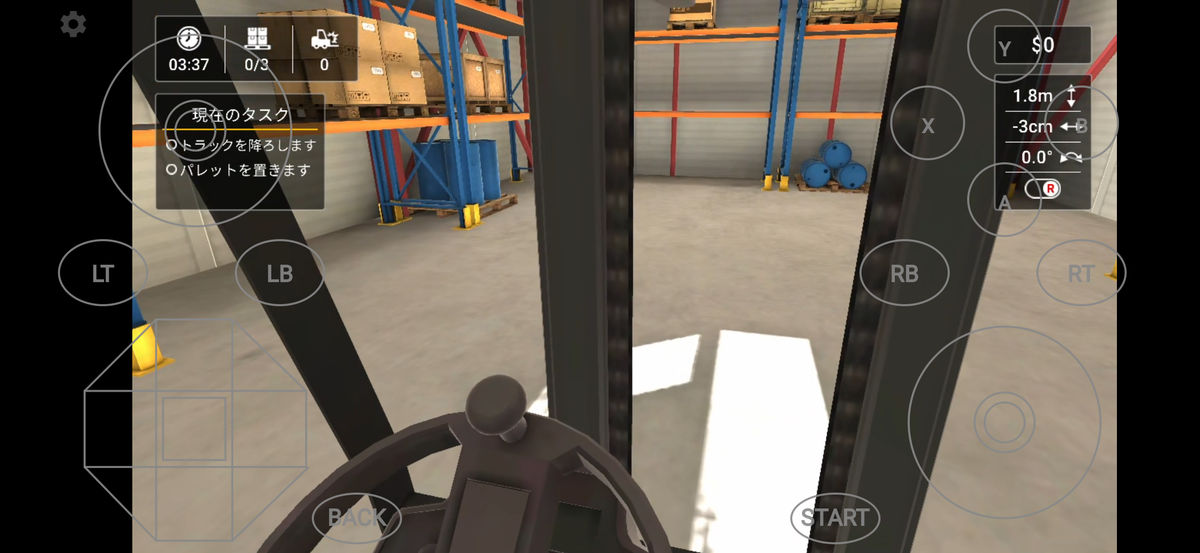
You can also use the virtual controller to navigate the menus, and once you start the game, you can operate it smoothly, although it's not quite usable for FPS or action games.
Next, to try the desktop connection, return to the host connection screen and tap 'DESKTOP.'
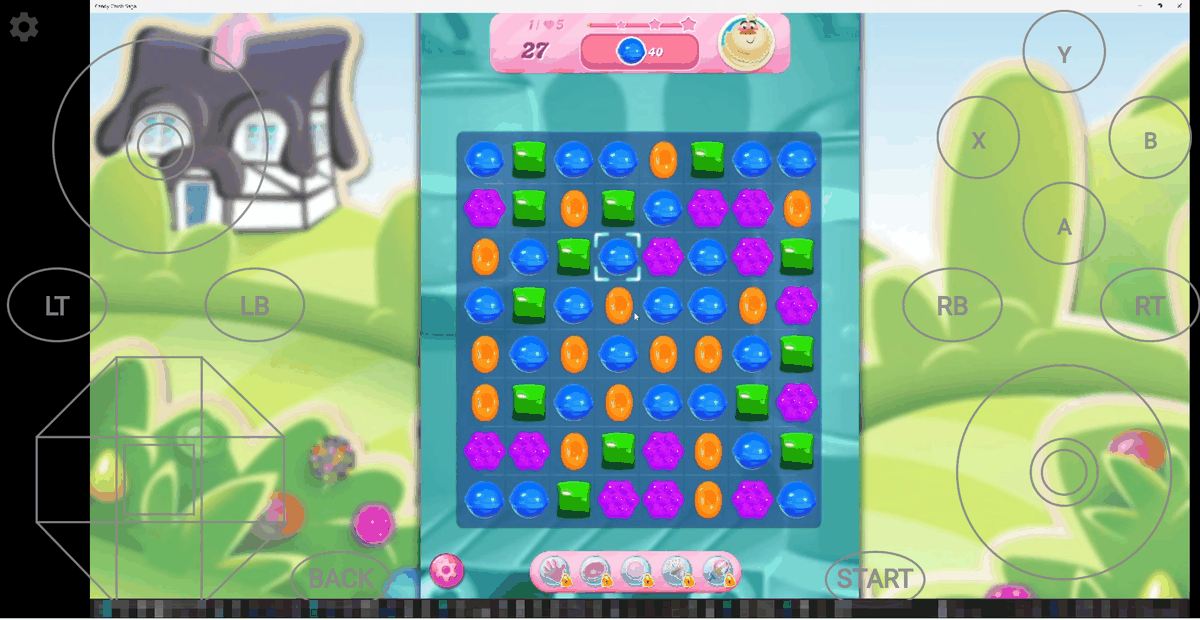
Since the desktop was shared, when I launched a Windows app game it opened as a normal window.

The window was hard to see when it was small, so I maximized it and was able to play it just like a Steam game.
Please note that the line environment has a large impact, so a stable line environment is required.
Related Posts:
in Software, Review, Game, Web Application, Posted by darkhorse_logmk