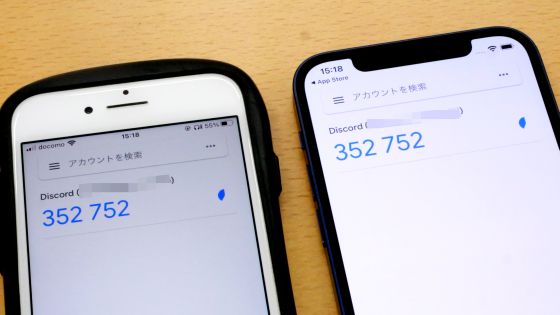
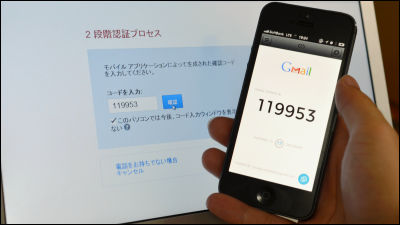
A simple way to extract the authentication key from a two-factor authentication QR code on Windows and generate a TOTP one-time password
When signing in to web services, many people have set up two-step authentication or multi-factor authentication because authentication using only an email address and password can be insecure. However, authentication using SMS or an authentication app is heavily dependent on the mobile device, so if you lose or damage your registered smartphone, you will not be able to sign in.
Password managers such as
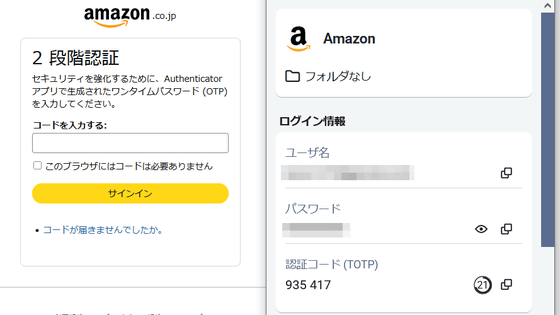
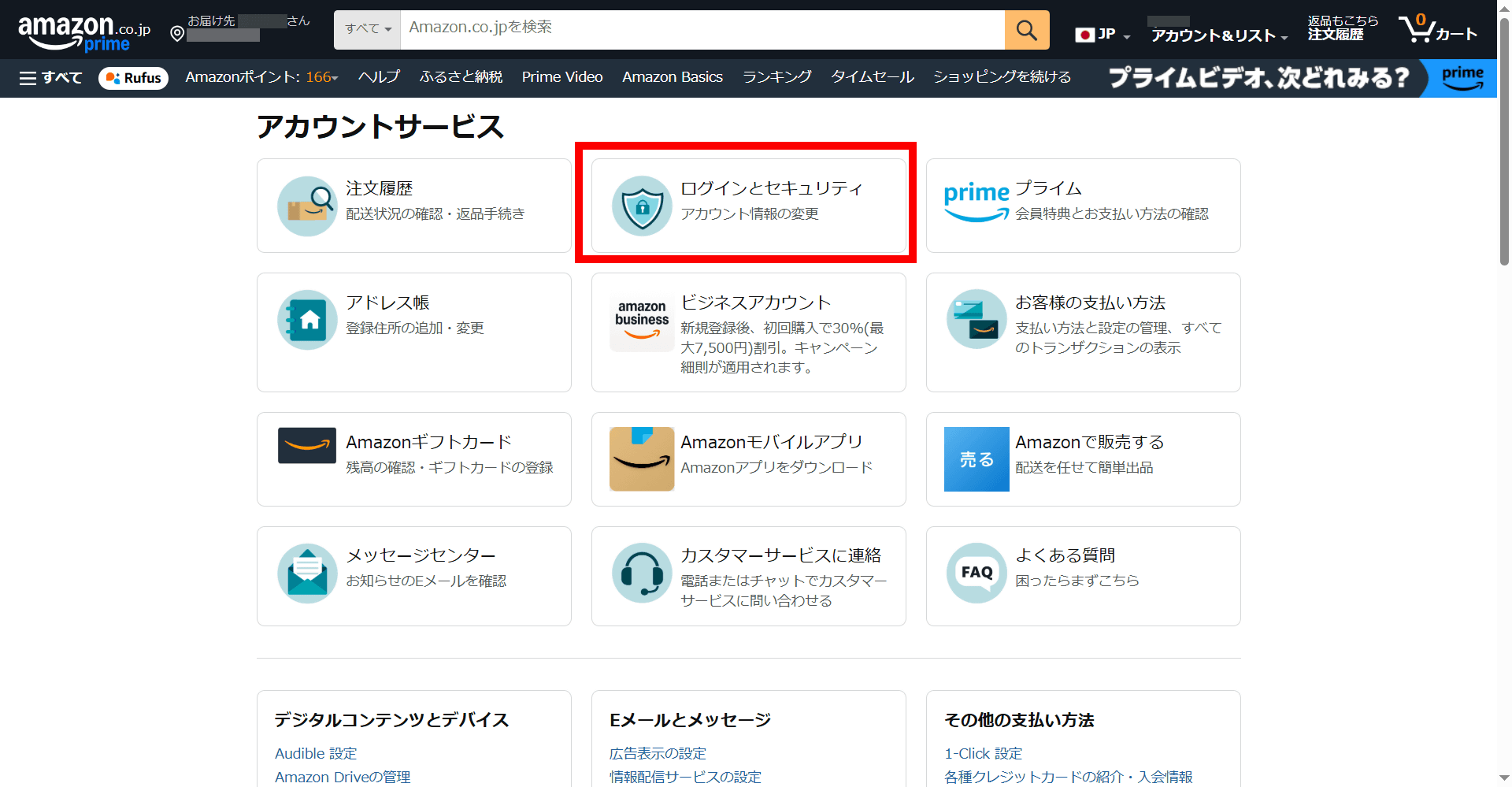
This time, we will use Amazon's two-factor authentication to easily log in using Bitwarden, an open source password manager. Click 'Login and Security' from Amazon Account Services.
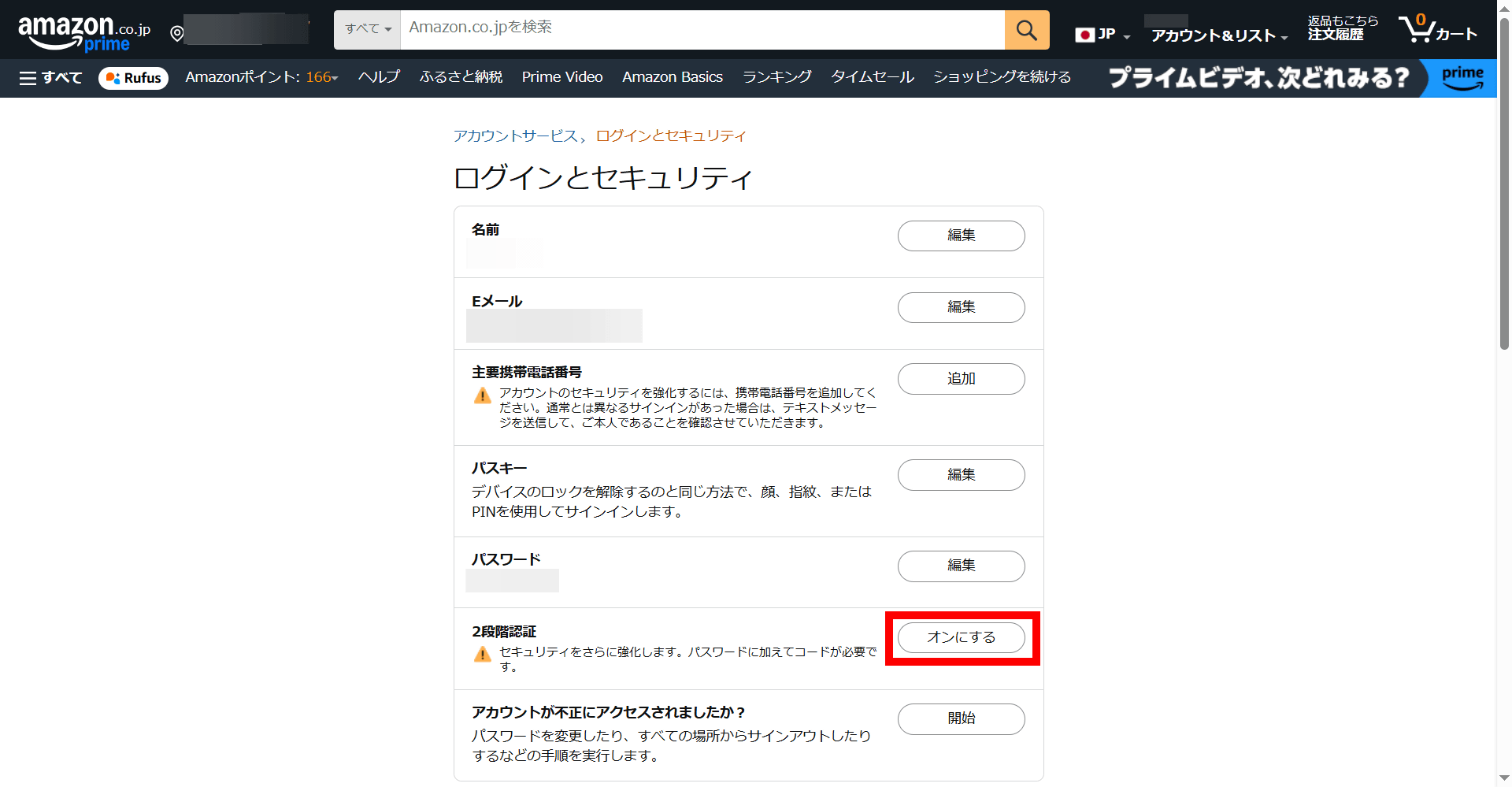
Click 'Turn on' for 'Two-step authentication.'
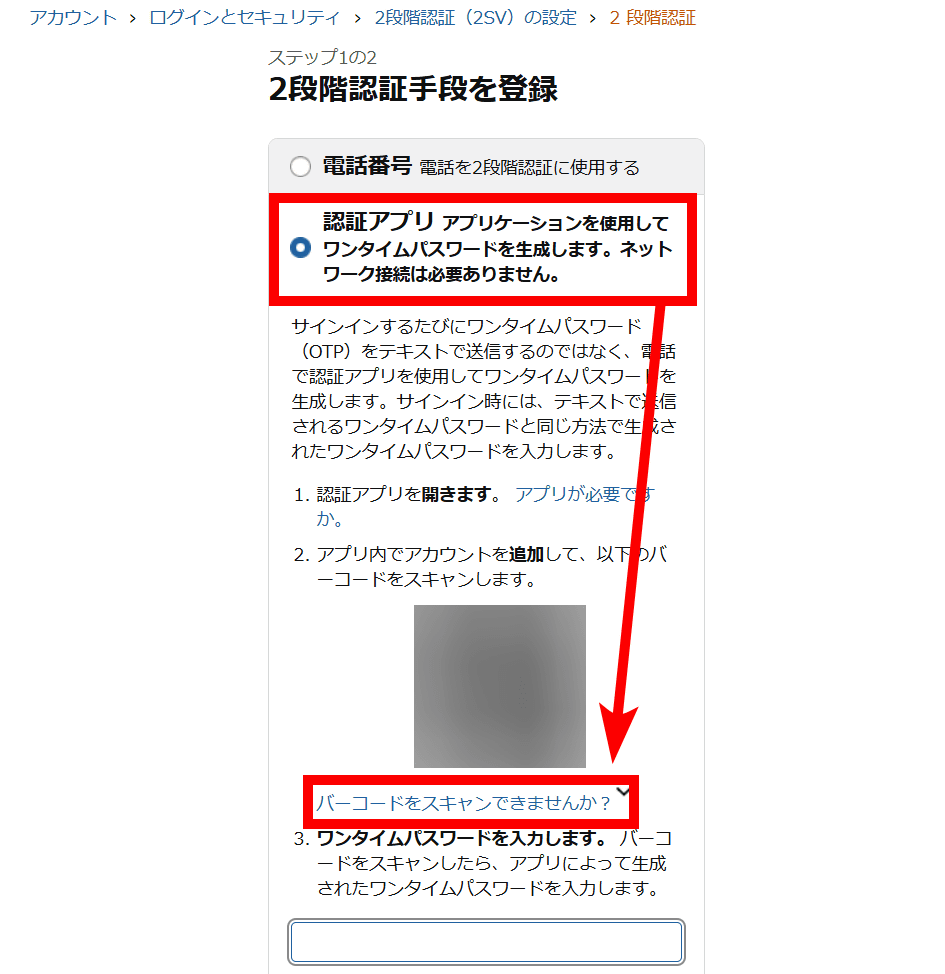
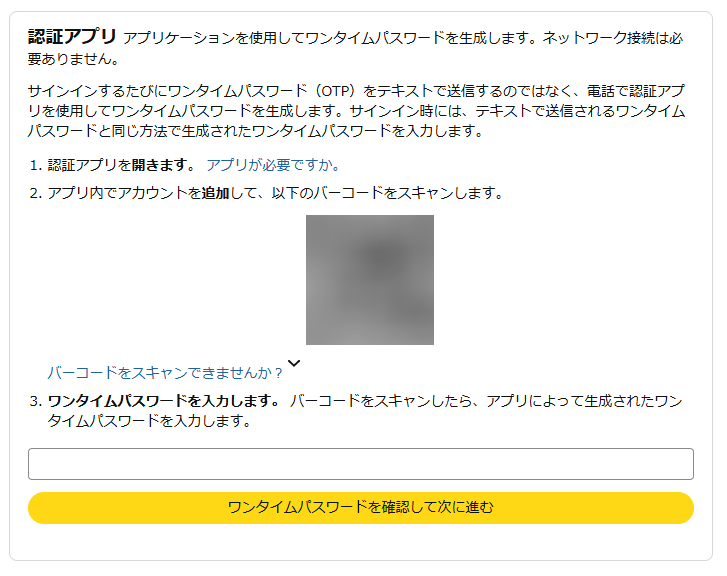
The two-step authentication registration screen will appear. Select 'Authentication App' and a QR code will be displayed. Below this QR code, the message 'Can you scan the barcode?' will appear, so click on it.
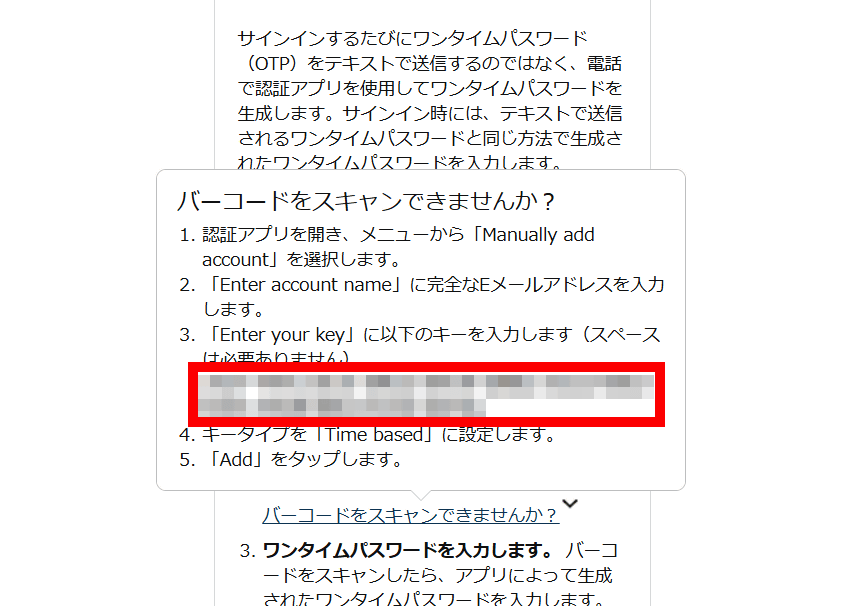
The authentication key will then be displayed, so copy it.
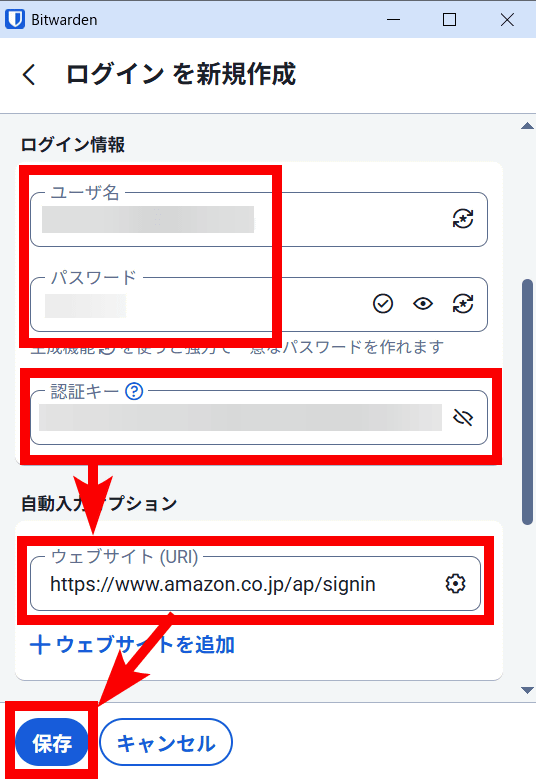
Register your login information on Bitwarden. Enter your 'Username' and 'Password,' as well as the key you copied earlier in the 'Authentication Key' field. Enter 'https://www.amazon.co.jp/ap/signin' in the URL field and click 'Save.'
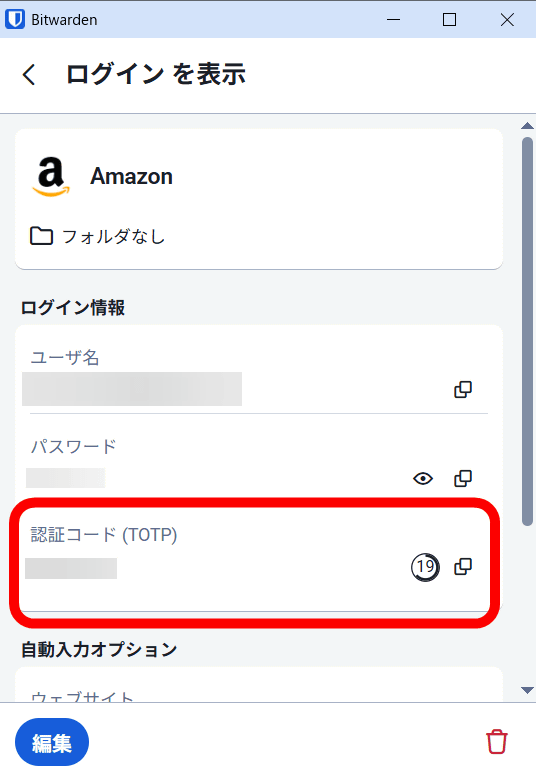
Then, the one-time password generated by the authentication app was generated on Bitwarden.
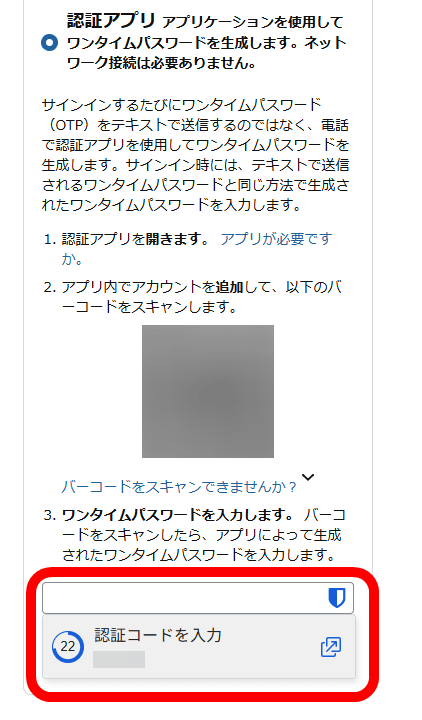
Return to Amazon's two-step authentication registration screen and enter the authentication code to successfully complete two-step authentication.
Amazon is designed to display the authentication key in case the QR code cannot be read, but there are cases where the authentication key is unknown. In this case, we will use the open-source multi-function capture software 'ShareX' to extract the authentication key from the QR code.
ShareX - Free download and installation on Windows | Microsoft Store
First, take a screenshot of the QR code required to register with the authentication app.
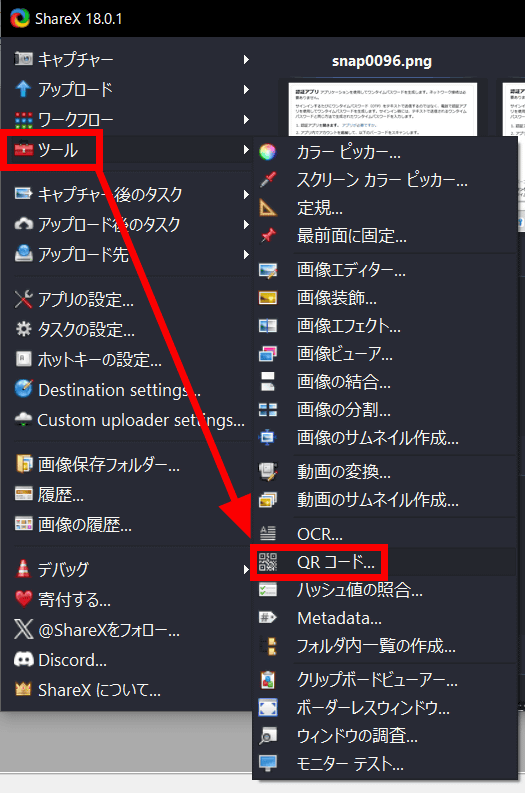
Select 'Tools' from the menu on the left of ShareX and click 'QR Code.'
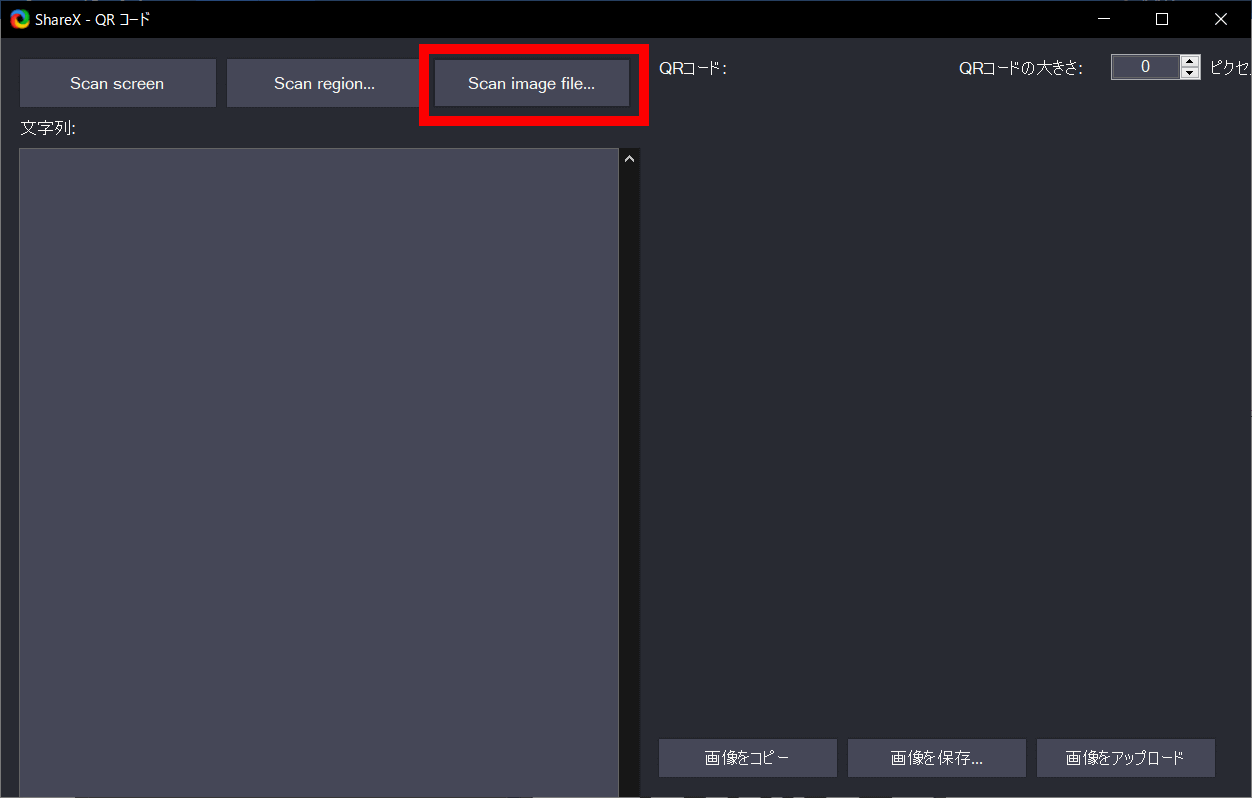
The following window will appear, so click 'Scan image file...' and select the screenshot of the QR code you just took.
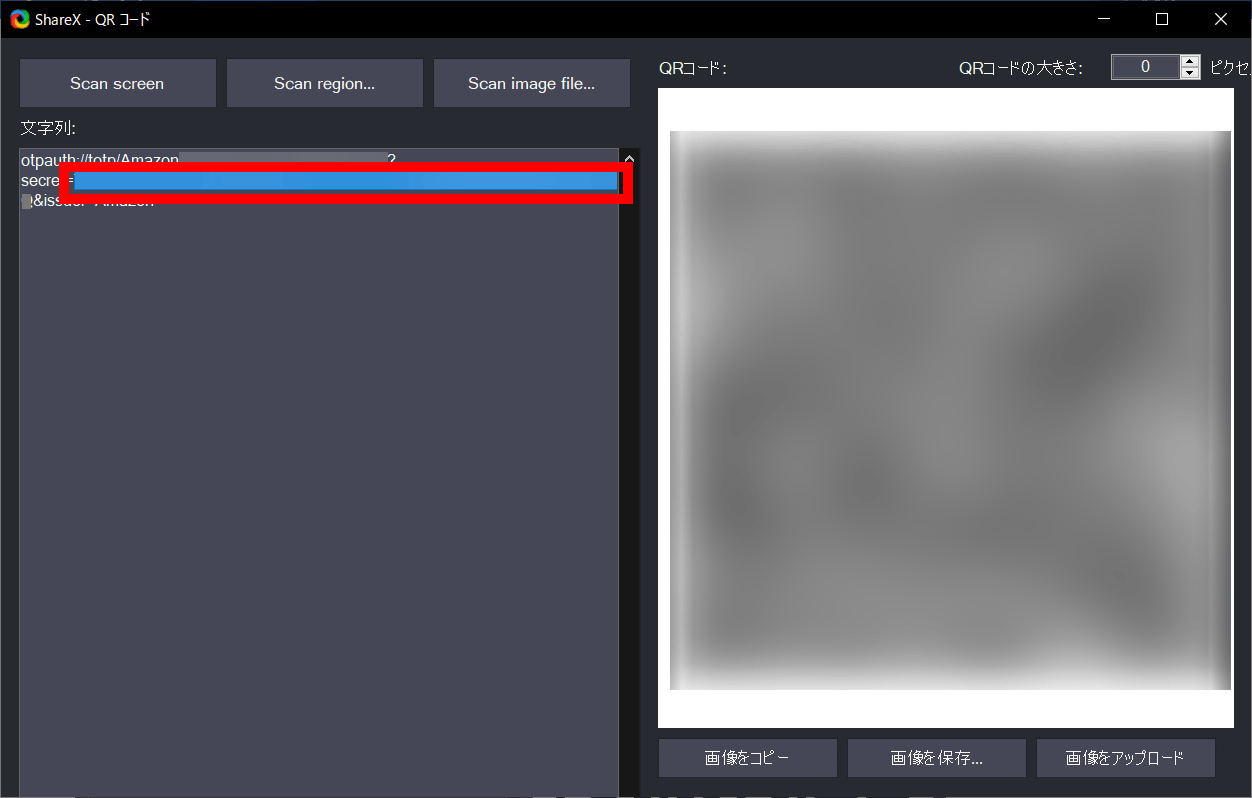
The QR code will then be automatically recognized and the decoded result will be displayed on the left. This decoded string contains the authentication key, which you can then register in a password manager such as Bitwarden.
Bitwarden/Vaultwarden and KeePassXC have mobile apps and browser extensions, so they can be used on both PCs and smartphones, eliminating the need for a specific device. Bitwarden/Vaultwarden also allows you to manage your database on your own server, so you can safely manage your passwords locally. Of course, however, if the master password of the password manager itself is leaked, it's useless, so be careful.
Related Posts: