How to uninstall OneDrive and never bring it back
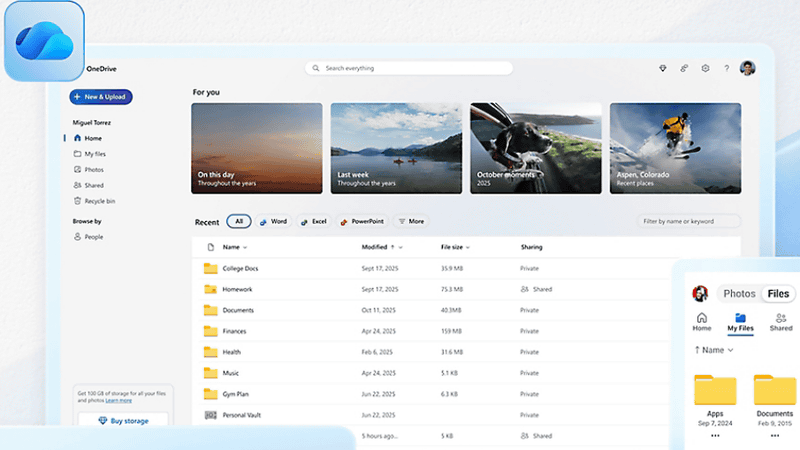
Microsoft's online storage and file sharing service, OneDrive, syncs files with the cloud simply by saving them in the OneDrive folder in File Explorer, making data backups easy. However, because OneDrive comes pre-installed with Windows 11, many users find it annoying, receiving notifications even when they don't plan to use it, or reappearing after every Windows Update even after deleting it. It's also been reported that '
Since no one mentioned how to actually dismiss the notification forever: OneDriv... | Hacker News
https://news.ycombinator.com/item?id=45559394
In a blog post updated in September 2025, software developer Ibrahim Diallo criticized OneDrive as 'the pinnacle of dark patterns.' Notifications displayed in Windows 11 often only offer the options 'Remind me next time (in one week)' or 'Remind me next time (in one month),' with no option for 'Not needed.' In the case of the OneDrive 'Please back up Windows' notification, you can choose 'Not needed' instead of 'Show next time,' but even in that case, the notification about using OneDrive may reappear after a reboot, or even if you selected 'Not needed,' the notification may reappear after applying a major update, making it impossible to reject the notification.
When Diallo's blog became a hot topic on Hacker News, his comment that 'OneDrive can be uninstalled because it's treated as a normal app that's installed by default' drew attention. First, the cloud icon in the bottom right of the taskbar is OneDrive, and if this icon has a line through it, OneDrive is turned off. Even if the cloud icon is disabled with a line through it, OneDrive still appears in File Explorer, and some people find it annoying that a prompt appears every time they accidentally click on it.
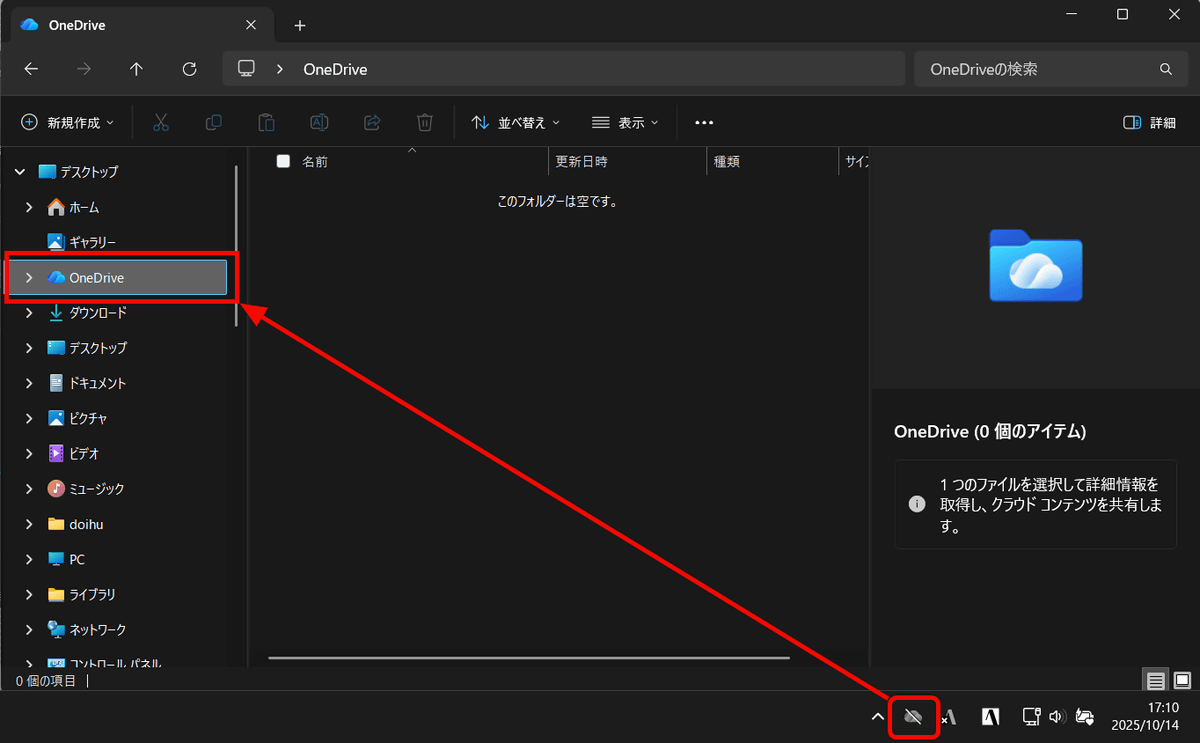
You can uninstall OneDrive from the Control Panel. However, if you uninstall OneDrive while it is in use, the files under OneDrive will be deleted, so you'll need to back them up. Even if you don't intentionally use OneDrive, if you log in to your Microsoft account and use Windows, OneDrive may automatically sync your local files to the cloud. If you uninstall OneDrive in this state, all of your local files may be deleted. Check your OneDrive folder, and if any files exist, move them to a local folder or back them up to external media.
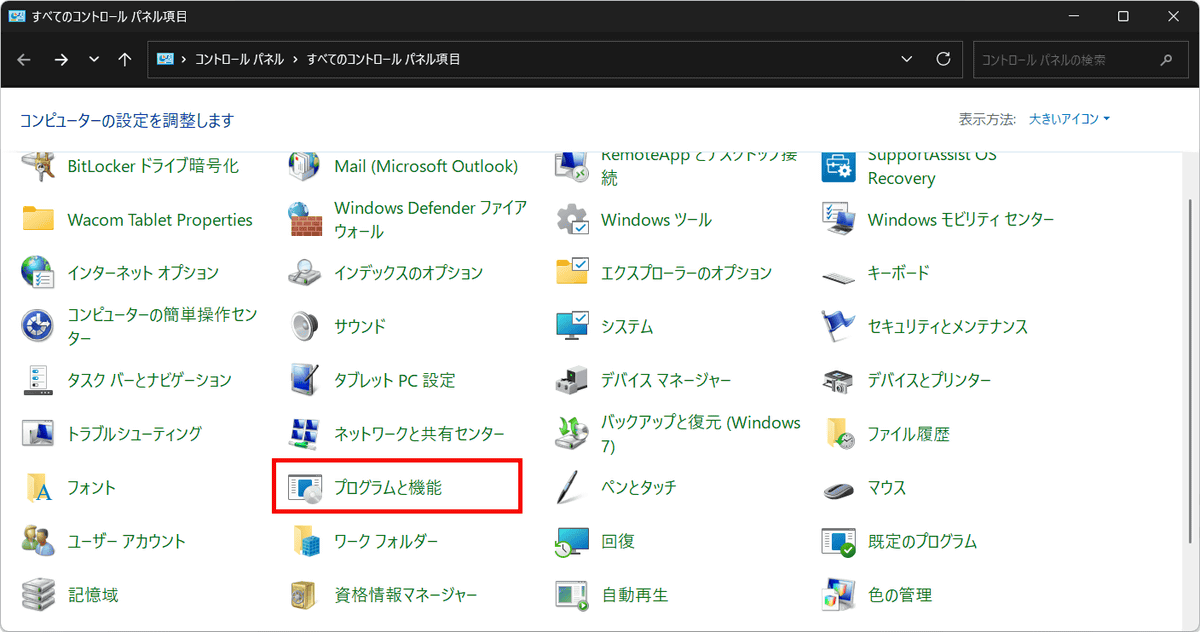
To uninstall OneDrive, open the Control Panel and click 'Programs and Features.'
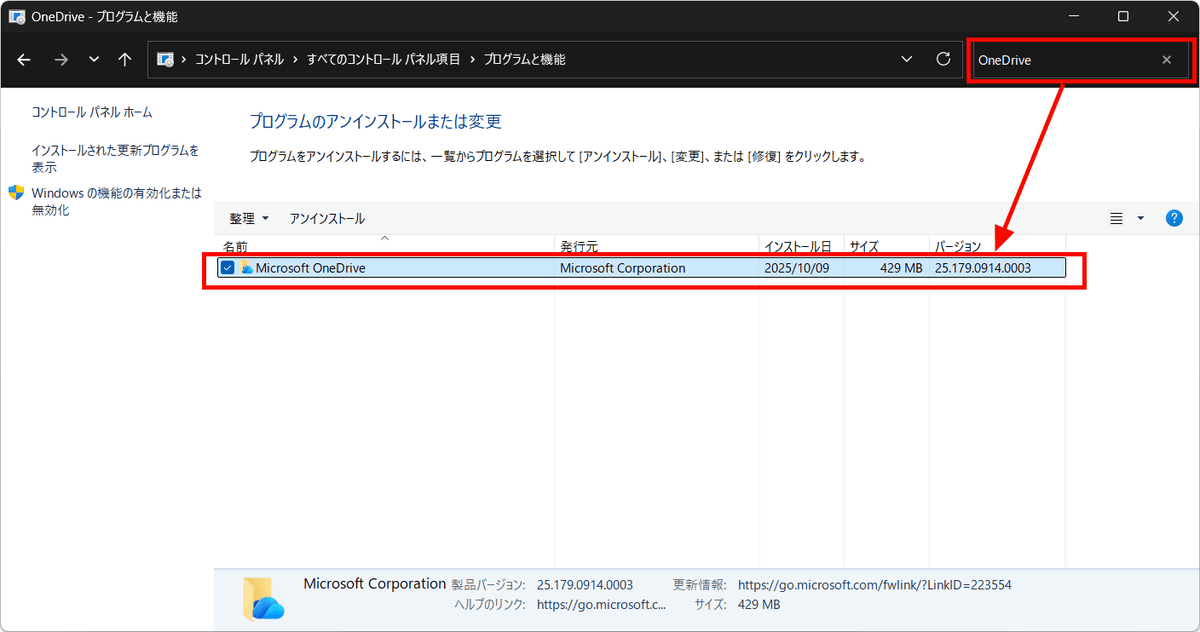
A list of installed apps will be displayed, so I typed 'OneDrive' in the upper right corner and 'Microsoft OneDrive' appeared. Double-clicking Microsoft OneDrive will uninstall it.
When I searched for it, it didn't appear in the list of installed apps, and the icon disappeared from the taskbar.
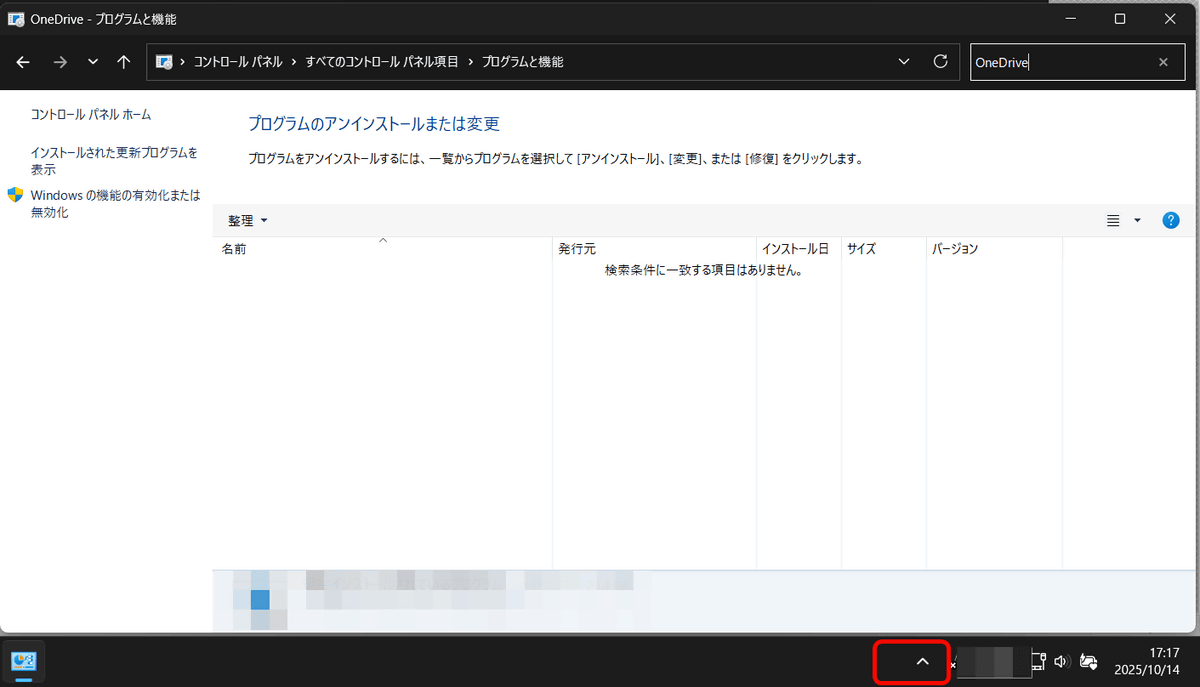
While this successfully removed OneDrive, the problem with OneDrive is that it may reappear after a Windows Update. This can be prevented using AppLocker , a standard feature in Windows 11. Instructions for using AppLocker can be found in the forum below. While the forum is for Windows 10, the same setup is possible in Windows 11, so we'll try it out in Windows 11 this time.
Use AppLocker to Allow or Block Executable Files in Windows 10 | Tutorials
https://www.tenforums.com/tutorials/124008-use-applocker-allow-block-executable-files-windows-10-a.html
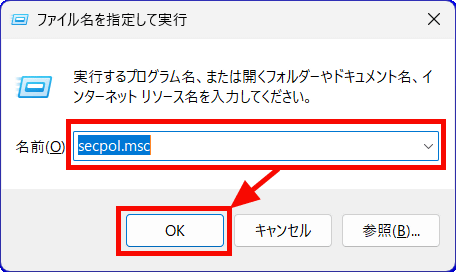
To run AppLocker, press 'Win + R' to open 'Run', then type 'secpol.msc' and click 'OK'.
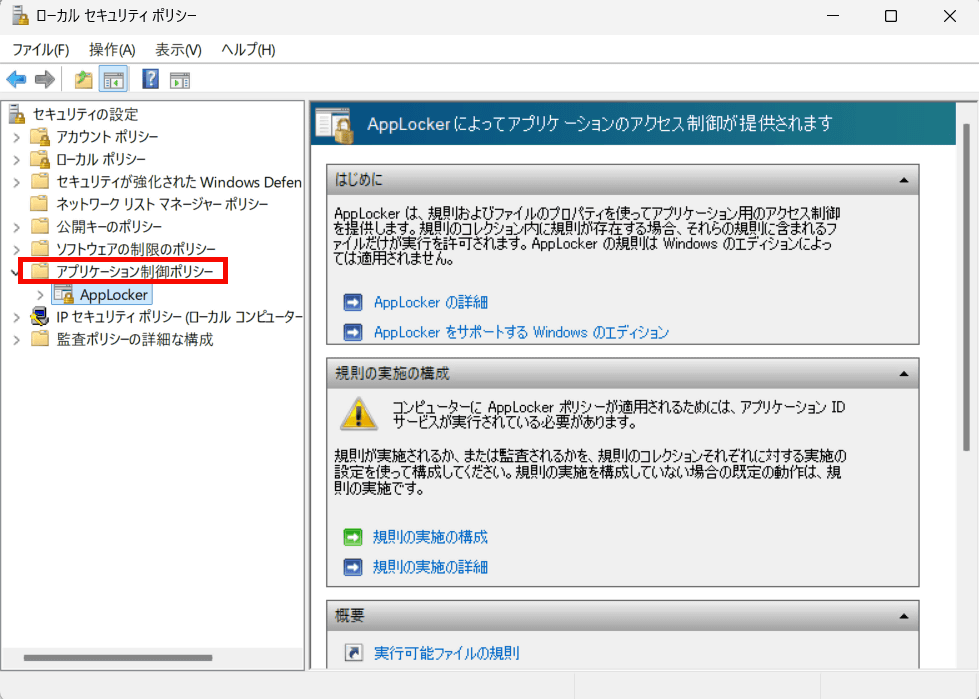
'Local Security Policy' opens. 'AppLocker' is located under 'Application Control Policies'.
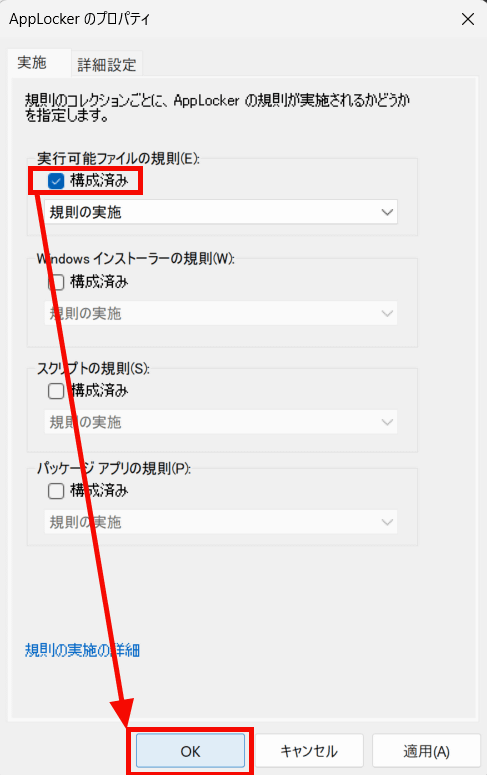
From the AppLocker menu, click 'Configure Rule Enforcement.'
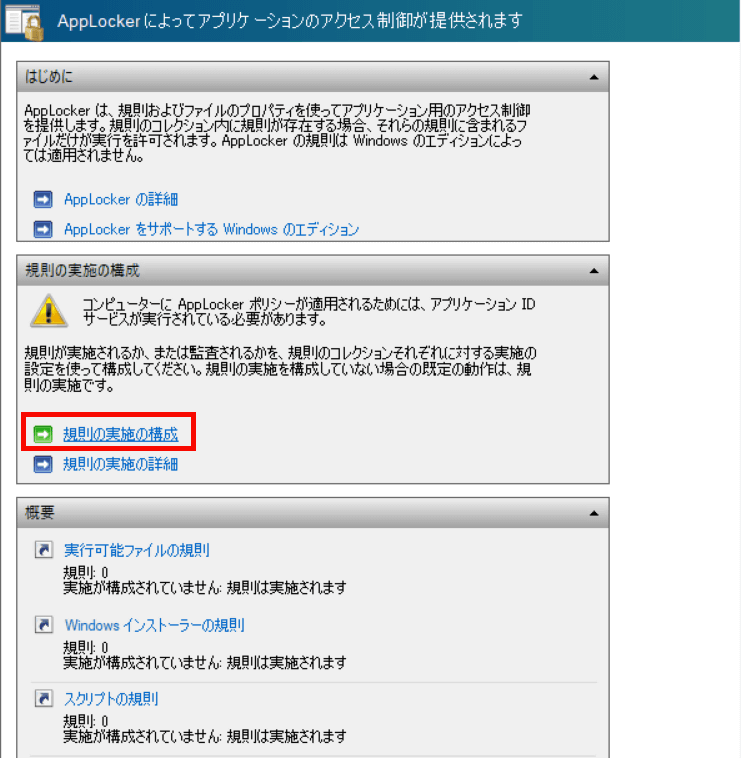
The AppLocker Properties window will open. Check 'Configured' under 'Executable File Rules' and click 'OK' to close the window.
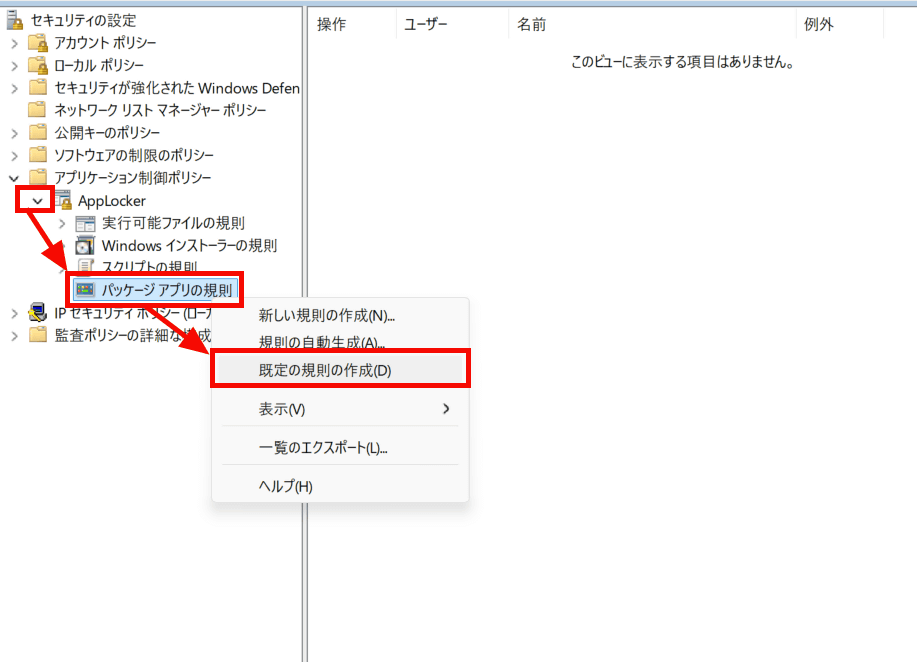
Next, click the triangle icon to the left of AppLocker to expand it, right-click 'Packaged App Rules,' and select 'Create Default Rules.'
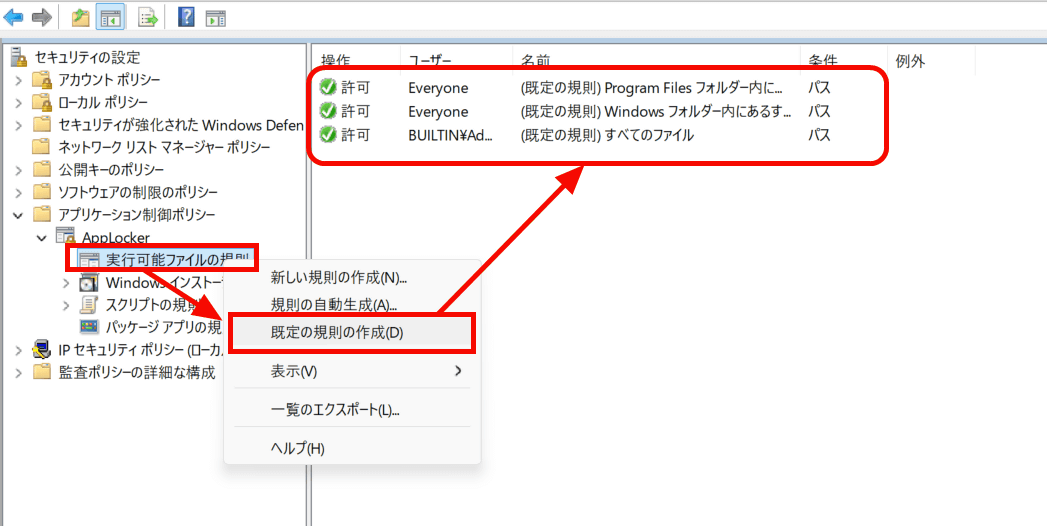
Next, right-click 'Executable Rules,' click 'Create Default Rules,' and add the following three lines: Note that if you do not perform this step, AppLocker will block all executable files from running.
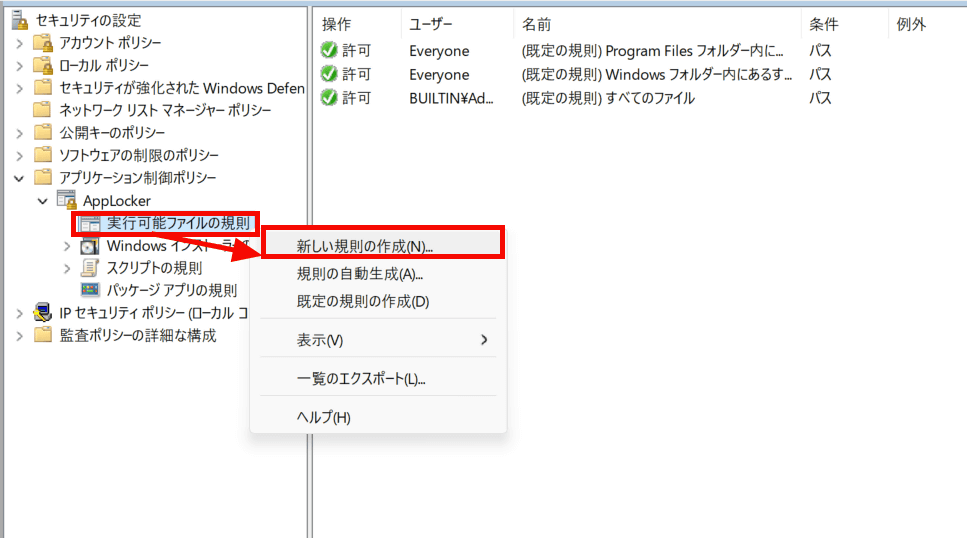
Right-click 'Executable Rules' and click 'Create New Rule.'
Click “Next”.
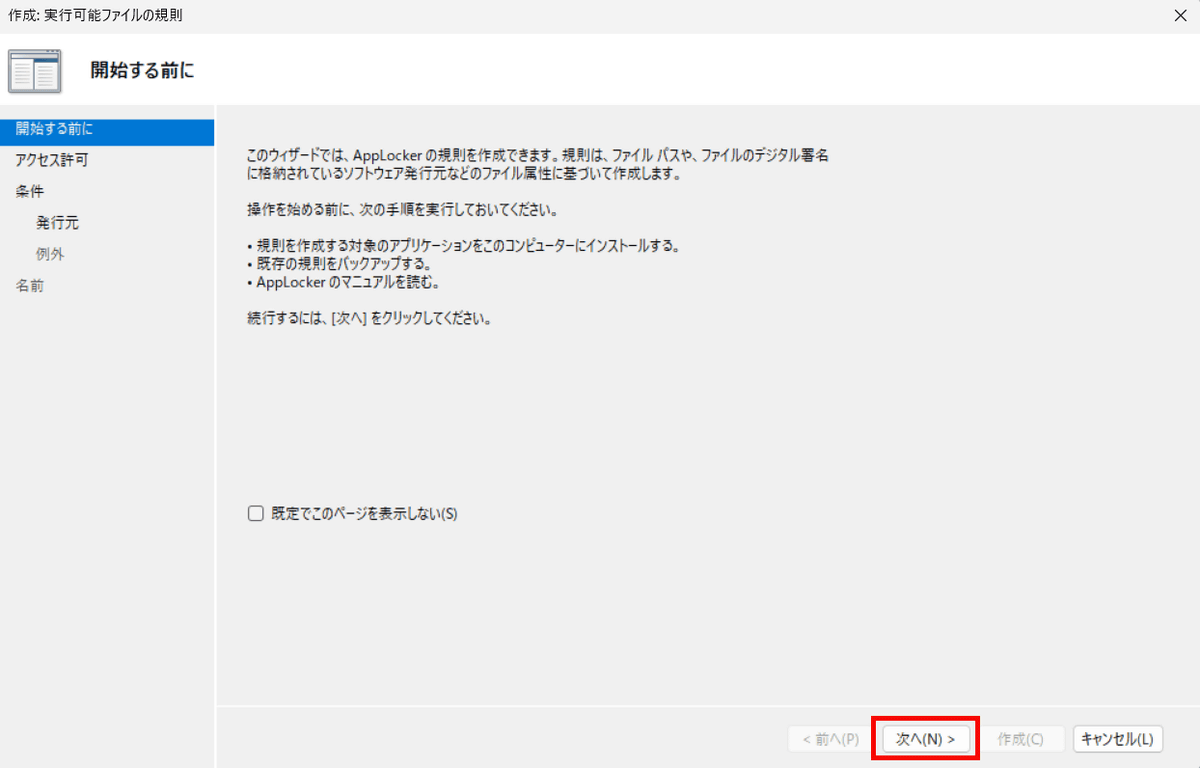
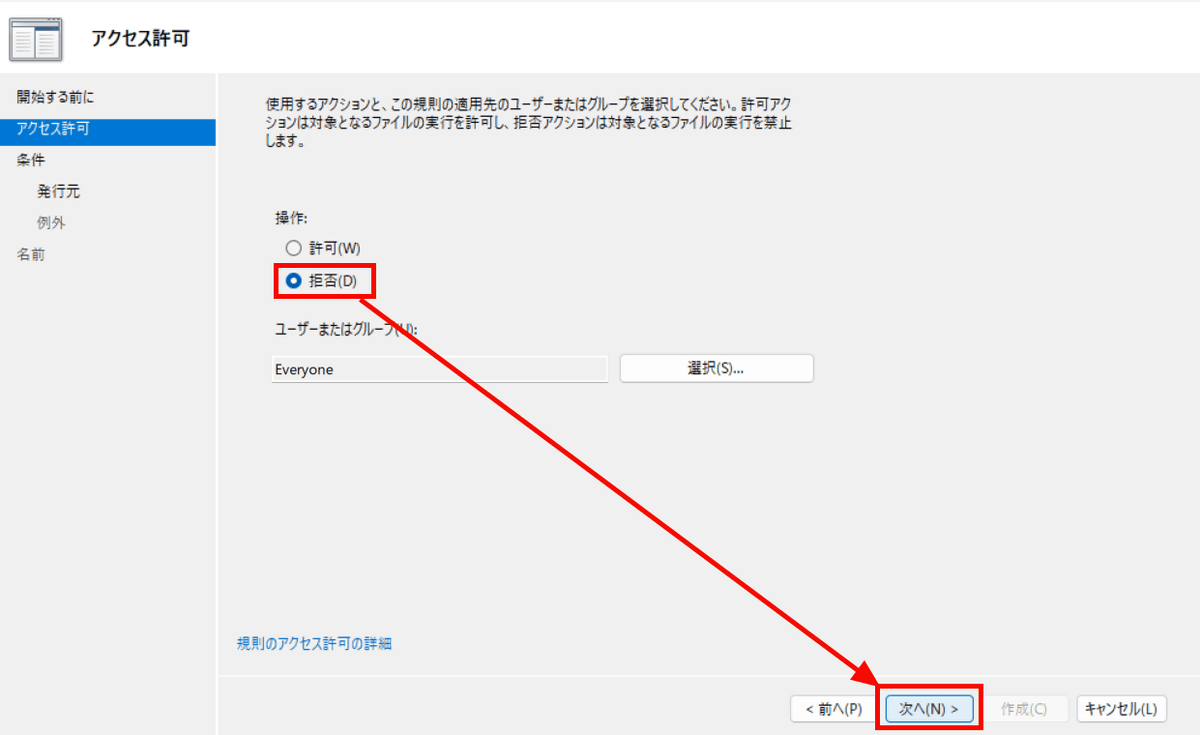
This time we will set up to deny OneDrive, so select 'Deny' and click 'Next'.
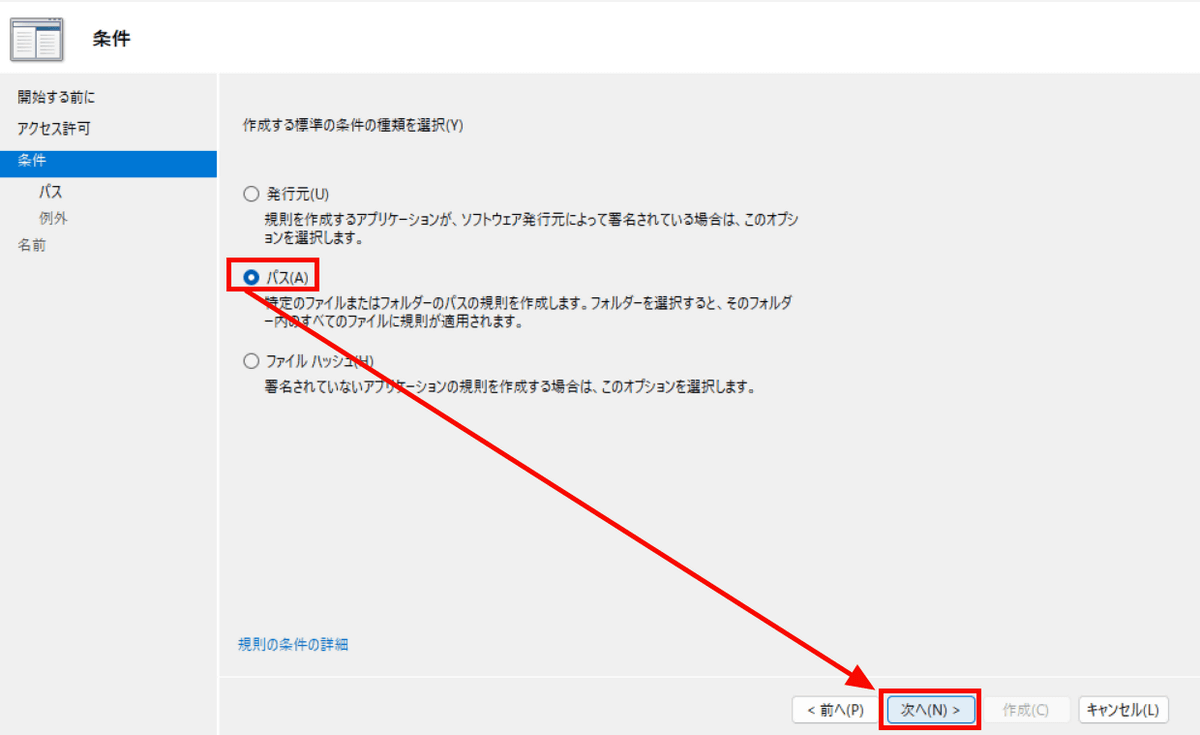
Select Path and click Next.
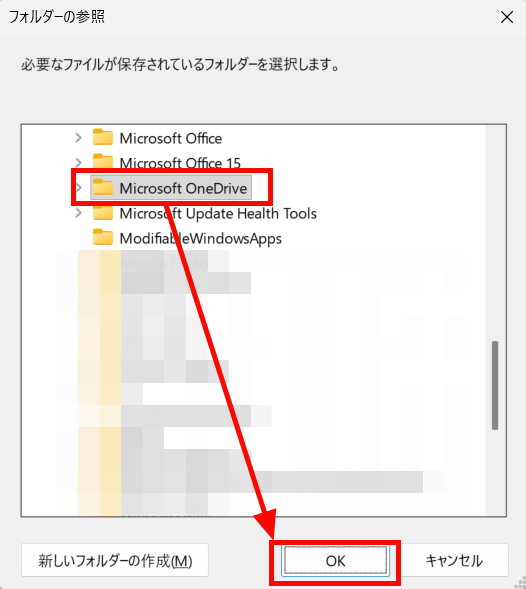
Click 'Select Folder'.
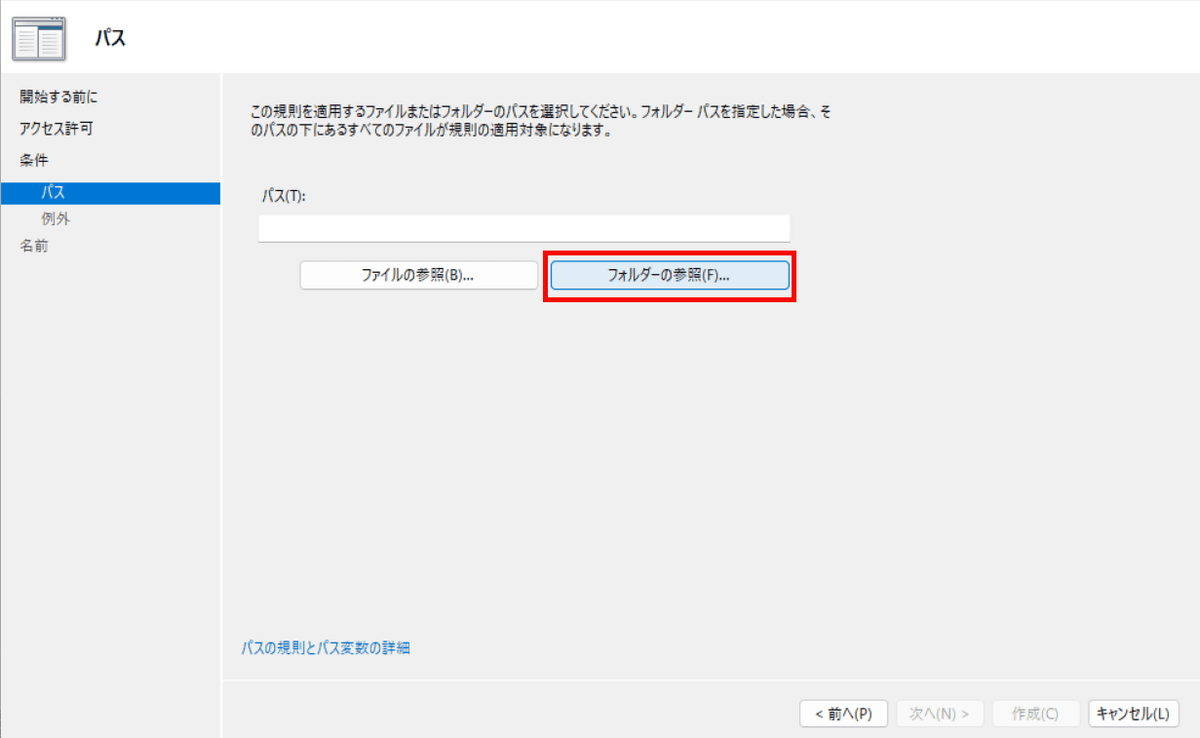
Select 'Microsoft OneDrive' and click 'OK.' On the PC used this time, it was found under 'Program Files.'
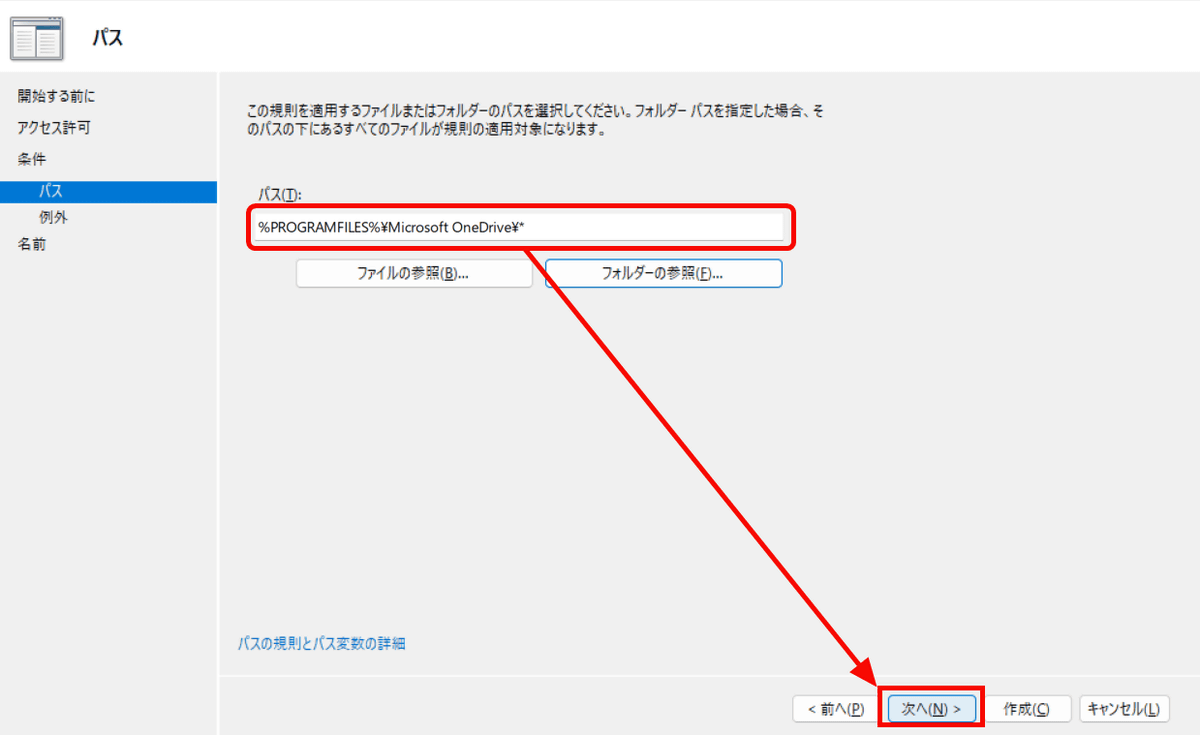
Verify that the path has been added and click 'Next.'
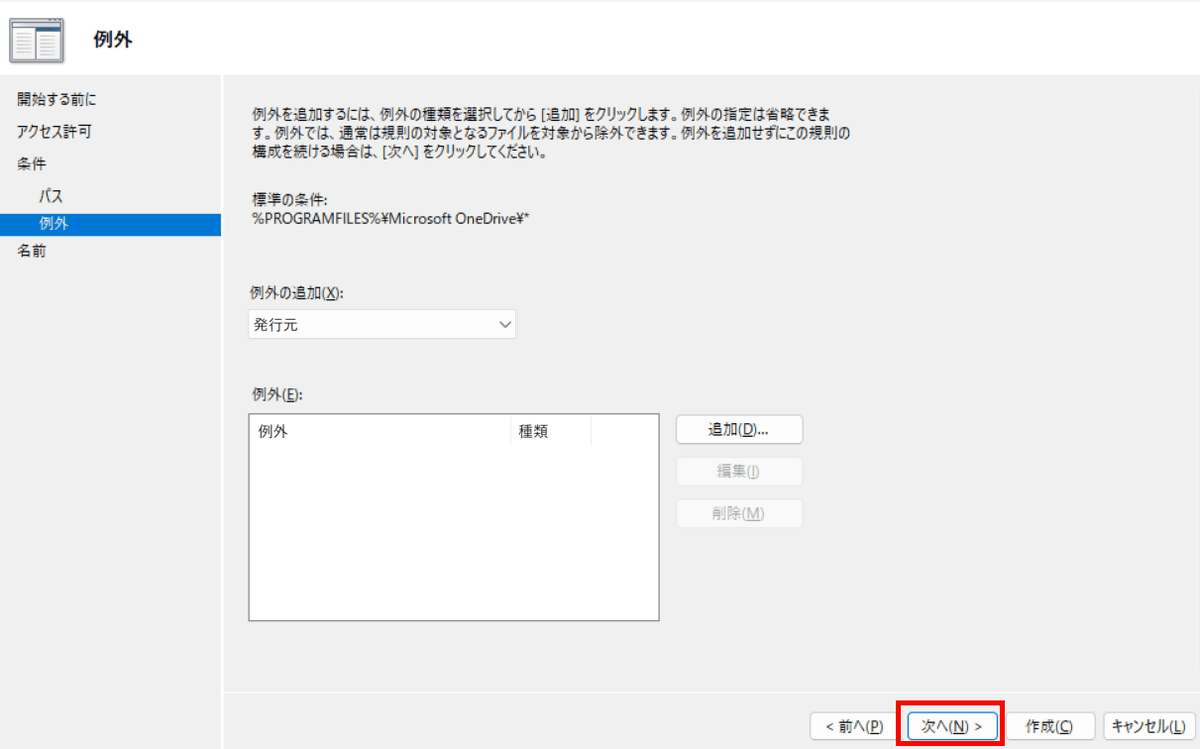
There is no need to set exceptions, so click 'Next'.
Click Create.
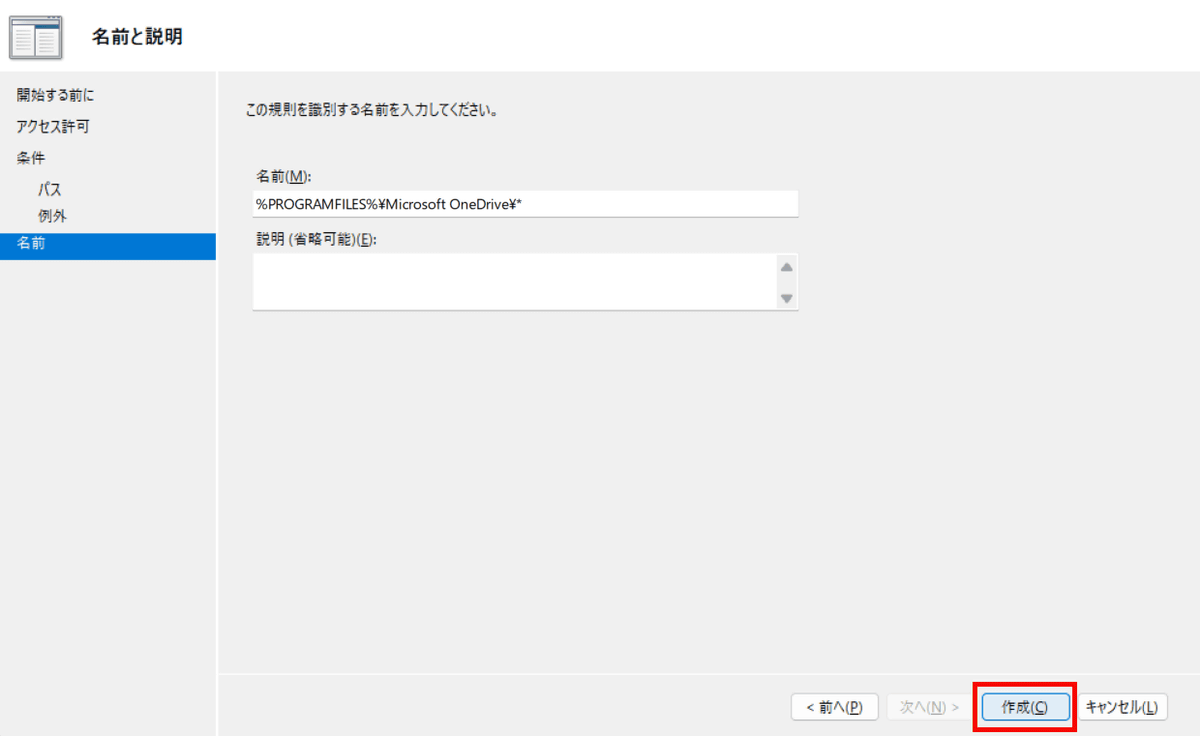
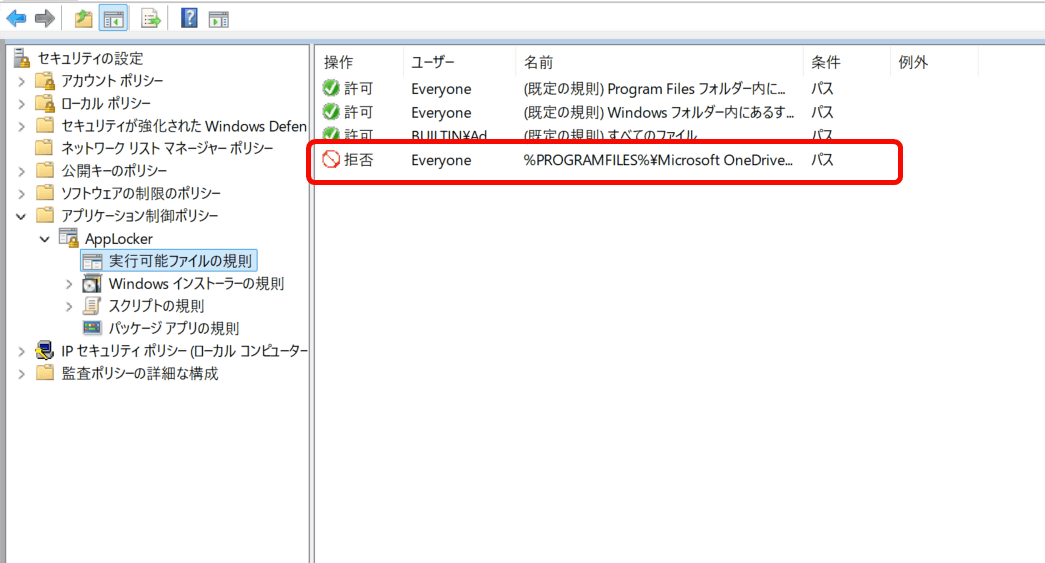
A setting to deny OneDrive has been added to the Executable File Rules. This setting prevents OneDrive.exe from running even if OneDrive is reinstalled after a Windows update, completely preventing it from starting syncing in the background or displaying notifications.
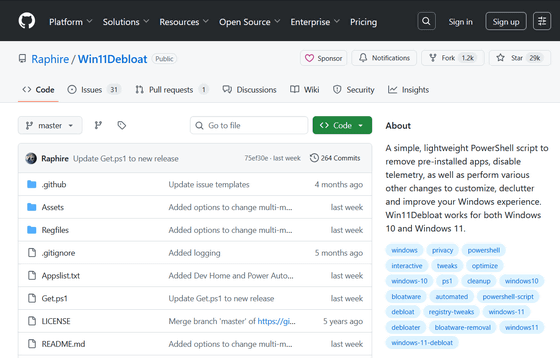
According to another Hacker News user , a PowerShell script called ' Win11Debloat ' can be used to customize Windows by removing pre-installed apps, including OneDrive and Edge, and making various other changes. Details of Win11Debloat are available on GitHub.
GitHub - Raphire/Win11Debloat: A simple, lightweight PowerShell script to remove pre-installed apps, disable telemetry, as well as perform various other changes to customize, declutter and improve your Windows experience. Win11Debloat works for both Windows 10 and Windows 11.
https://github.com/Raphire/Win11Debloat
Related Posts:
in Software, Posted by log1e_dh