A review of the free and ad-free app 'WiFiman' that can measure the quality of your smartphone's mobile line, Wi-Fi signal strength, and Bluetooth strength. It also graphs signal strength, creates signal strength maps, and measures speed, making it extremely convenient.
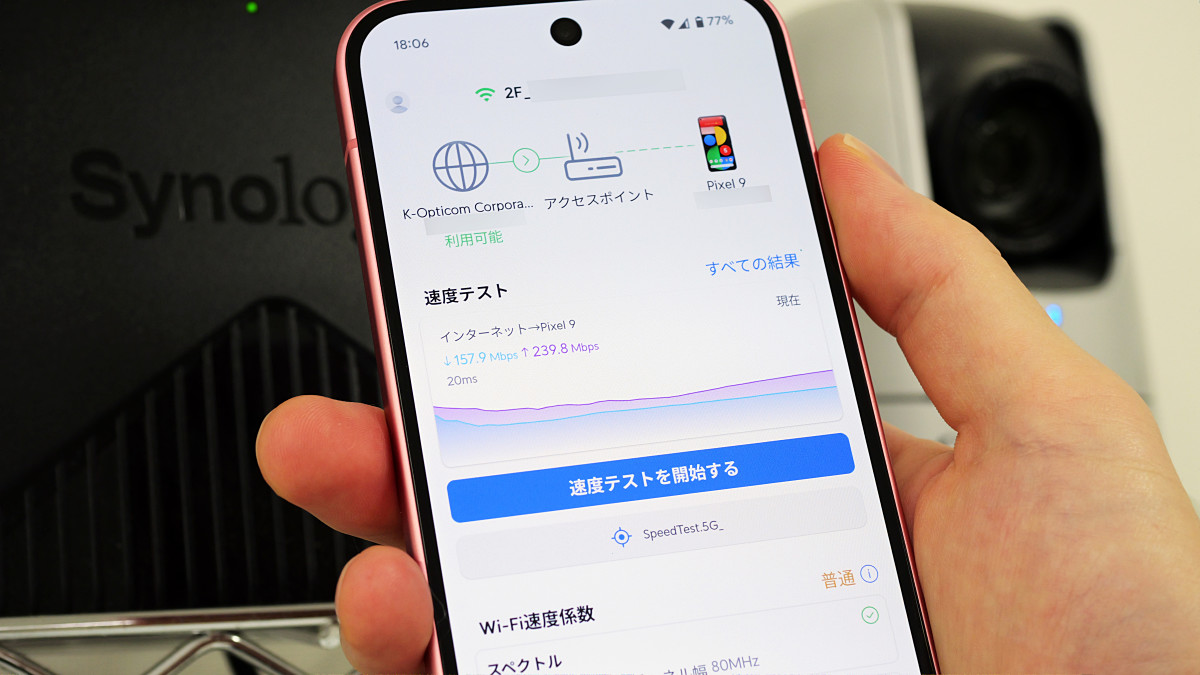
When you have a problem like 'the signal is weak in certain areas of your home,' it can be difficult to find the underlying cause because it deals with invisible radio waves. The free smartphone app '
WiFiman – Apps on Google Play
https://play.google.com/store/apps/details?id=com.ubnt.usurvey&hl=ja
'Ubiquiti WiFiman' on the App Store
https://apps.apple.com/jp/app/ubiquiti-wifiman/id1385561119?platform=iphone
·table of contents
◆1: Installing and initial setup of WiFiman
◆2: Measure communication speed
◆3: Check the signal strength
◆4: Check surrounding network information
◆1: Installing and initializing WiFiman
WiFiman is available for both Android and iOS smartphones. This time, I installed and used the Android version of WiFiman on my Pixel 9.
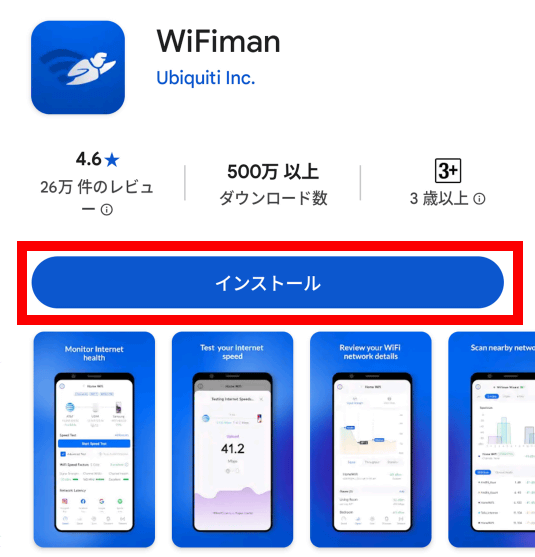
First, search for WiFiman on Google Play and tap 'Install.'
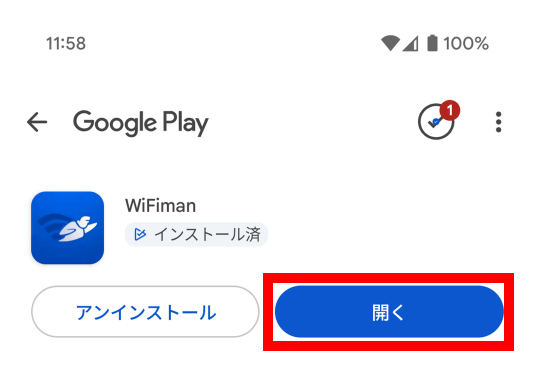
Once the installation is complete, tap 'Open.'
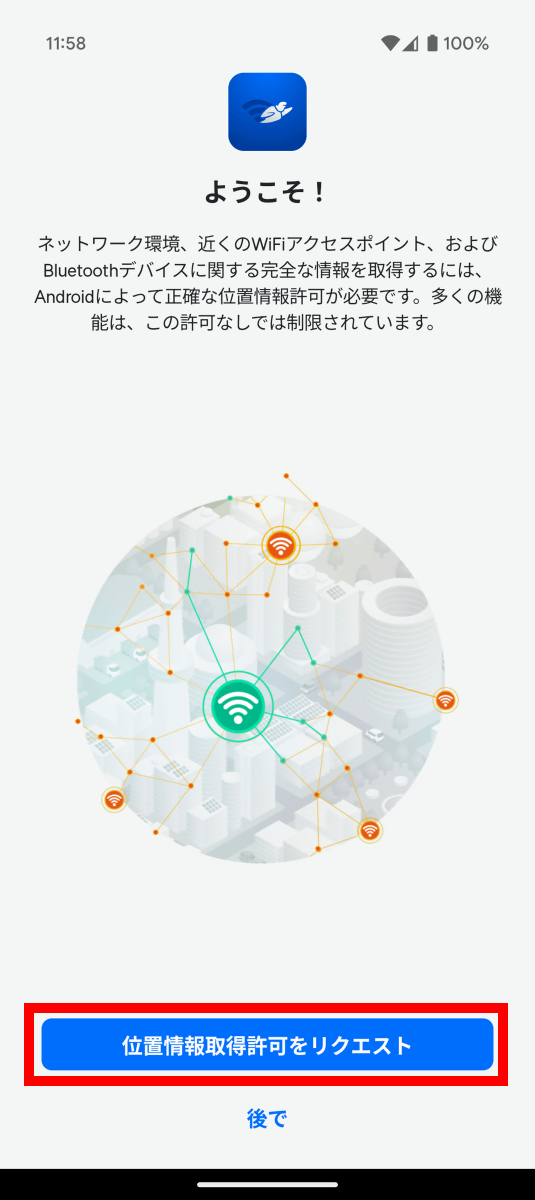
When you first start the app, you will need to go through various settings. First, tap 'Request location permission.'
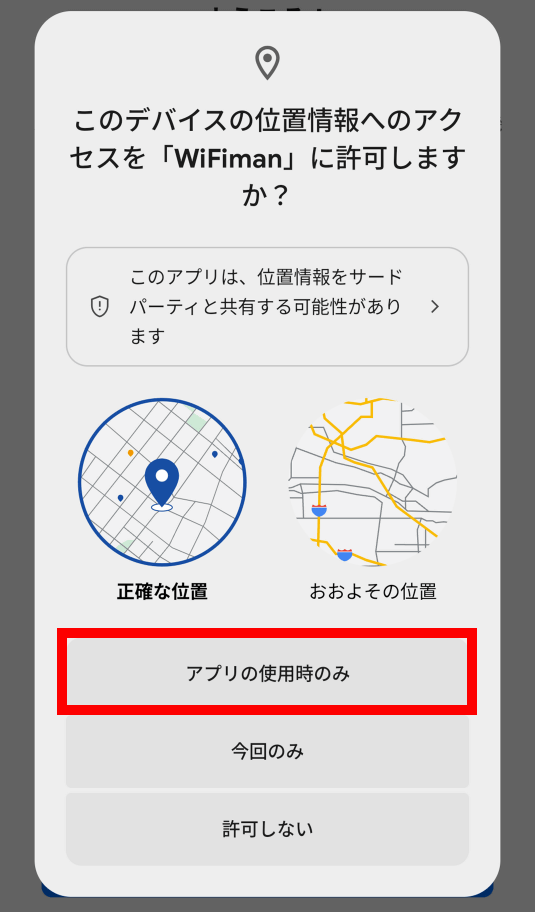
Tap 'Only while using the app.'
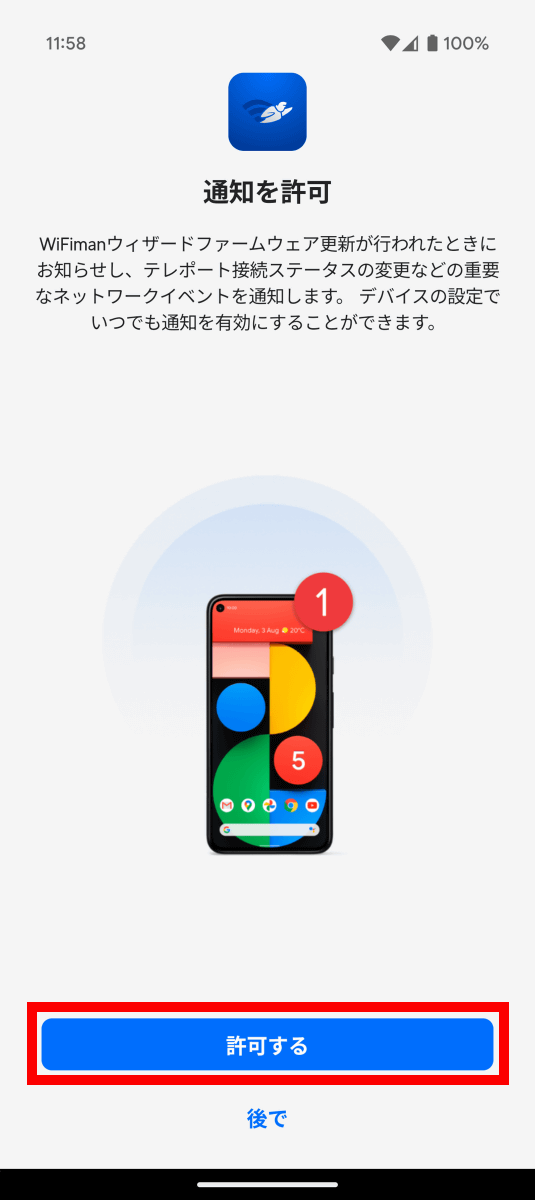
If you are asked to allow notifications, tap 'Allow.'
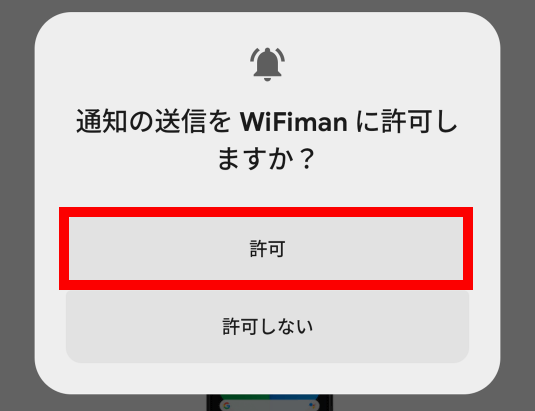
Tap 'Allow.'
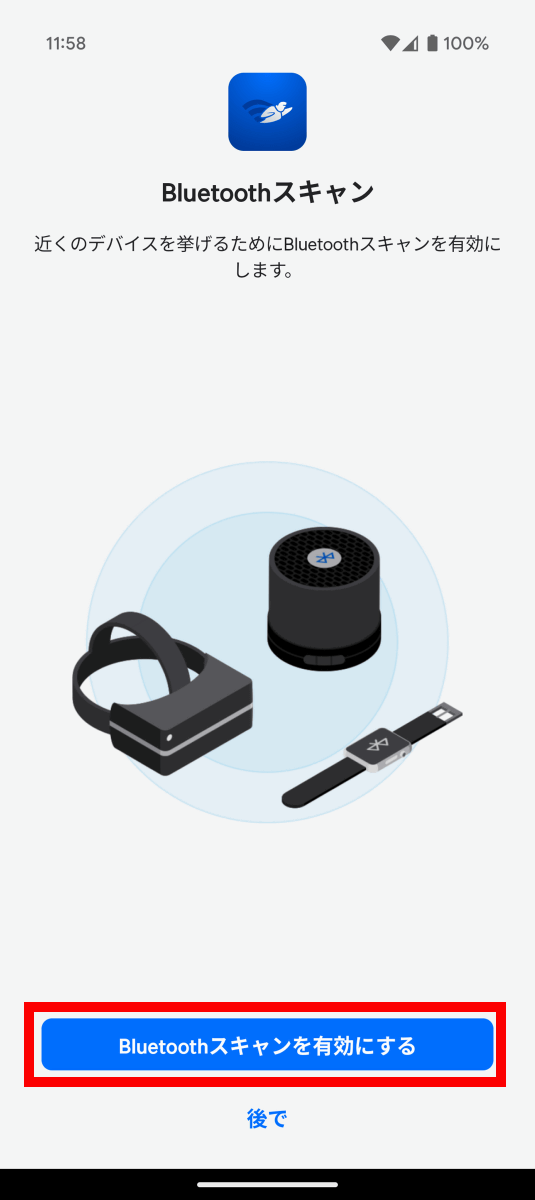
Tap 'Enable Bluetooth scanning.'
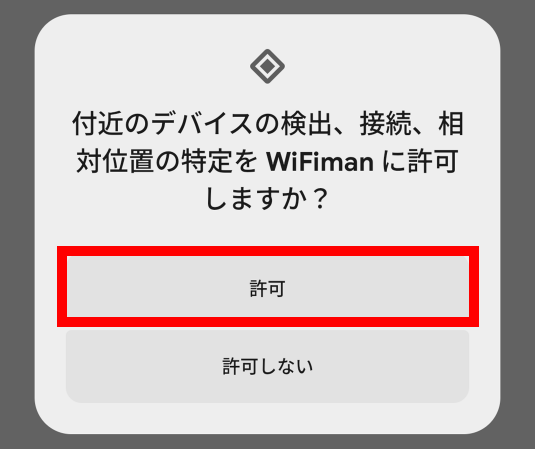
Tap 'Allow.'
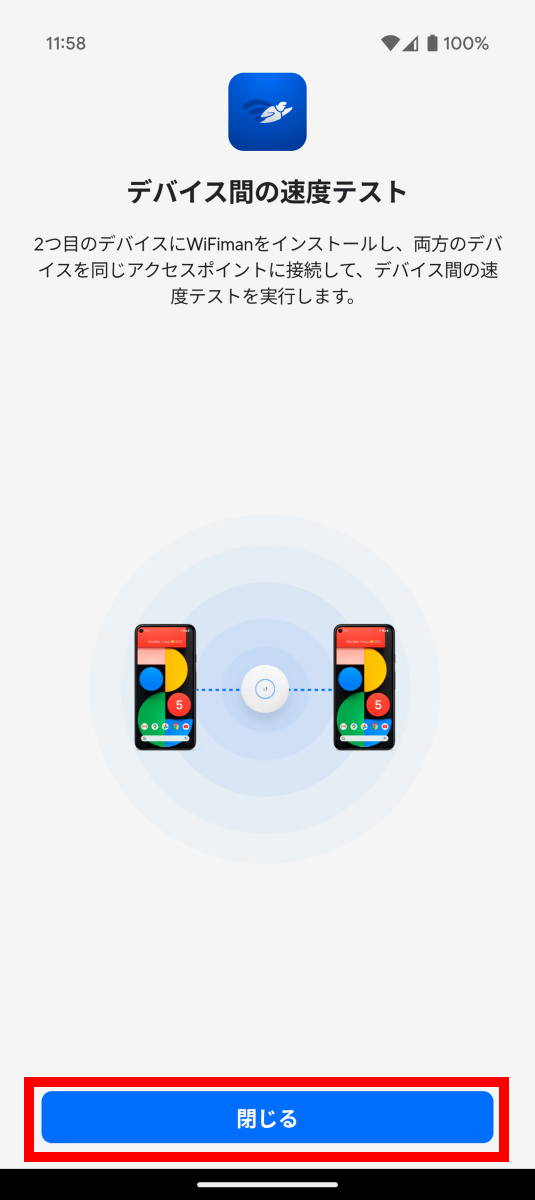
Tap 'Close'.
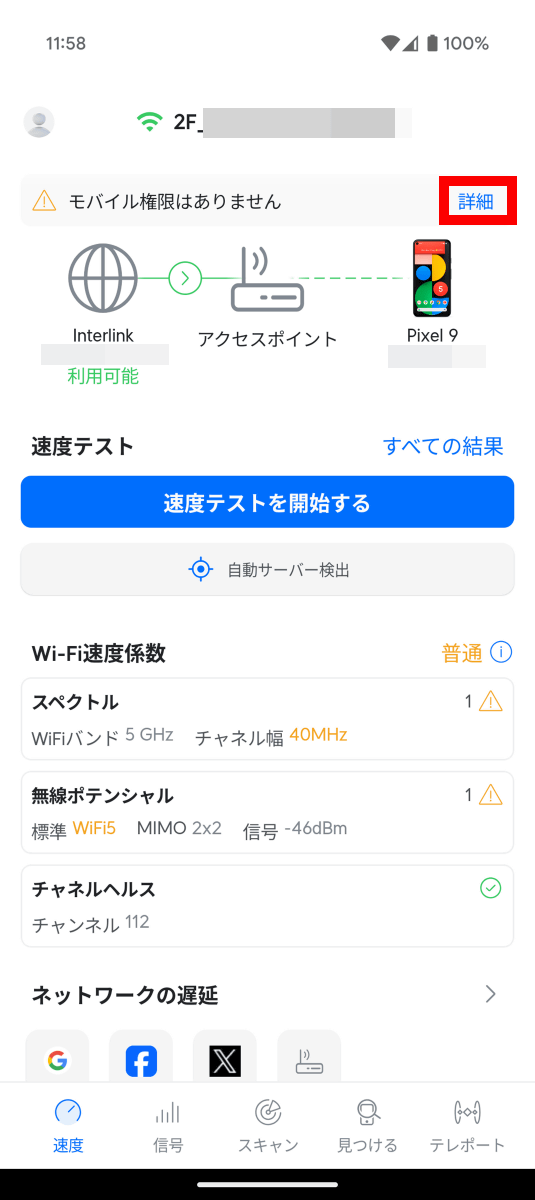
This will display the details screen for the Wi-Fi network you're currently connected to. Since you can't analyze your mobile connection at this point, tap 'Details' to the right of the 'No Mobile Permissions' section at the top of the screen.
Tap 'Allow.'
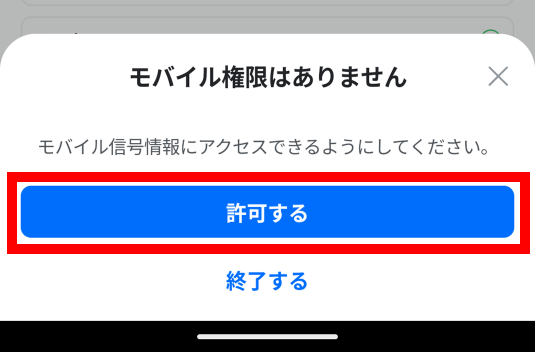
Tap 'Allow.'
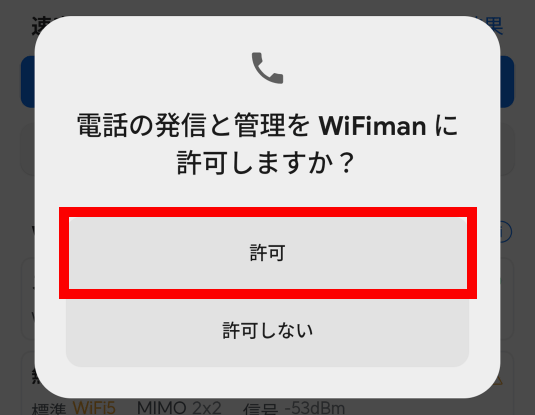
This also makes it possible to analyze mobile networks.
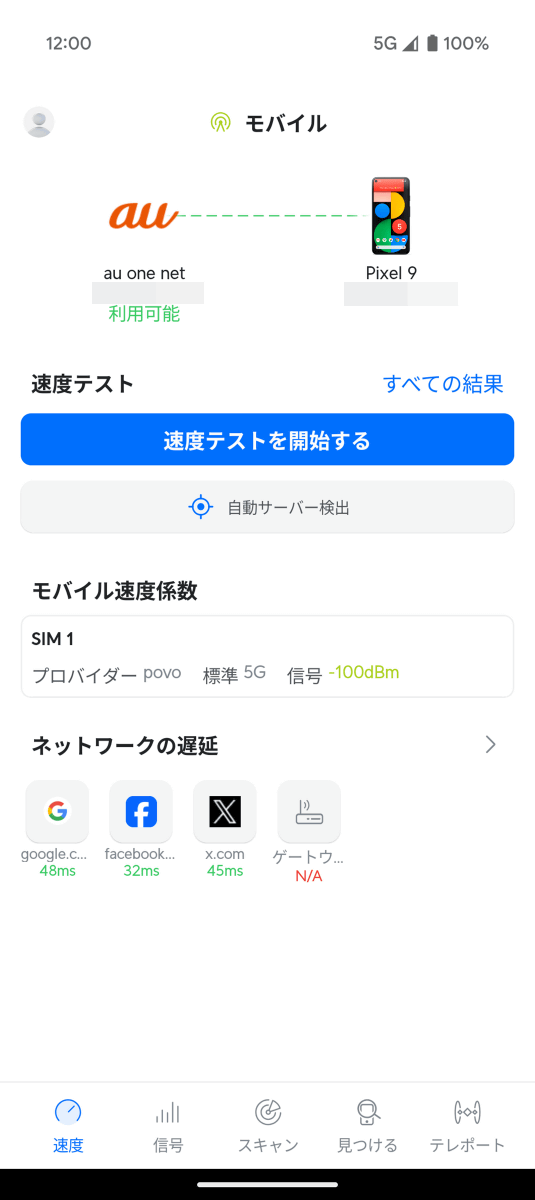
◆2: Measure communication speed
WiFiman has a wide variety of features for analyzing your network environment. First, try using the communication speed measurement function.
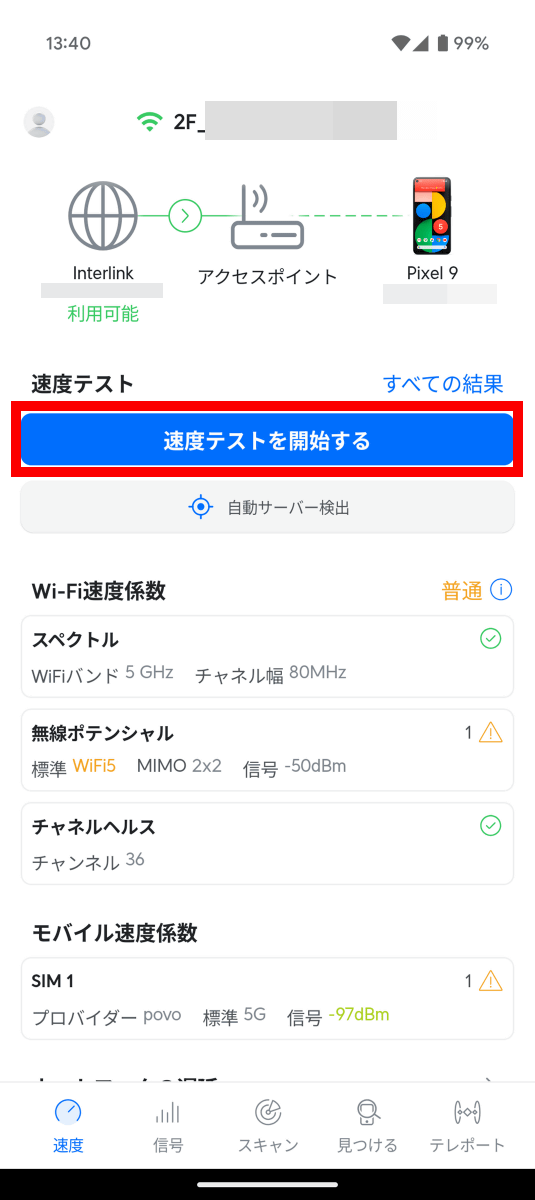
To measure the communication speed, tap 'Start Speed Test' with the smartphone you want to measure connected to the network.
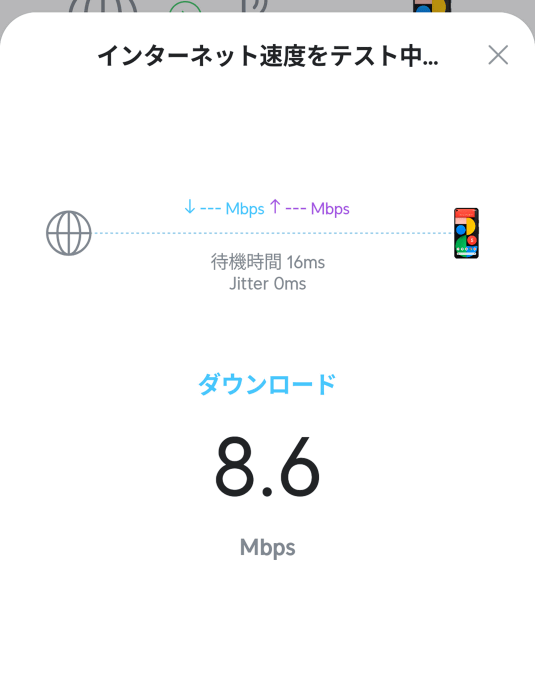
This will start measuring your download and upload speeds, so just wait a while.
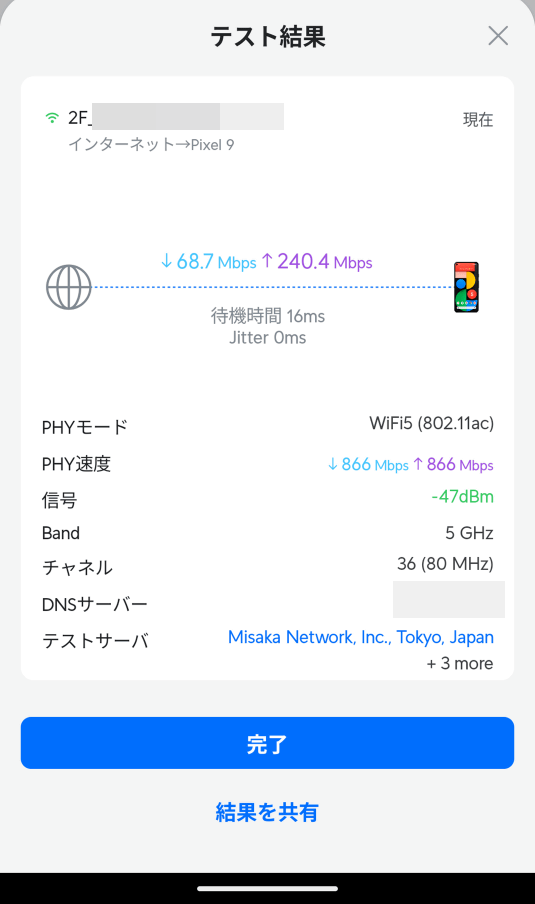
The results were displayed within a few seconds. The download speed was 68.7Mbps and the upload speed was 240.4Mbps. Other information displayed included the PHY mode (the type of Wi-Fi standard, such as Wi-Fi 5), signal strength, and bandwidth used.
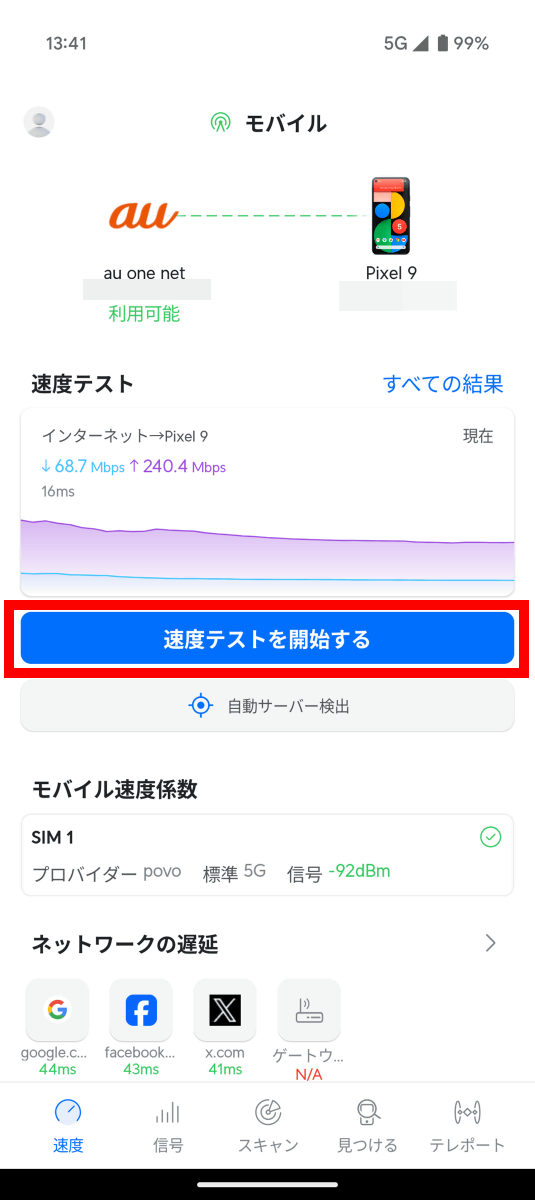
Next, switch to your mobile network and tap 'Start Speed Test.'
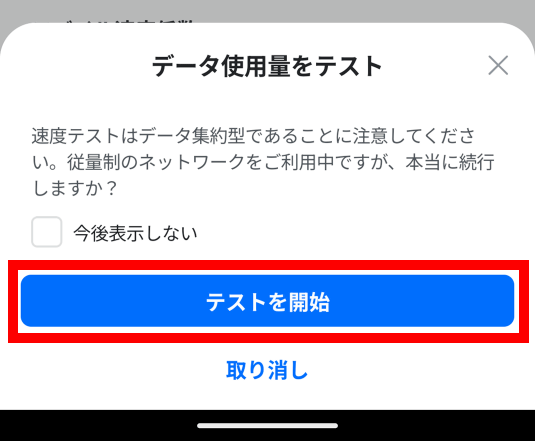
If you're using a mobile network, you'll see a warning about your data usage. Tap 'Start Test' to continue the test.
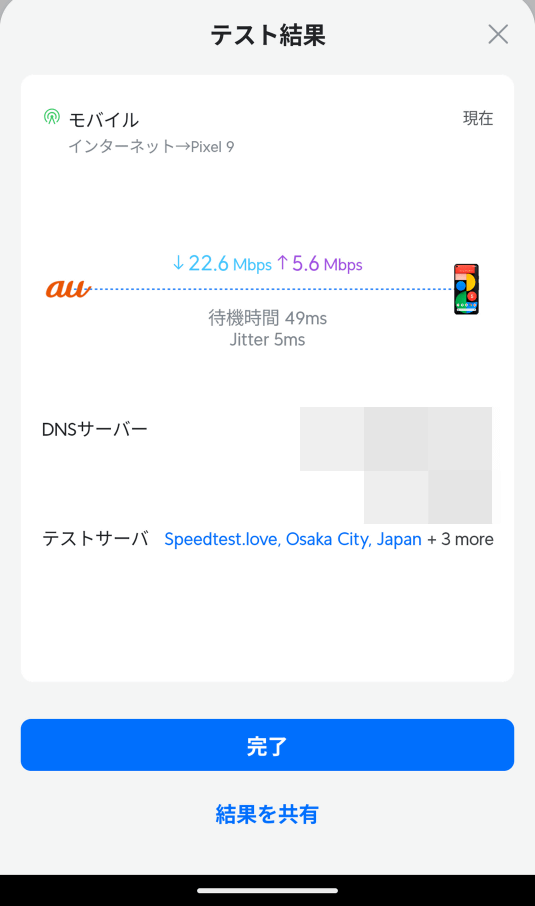
The mobile connection speed was 22.6Mbps download and 5.6Mbps upload.
◆3: Check the signal strength
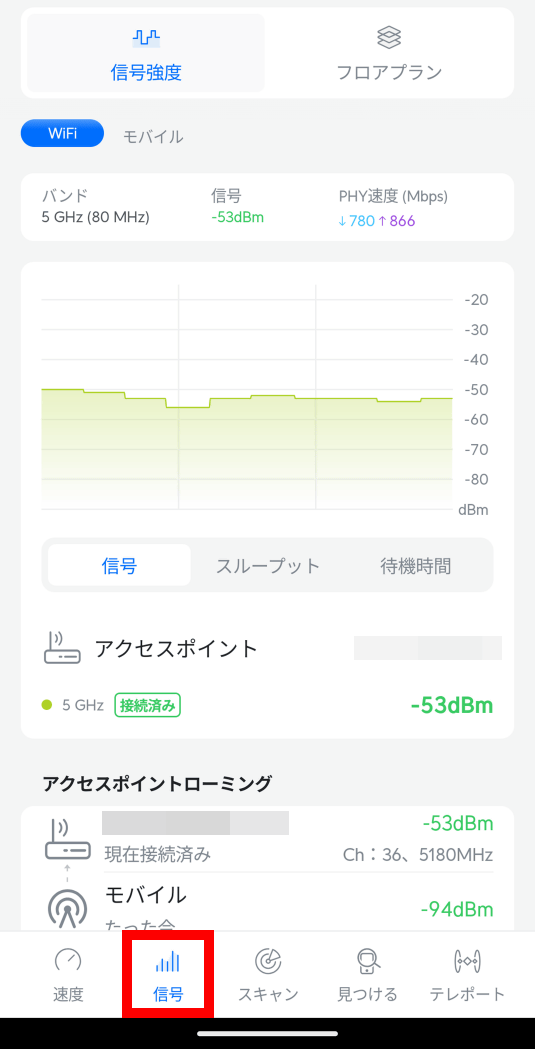
Tap 'Signal' at the bottom of the screen to see a real-time graph of the signal strength of the network you're connected to.
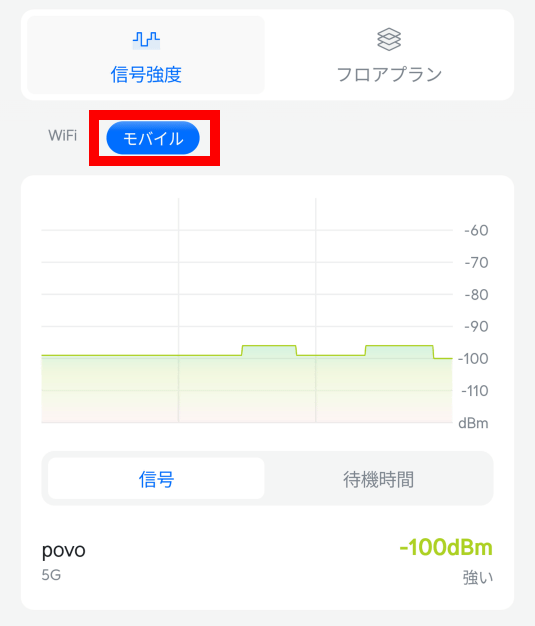
Tap 'Mobile' to display a graph of your mobile signal strength.
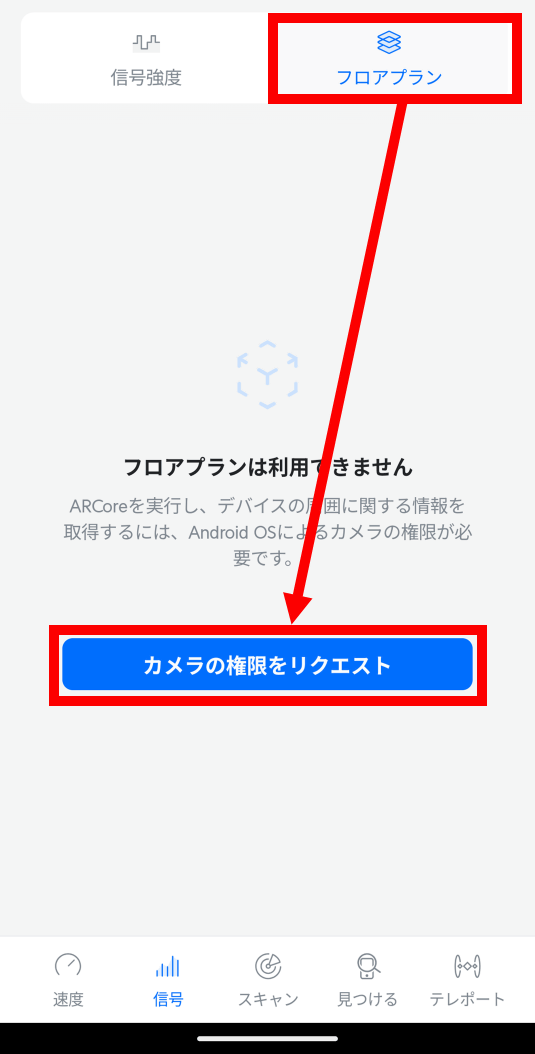
WiFiman also has the ability to create a heatmap showing Wi-Fi signal strength. To create a heatmap, tap 'Floor Plan' and then 'Request Camera Permission.'
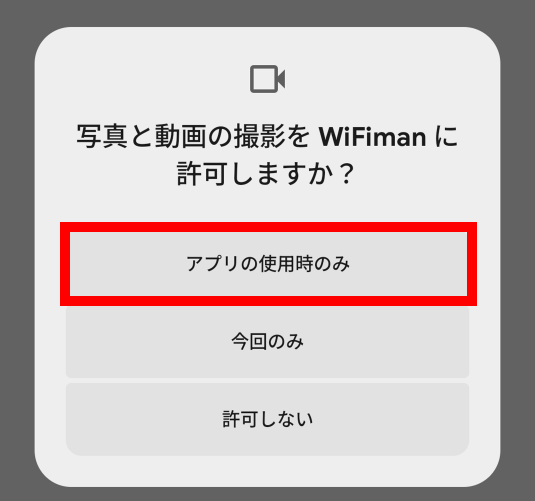
Tap 'Only while using the app.'
Tap 'Create a new scan.'
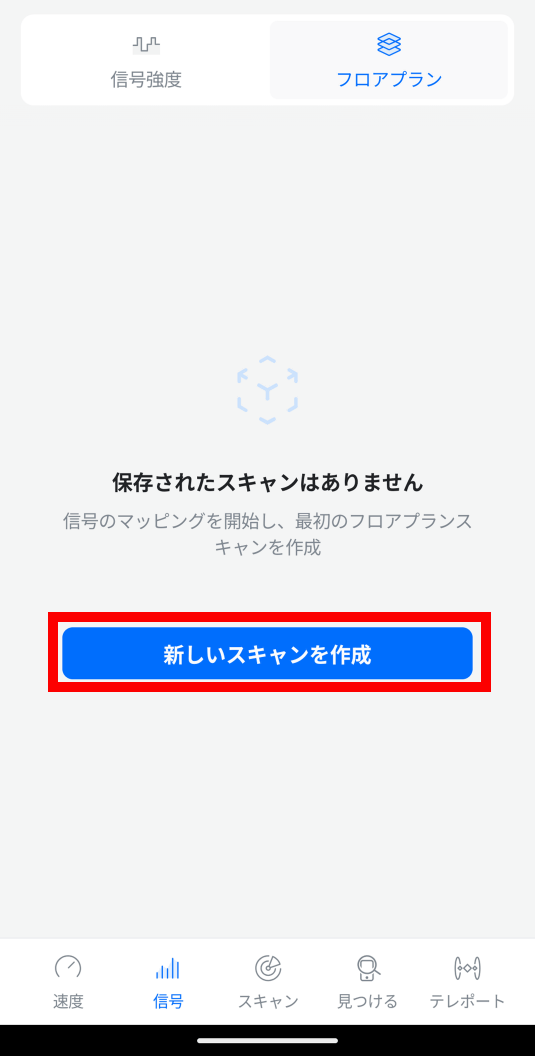
The camera will then start up and the current signal strength will be displayed in the center. By walking around slowly with your smartphone, you can create a heat map of signal strength.
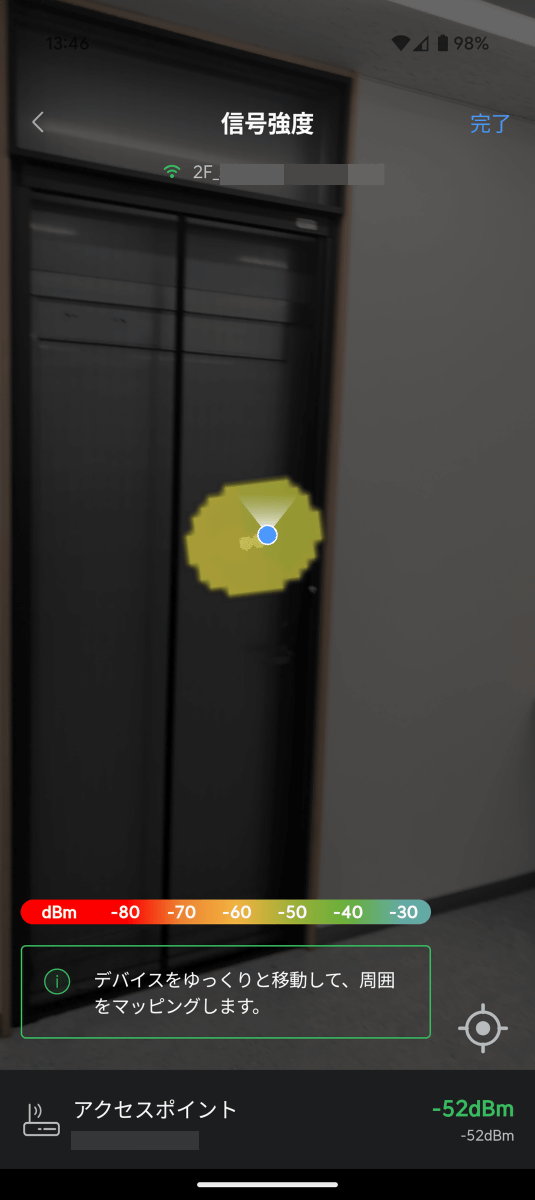
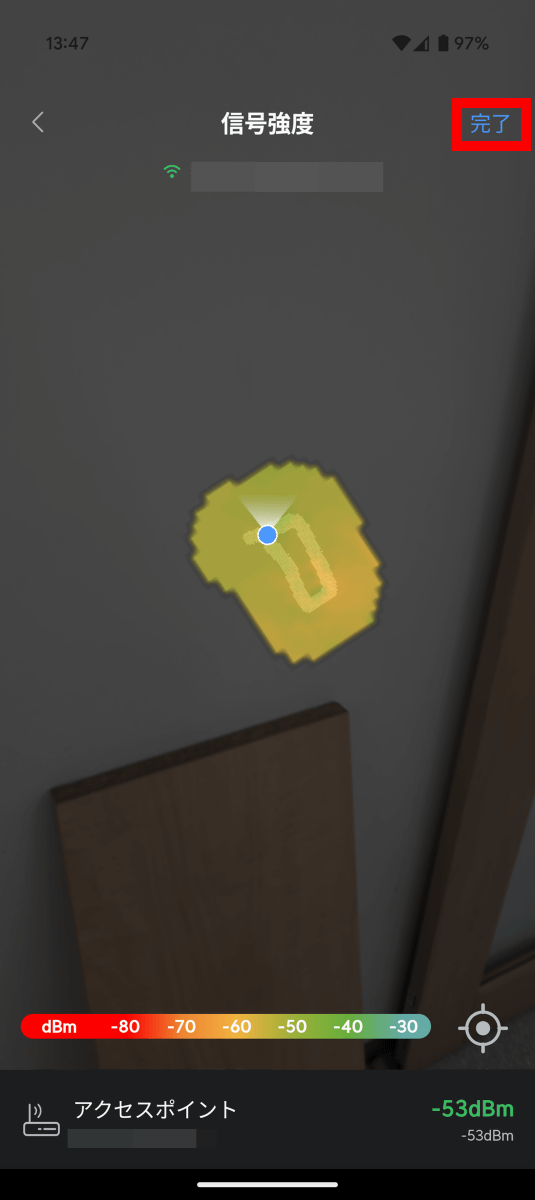
The app uses your smartphone's AR function to track your movements, so you need to move your smartphone slowly to create an accurate map. When you're done walking around the room, tap 'Done.'
Tap 'Save.'
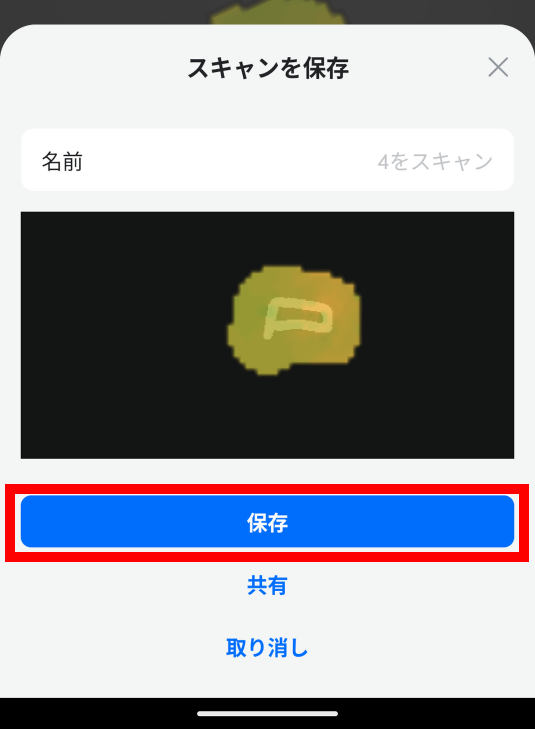
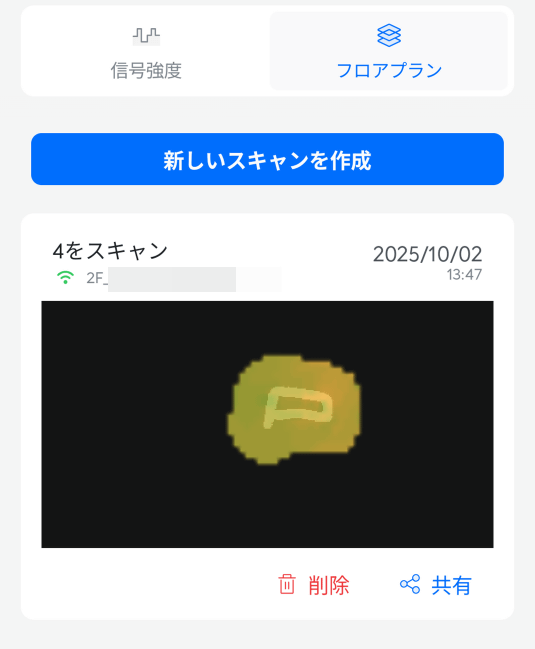
Now we have created a heat map. Red indicates low signal strength, yellow indicates medium strength, and blue indicates good signal strength. We can see that the room we measured had medium signal strength overall. This function allows us to visualize which parts of the room have weaker signals.
◆4: Check surrounding network information
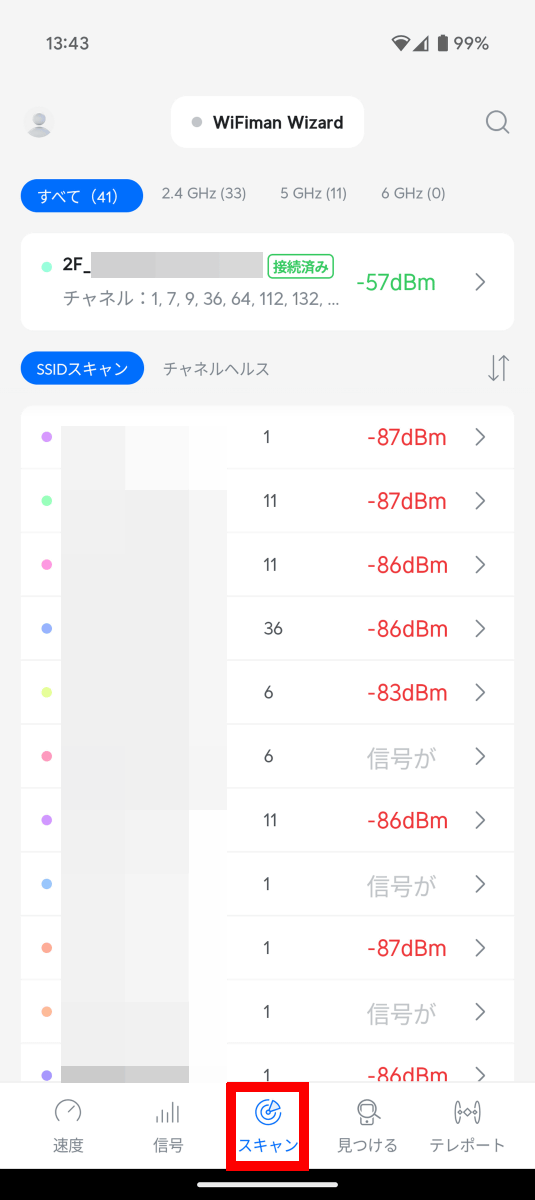
Tap 'Scan' to display a list of nearby access points and their signal strengths.
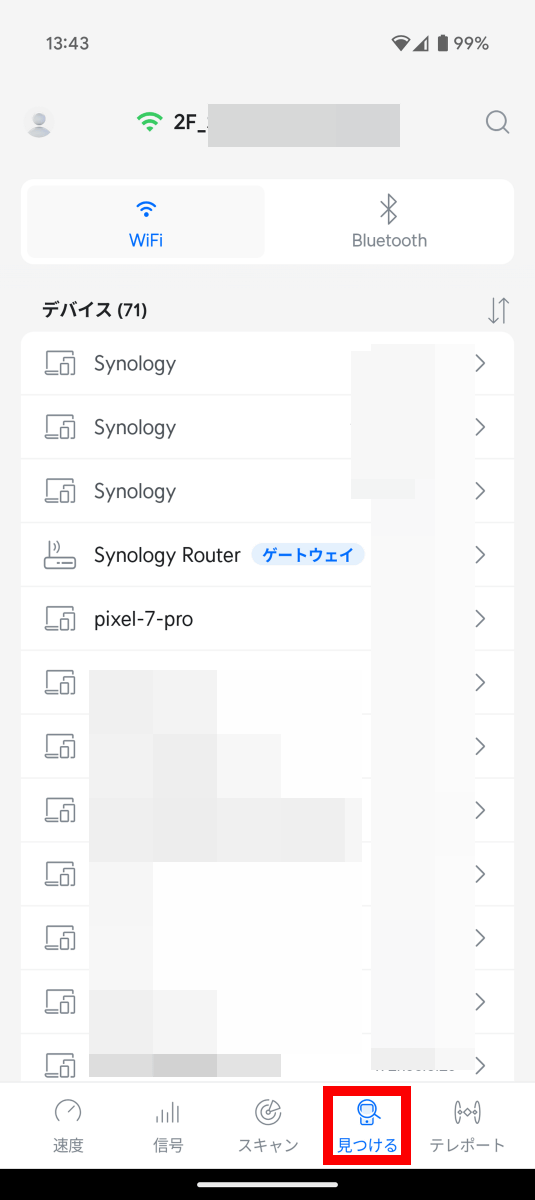
Tap 'Find' to see all devices receiving Wi-Fi.
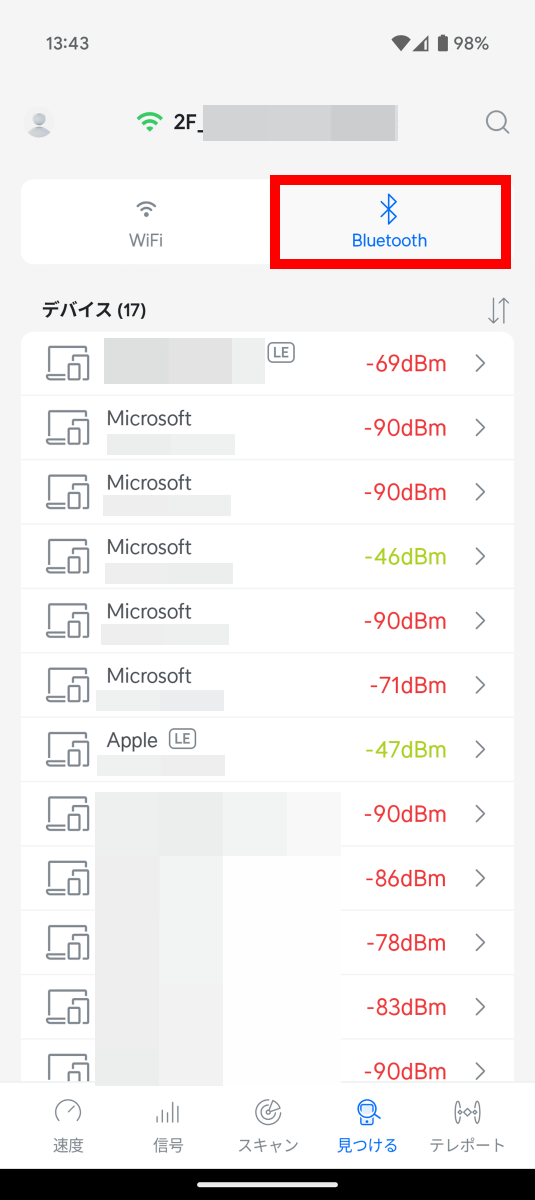
Tap 'Bluetooth' to view Bluetooth-enabled devices and signal strength.
Related Posts:


in Software, Smartphone, Review, Posted by log1o_hf