Acer Swift X 14 AI PC for creators equipped with Intel Core Ultra 7 and NVIDIA GeForce RTX 4070: Appearance review
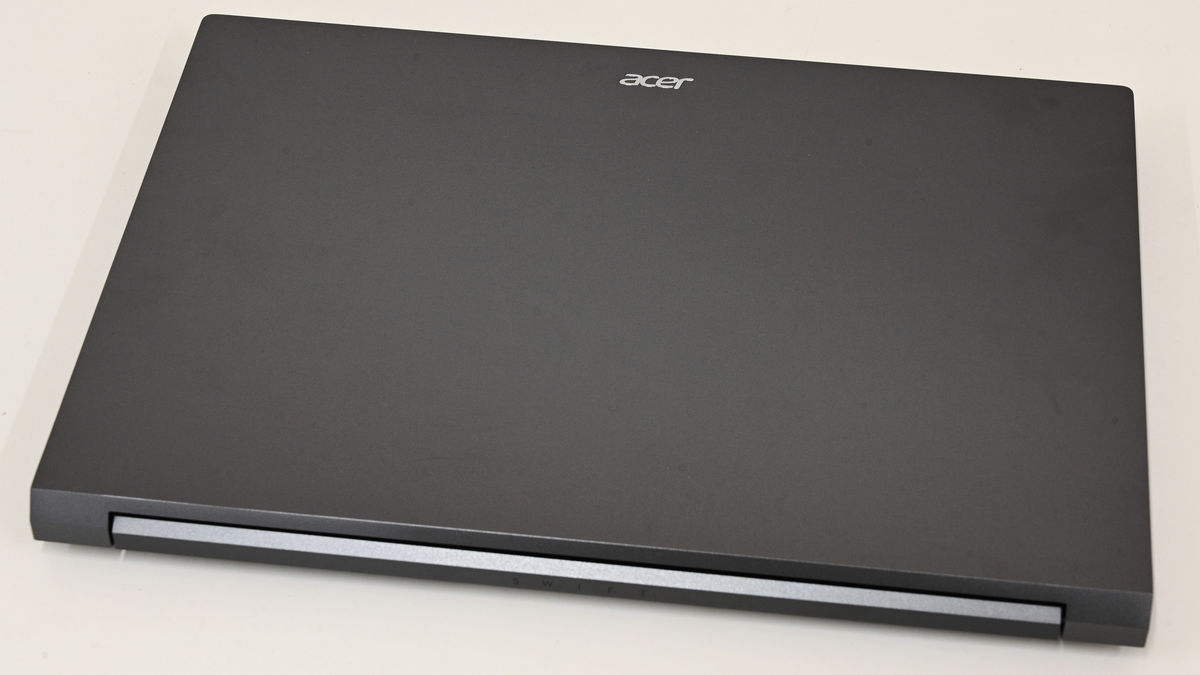
I was given the opportunity to try out the Acer Swift X14, an AI PC for creators, part of the Swift series of powerful compact laptops from PC manufacturer Acer. First, I'll check out what it looks like.
Acer Swift X 14 | AI PC for Creators | Acer Japan
Acer Creator AI Laptop Swift X 14, Core Ultra 7, NVIDIA Studio GeForce RTX 4070, 32GB Memory, 1TB SSD, 14.5-inch OLED 2.8K 2880x1800, Calman Certified, Delta E<2, 1.5kg, 10-Hour Battery Life, Windows 11 Pro, SFX14-72GP-N73Z47 | Acer Official Online Store, Acer Japan Online Store
https://store.acer.com/ja-jp/acer-sfx14-72gp-n73z47
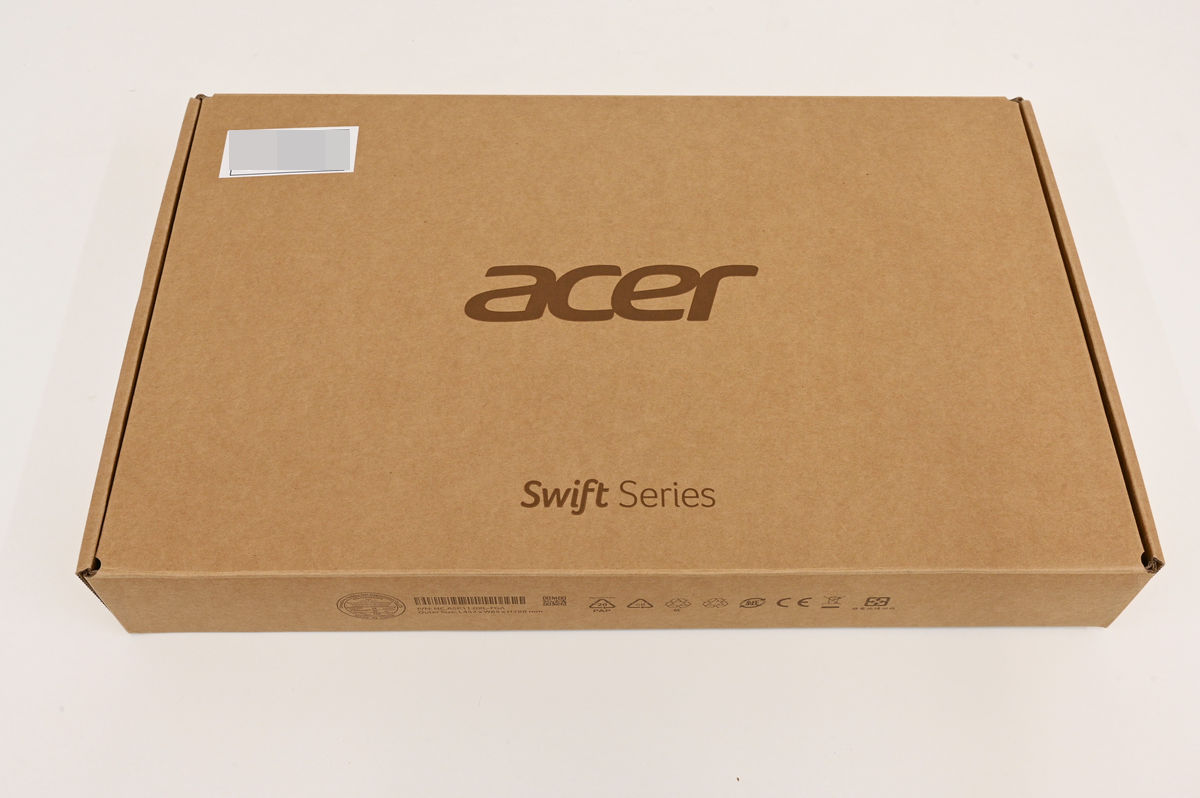
The outer box of the Acer Swift X 14 looks like this.
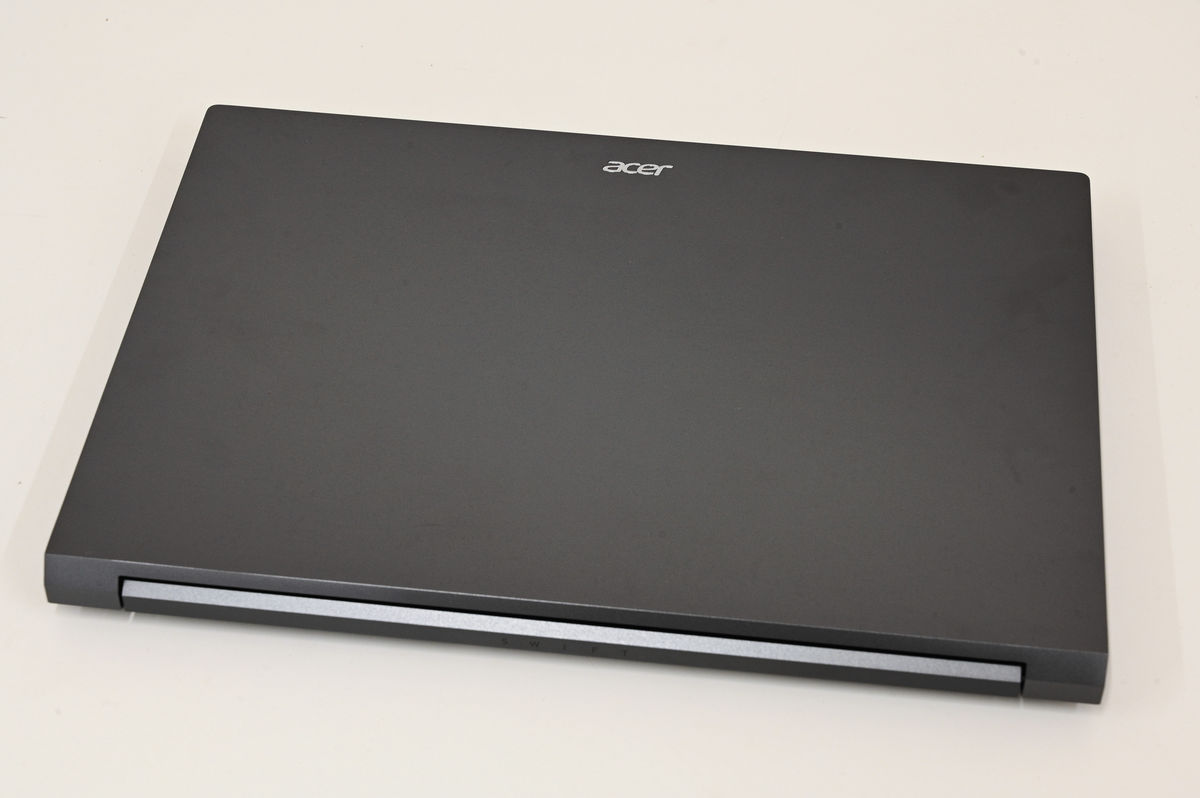
I took out the device. The display size is 14.5 inches, and the dimensions are 322.8mm x 228.1mm x 17.9mm. The 'Acer' logo is on the top.
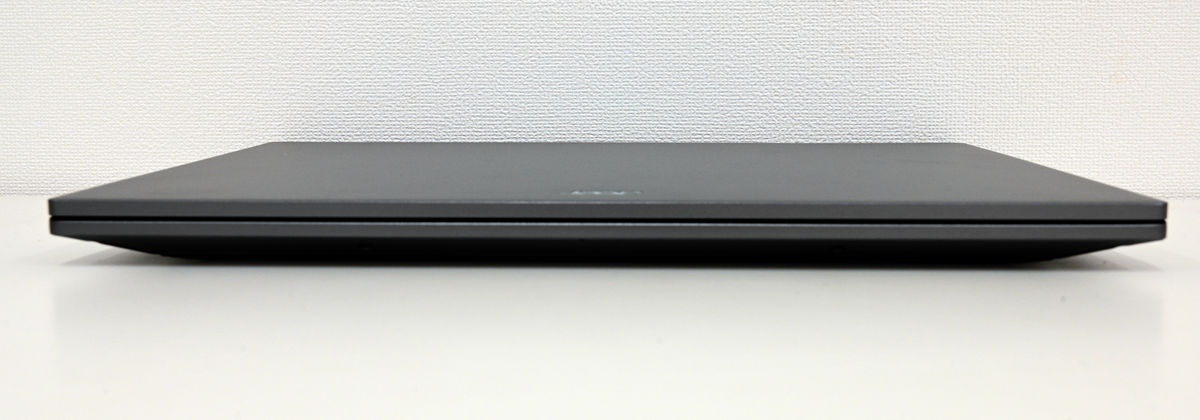
The front of the case looks like this when closed: There are no ports or indicators.
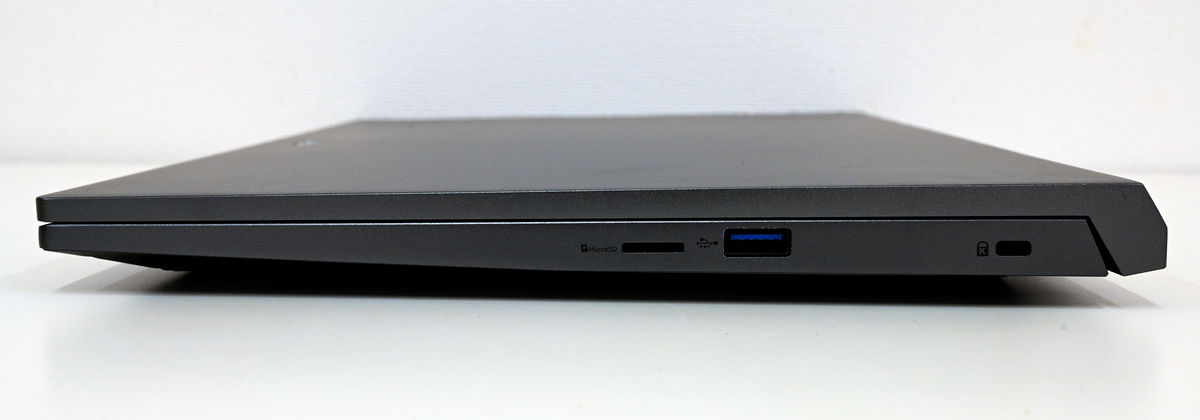
On the right side, from the front (left in the photo), there is a microSD card slot, a USB-A port (USB 3.2 Gen1), and a Kensington lock.
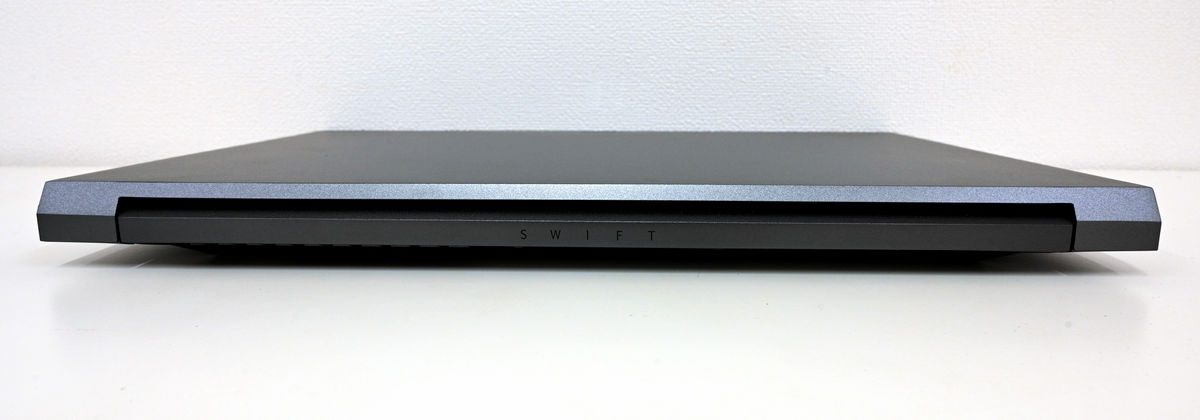
The back has the word 'SWIFT' on it.
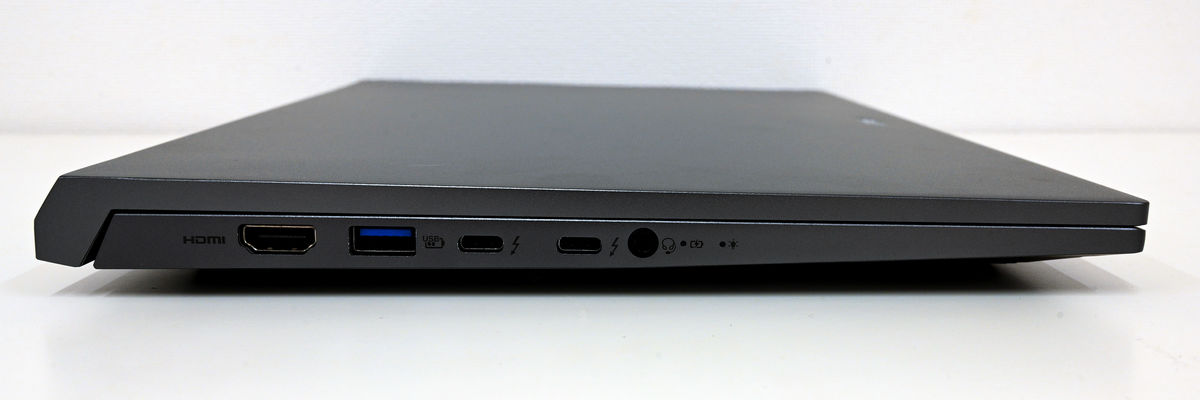
On the left side, from the back (left side of the photo), there is an HDMI port, a USB-A port (USB 3.2 Gen2), two USB Type-C ports (Thunderbolt 4), and a 3.5mm headphone jack.
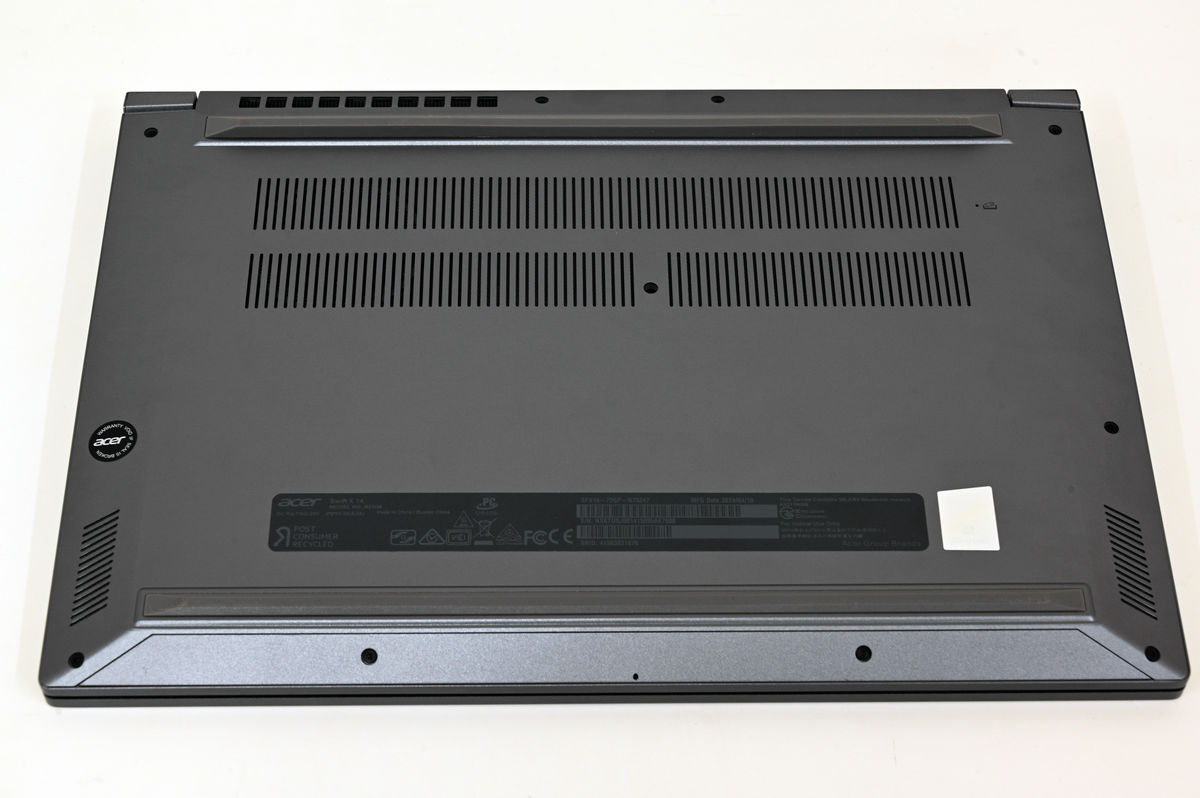
The bottom looks like this, with horizontal rubber feet at the back and front of the device, and multiple slits in the center of the bottom and on the left and right sides of the front.
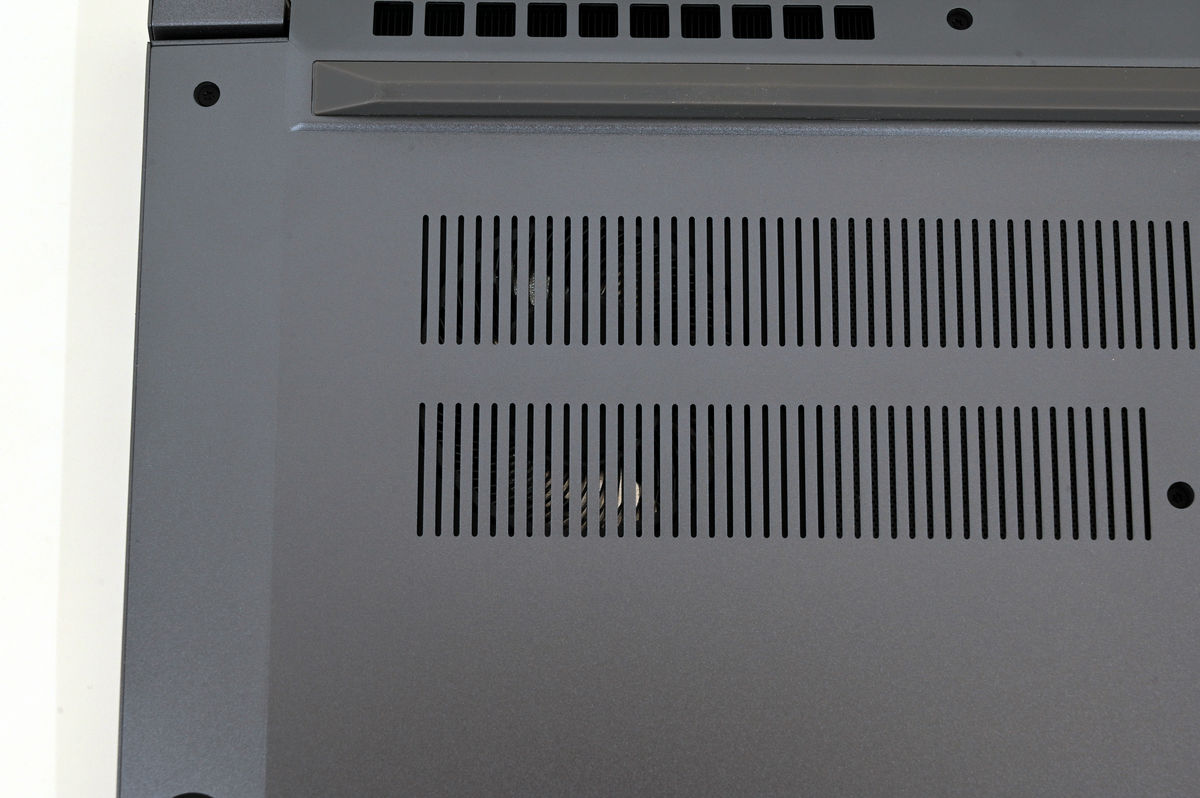
You can see the fan on the other side of the slit in the center of the bottom.
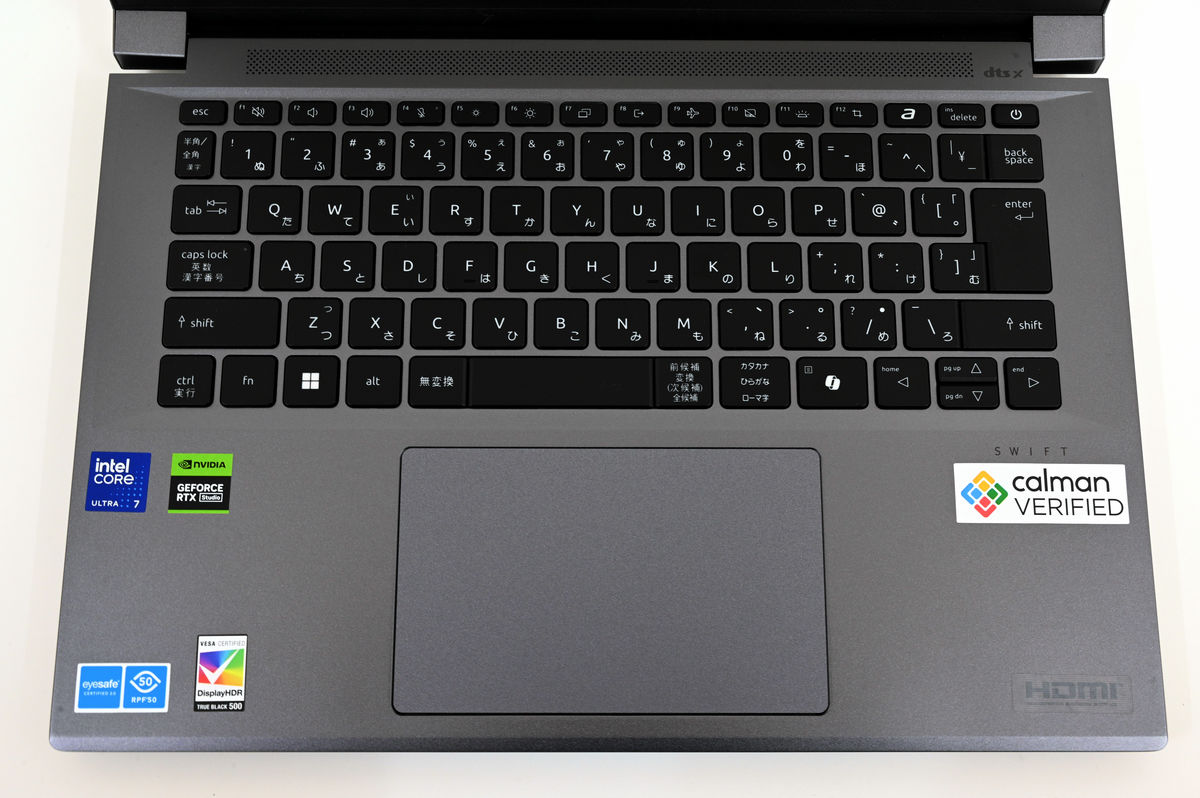
The keyboard looks like this, with each key acting as an isolated keyboard. The top row of function keys is initially assigned media key functions such as volume and screen brightness adjustment. To use them as 'F1' through 'F12,' you must also press the fn key. The power button is located on the far right of the top row. The bottom row has the ctrl and alt keys only to the left of the space bar, while the 'katakana, hiragana, and romaji' keys and the Copilot key are located to the right. The cursor keys have a small vertical movement. The key touch is neither heavy nor light, giving it a conventional feel. The touchpad is somewhat sensitive, and sometimes reacts when accidentally touched with the palm of your hand while using the keyboard.
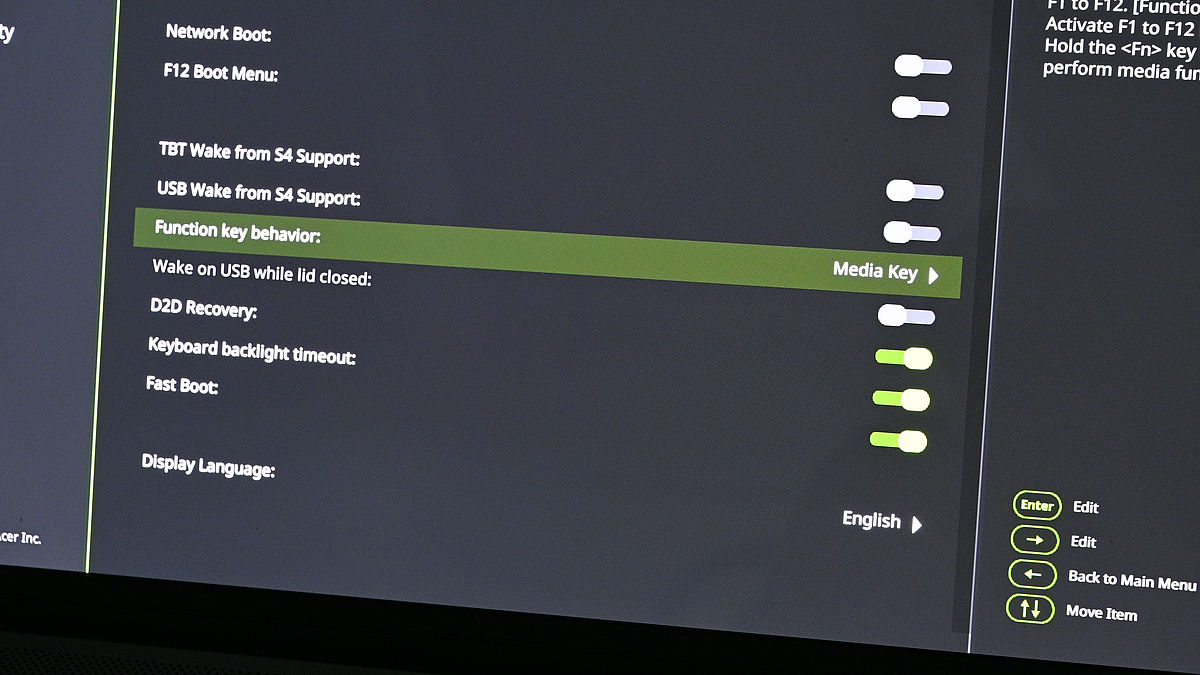
Regarding the function keys, you can select whether to prioritize media key functions or function keys in the BIOS menu, which you can access by pressing F2 when starting up your PC.
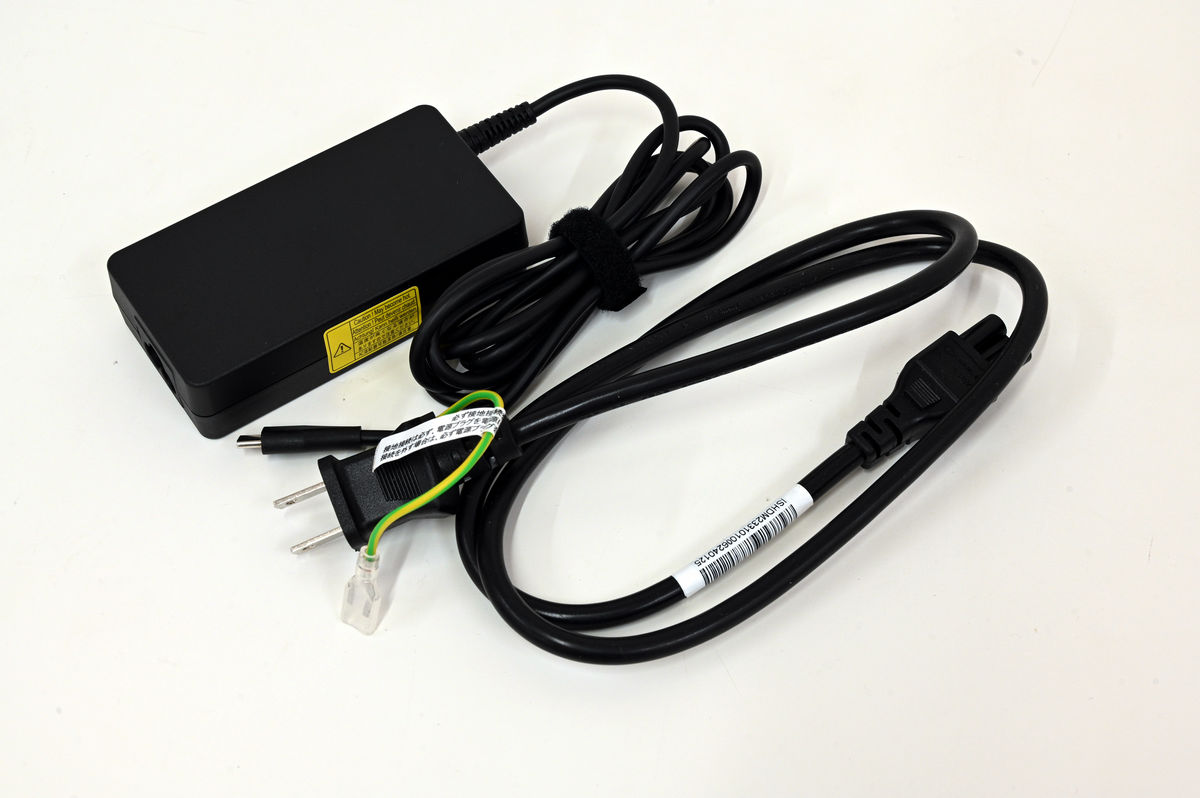
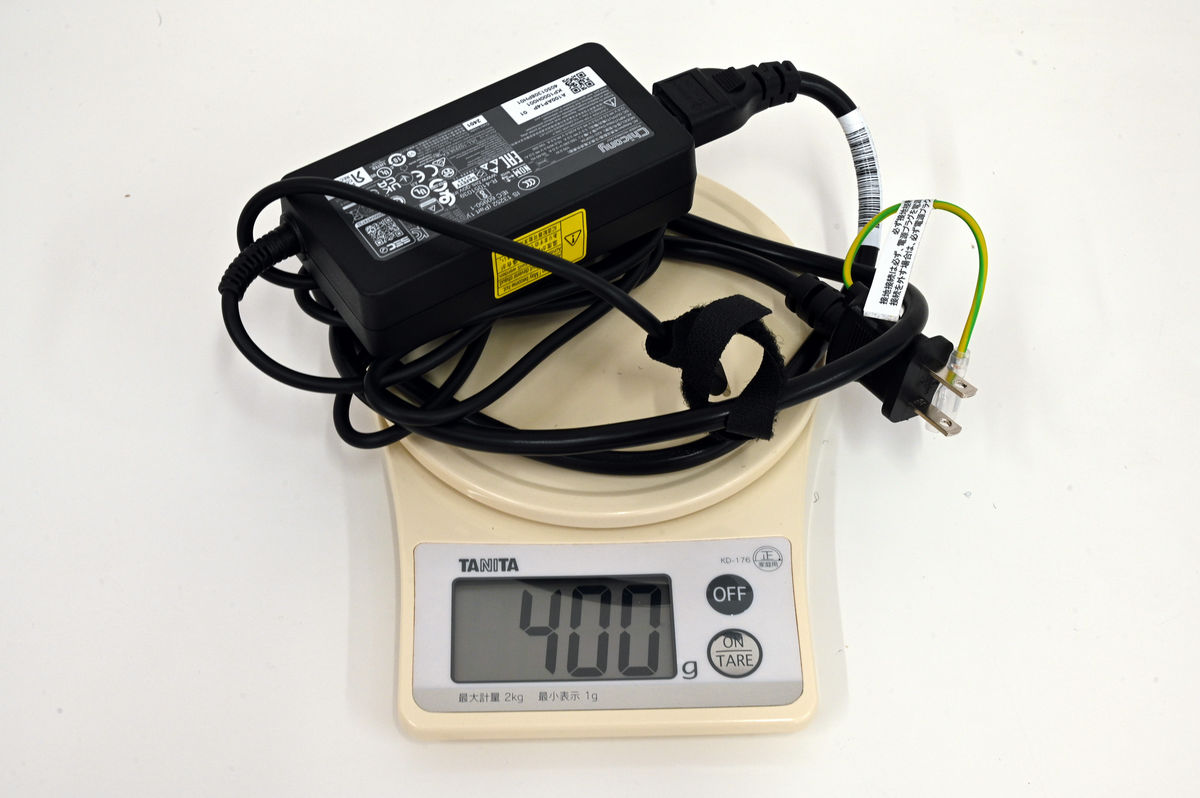
The AC adapter and power cable look like this, and it is powered by USB Type-C.
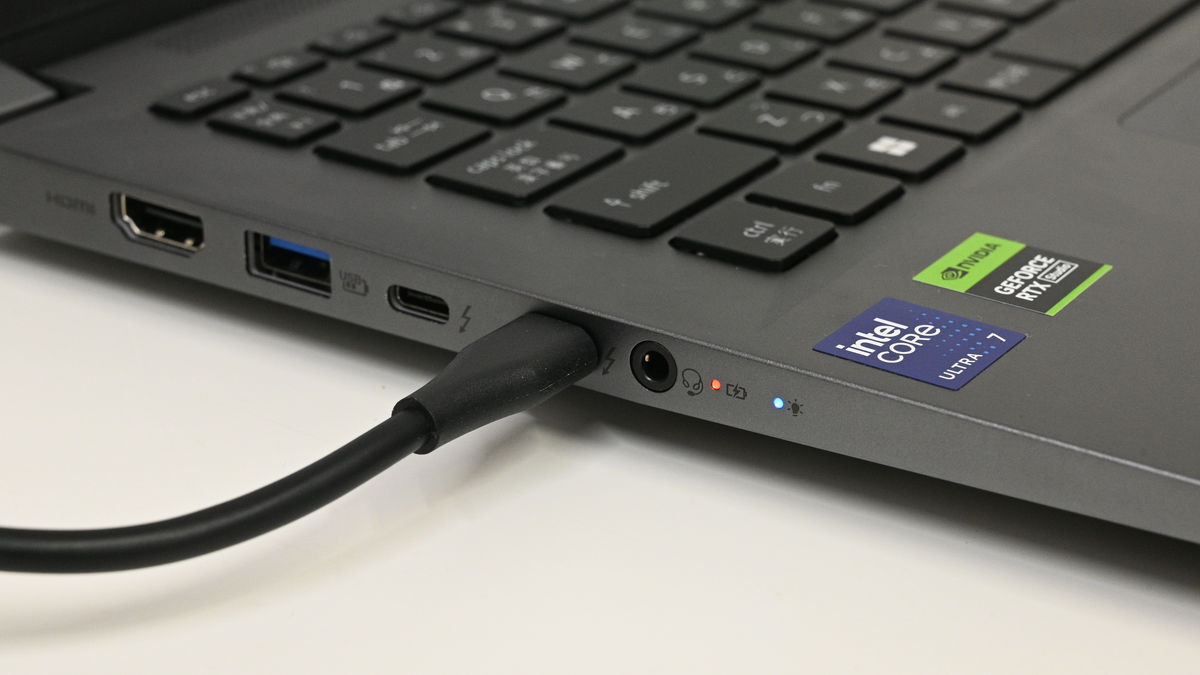
There are two indicators to the right of the 3.5mm earphone jack. The left one shows the battery status, glowing red when charging and blue when full. The right one shows the power status, glowing blue when powered on.
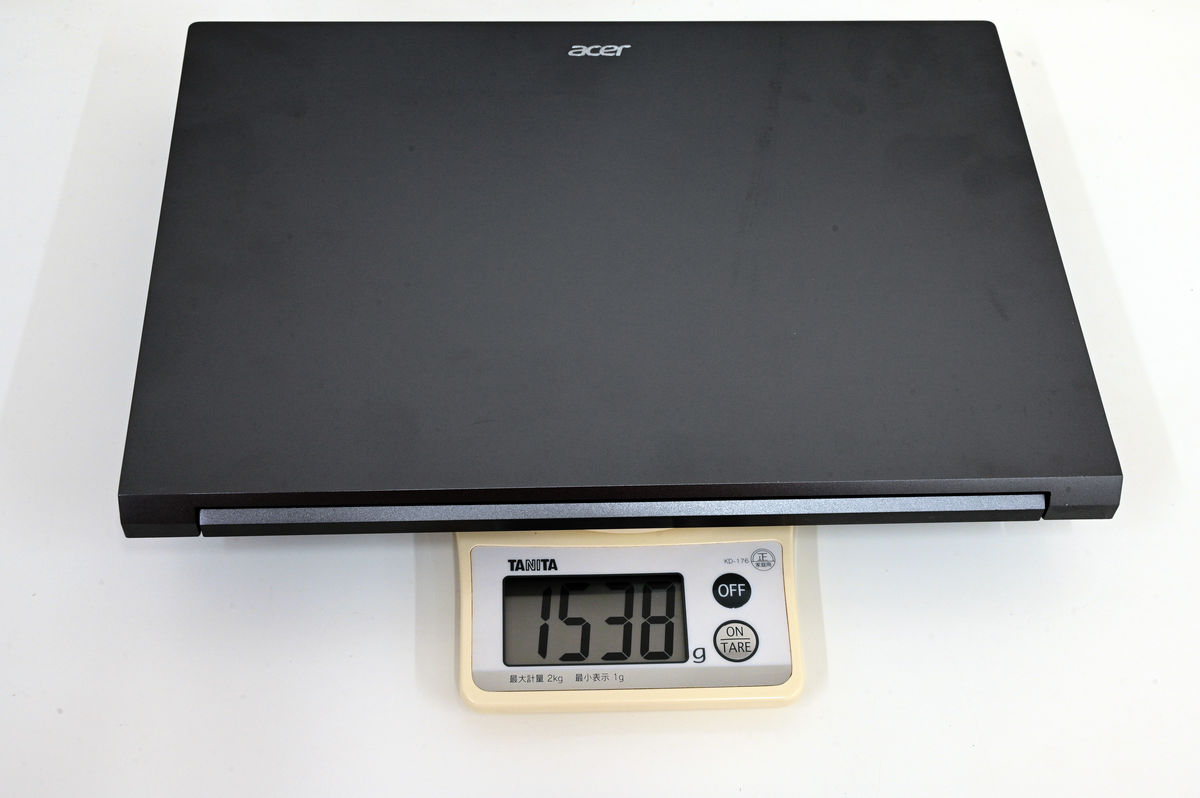
The actual weight of the main unit is 1538g.
The AC adapter and power cable weighed 400g in total.
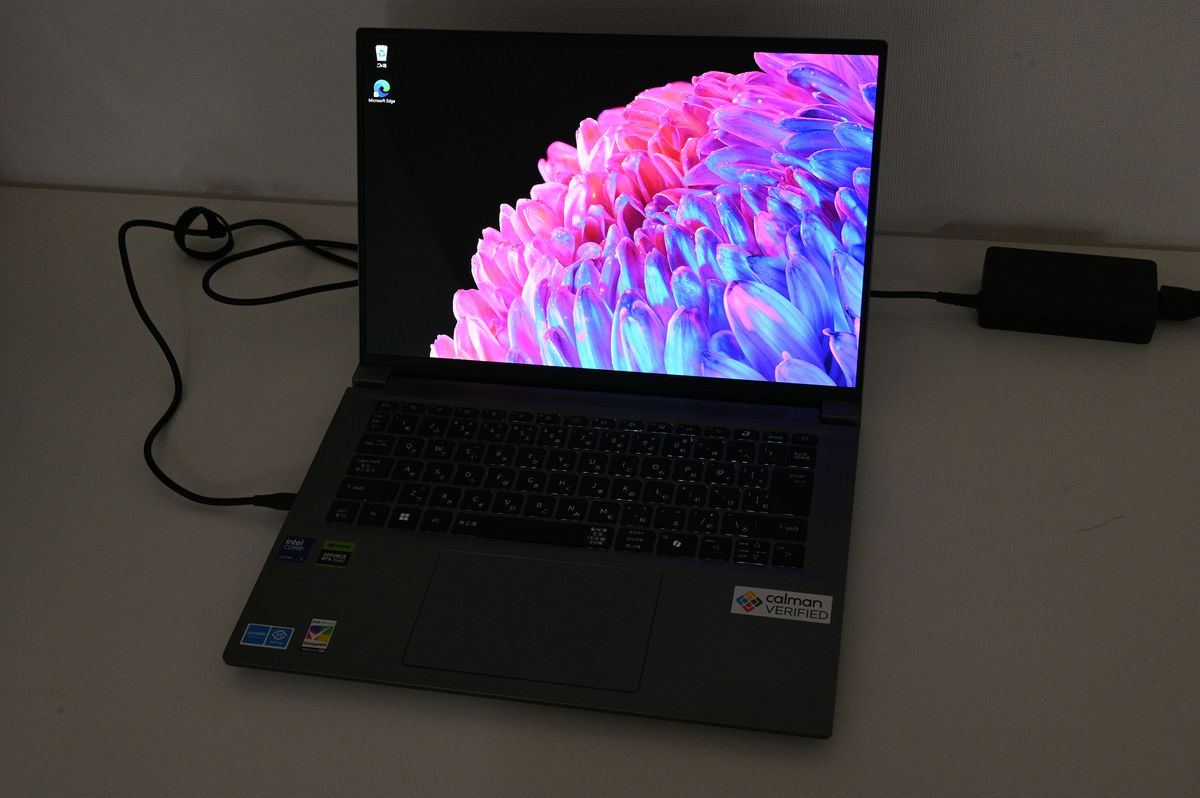
The startup screen looks like this. The photo was taken in a dark place with the keyboard backlight on so that the backlight could be seen.
This is what it looks like when the keyboard backlight is turned off.
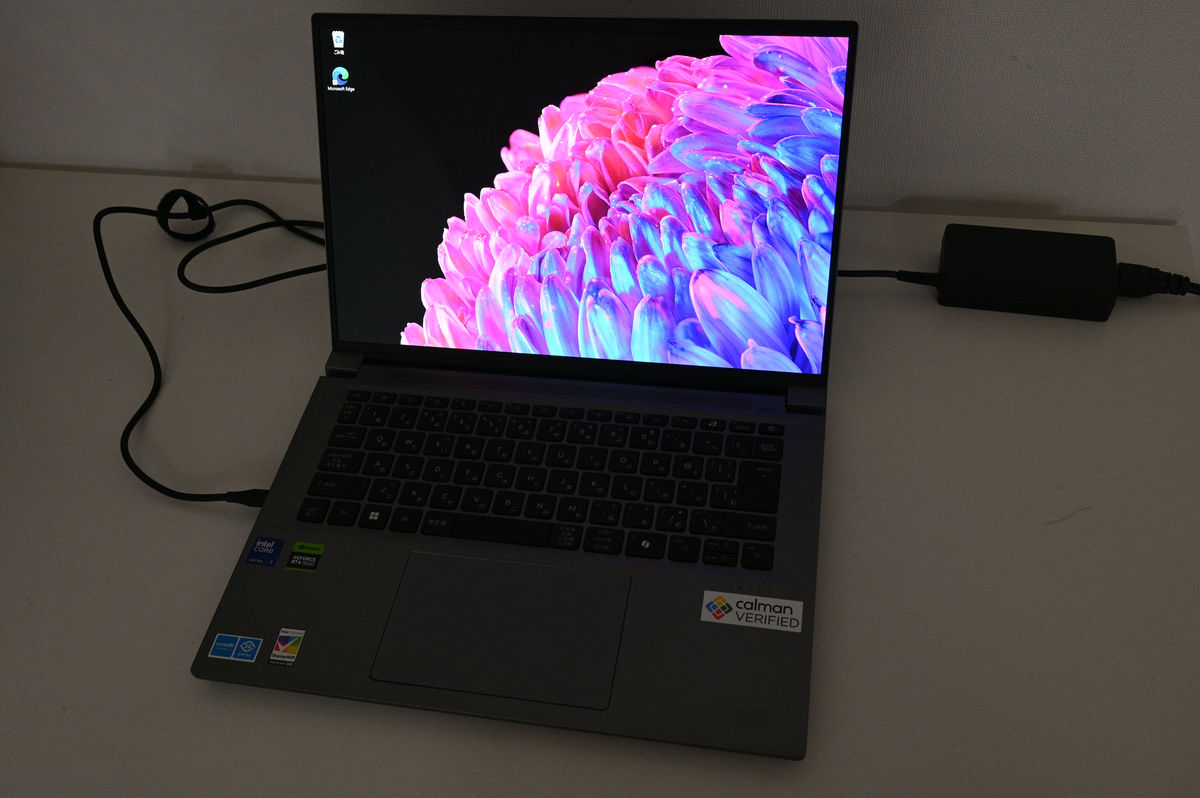
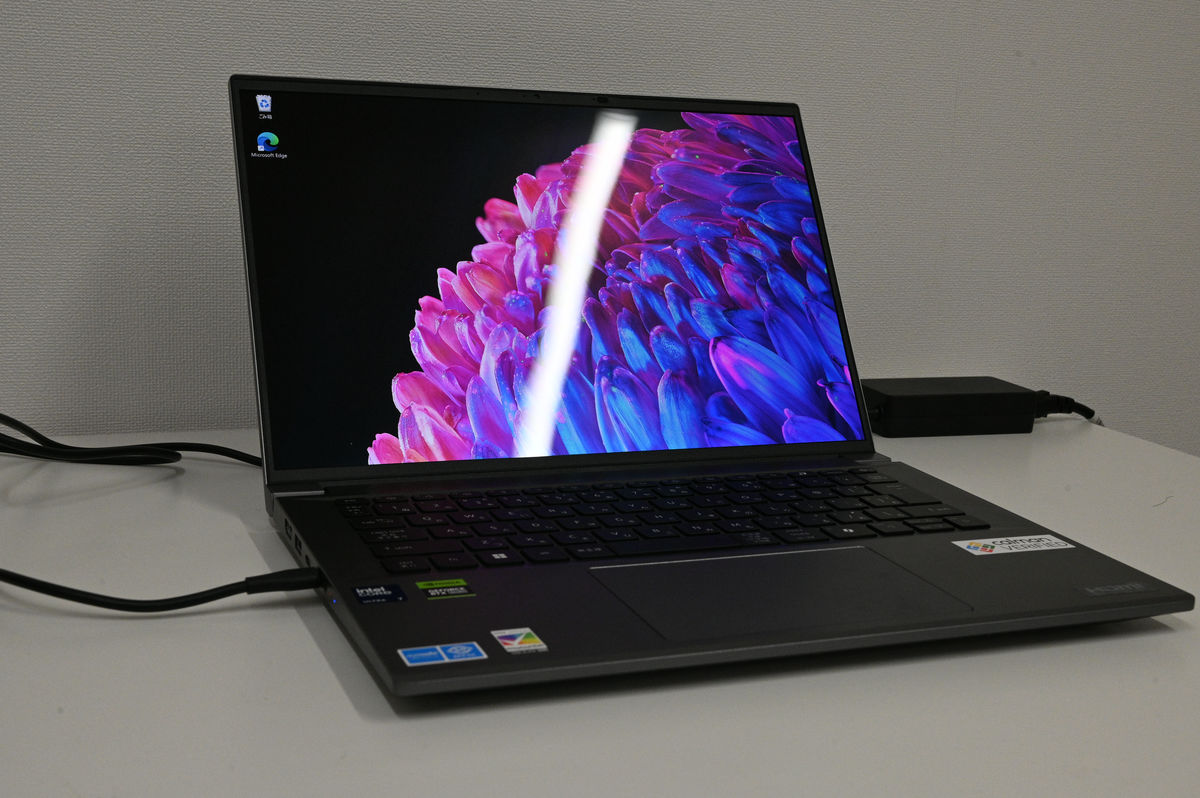
The display has very vivid colors, but the surface treatment is glossy and glare-free, so depending on the angle of the screen, reflections from lighting and other sources can be noticeable.
Next, start the PC and run the benchmark.
・Continued
Related Posts: